The Design Playbook Keeping Glenfiddich on Top of the Single-Malt Scotch Market


When William Grant & Sons introduced Glenfiddich to the American market in 1963, the Scottish distiller was taking a big risk.

Americans liked blended scotch—brands like J&B, for example, which funneled 42 different whiskeys into one bottle to deliver a soft, sweet flavor easy to mix with soda. Glenfiddich, by contrast, was a single malt scotch—complex and oaky, rich with flavors like walnuts and apples. It cost more, too.

Despite these odds, Glenfiddich found its audience and became the bestselling single-malt scotch in America—a title it still holds more than six decades later.

But a brand that leads a category faces the dual mandate of holding onto the legacy that defines it, while also staying contemporary enough to draw younger consumers.

That tricky balancing act is why Glenfiddich has updated its packaging every eight years or so. Next month, it will roll out its latest. ADWEEK asked the brand’s global head of innovation and design Jonathan Cornthwaite to point out some of the updates and explain the thinking behind each.

THE CANNISER – Glenfiddich’s 14-year-old variety comes in a clear bottle, but Cornthwaite’s team wanted to evoke the green of the original that hit liquor-store shelves in 1963. The paper sleeve’s hue has been refined to what he calls a “modern heritage green”—a key differentiator, because it’s “the first thing people see in a retail environment.”

THE WORD MARK – The upper- and lower-case serif typeface has ceded its place to a sans-serif in block caps with generous spacing. The treatment is a nod to the typeface that first appeared stateside, but the principal aim was legibility. “Most of the world doesn’t fare well with Gaelic names,” Cornthwaite said. “Making [the name] clear is an advantage to the average person looking at products on the shelf.”

THE WHITE SPACE – Verbiage on the packaging has gotten a crewcut: the canister and bottle have 66% and 72% fewer words, respectively, than they did before. Why? “We take recruiting people to single-malt scotch seriously,” Cornthwaite said. “Our job is to meet consumers where they want to be, and that pared-back aesthetic is less overwhelming, less confusing.”

THE STAG – Glenfiddich has used the stag (the consummate symbol of Scotland) for decades, but the buck is more prominent now. He’s also flanked by the brand’s founding year of 1887. (Grant & Sons distilled scotch for other brands for 76 years before creating Glenfiddich.) The logo conveys refinement while contextualizing the $60 price. “Everybody needs to feel like they’re buying into a luxury product,” Cornthwaite said.

THE CREST– In an era when so many top-shelf spirits belong to liquor leviathans like Diageo, Constellation Brands, and Pernod Ricard, Glenfiddich is an outlier: it’s still in the hands of founder William Grant’s family. Few visual cues reflect old-world pedigree better than a family crest. “If you can lay claim to a legacy that rich,” Cornthwaite said, “why would you not want to point it out?”

https://www.adweek.com/brand-marketing/the-design-playbook-keeping-glenfiddich-on-top-of-the-single-malt-scotch-market/


Don’t Miss the Moment with Tracy Sweeney

Two Built-in iPhone Features That Stop Time

From Tracy Sweeney’s session “Unleash Your iPhone’s Power for Stunning Portraits!” at last year’s iPhone Photography Conference, here’s a behind-the-scenes look at how I use Burst Mode and Live Photos to capture fast-moving kids and real emotion—without missing the moment.

[embedded content]

Capturing Fast Action with Burst Mode

This can be really effective if you’re photographing something like a child’s basketball game. You’re waiting for that perfect anticipatory shot, but you don’t know exactly when the moment is going to happen. That’s where Burst mode comes in. It’s ideal for fast-moving subjects because it gives you several options to choose from. Sometimes it’s a lot of junk, honestly—but the great thing is you can go in afterward and just select the one best image.

To use burst mode, open the Camera app and make sure you’re in Photo mode—not Video or Portrait. Then you simply swipe the shutter button to the left and hold it there. That starts taking a series of photos. When you lift your finger, it stops, and you’ve captured a whole succession of images in that instant.

Selecting and Managing Burst Photos

Once you’re done, head to your photo library and you’ll see the burst. In the upper left corner, you can see how many photos you captured. In this case, I took 71 images in a very short amount of time just by swiping and holding. When I lifted my finger, the burst completed. Now I can swipe through from the bottom to view all of my options and make selections of the images I like the most.

So for the photos I love, I don’t have to keep all 71 unless I want to. I’ll be prompted to either keep everything or keep only my favorites—maybe five. If you don’t want to miss a moment, and you’ve got tons of storage on your phone, go for it. But if you want to clean things up, you can just keep your top picks.

Now, another really cool feature is Live Photos.

Capturing Fast Action with Live Photos

Live Photos capture a moment in motion. When you take one, it records about one and a half seconds of video before and after you press the shutter button. So it creates this short animation that even includes sound. For someone like me who posts on social a lot for my business, this is really cool. My goal might be to create a still image, but then I can also use that same moment as an Instagram Reel or in a post where the image comes to life.

To take a Live Photo, open your camera and make sure you’re in Photo mode. Then check that Live Photo is turned on—you’ll see the icon at the top with the three circles that ascend in size. It’s on by default, but if you’ve tapped it off, just tap it again to activate it. Some people keep it off because the file size is larger, which I totally get.

To capture one, just tap the shutter button or use the camera control on your iPhone 16 or newer. To view it, go to your camera roll. You’ll see “Live” in the top left corner. Hold down on the image and you’ll see the animation play. You get the entire clip from before the shutter to after—it all gets pieced together into this really neat little moment.

This is especially powerful when photographing people. You’re not just capturing the moment—you’re capturing the emotion behind it. That sentiment is beautiful, and it gives us more creative options.

Editing Live Photos

The image itself has the photographic style attached to it. If I don’t love the look, I can edit and apply a different style that feels better. Everything is non-destructive, so I can edit to my heart’s content. Once I click Done, it’s still a Live Photo. If I hold it down, it still animates, which is really cool.

If I want to edit the animation itself, I need to save it as a video. Click the ellipses in the top right and choose Save as Video. Now it appears in my camera roll as a video and I can edit that clip. I won’t have as many options as I do with photographic styles, but I can still use filters like vivid, vivid warm, vivid cool, dramatic—these might already feel familiar since they’ve been on iPhones for a long time. And of course, I can still make individual adjustments throughout.

So between Burst mode and Live Photos, you’ve got some really powerful tools right in your pocket. Whether you’re photographing kids on the move, a game, or just those everyday moments you don’t want to miss, this gives you options. You’re not stuck with one frame—you can choose the best one, or even bring it to life. We’re not just capturing pictures, we’re capturing feeling and story. It helps you hold onto moments that go by way too fast.


Make Every Shot Count

The iPhone Photography Conference is back March 9–11, 2026, featuring three days of hands-on tips, creative approaches, and editing techniques from top industry pros. You’ll walk away ready to capture images you’re truly proud of—anytime, anywhere.

https://layersmagazine.com/dont-miss-the-moment-with-tracy-sweeney.html


Shooting RAW on the iPhone: When and How to Do It with Scott Kelby

This tip comes straight from Scott Kelby’s “iPhone Tips & Tricks” session at last year’s iPhone Photography Conference, where he broke down exactly when it makes sense to shoot RAW on your iPhone—and when it absolutely does not. If you’ve ever wondered whether those massive file sizes are actually worth it, Scott lays it out in classic no-nonsense fashion.


[embedded content]

RAW Reality Check

First off, it’s important to note that there are two types of RAW files, right? You’ve probably heard of ProRAW. If you’ve got one of the newer cameras, like the iPhone 15 Pro or newer—basically anything from the last couple of years—you’ve got this ProRAW format. It shoots in RAW, but the file sizes are huge. Every time you press the button, it’s 75 megabytes. SEVENTY-FIVE MEGABYTES.

A JPEG is usually around one megabyte. Or Apple uses HEIF compression, which is about one megabyte. That’s nothing. A RAW file is 75 megs. So when in the world would I use that? If I press the button 14 times, that’s a gig. That’s a gig of data for only 14 photos. What if I do a burst and hold it down? Boom—gig. So what I do is I leave my camera set all the time to JPEG.

JPEG looks great. Files look fine. It’s what we’ve been using on our iPhones forever. There’s no real downside. Sure, if you want to edit in Lightroom it’s nice to have the extra data from RAW. There are advantages. But I don’t know if 75 megabytes per click is enough advantage for me.

My Rule for RAW

So I only turn on RAW when I’m somewhere, taking pictures, and I look and go, “Oh man, this looks really, really good.” I might want at least one image at that 75-megabyte, 48-megapixel level. So I switch it to RAW, take the shot, and I’m good. Then I turn it right back off. That’s it. I turn it on for one shot, then turn it off.

Now here’s the second thing you might want to consider. You don’t have to shoot 48-megapixel RAW. You can do 12-megapixel RAW. It’s a third of the size. It’s still RAW. It’s still ProRAW. But now it’s about 25 megabytes each.

12 Megapixels Is Actually Plenty

I know some people are like, “I don’t know, Scott…12 megapixels? Is that enough?”

Let me put it this way. In 2009, Nikon came out with a groundbreaking camera. I was shooting Nikon then and I went out and bought the Nikon D3. Revolutionary camera. Incredible quality. Best low noise of any camera at that point in history. Killer camera.

It was 12.1 megapixels.

What were people paying? Five thousand dollars. Body only. No lens. Five grand for a 12-megapixel camera. And today we’re like, “Is 12 megs enough?”

I took an image with that D3 that ended up being used in a campaign for Elinchrom lighting. It was also on the entire side of their booth as a giant print.

Then Nikon licensed the image from me. Here I am speaking at Nikon’s booth in New York, and right under the word “Nikon,” there’s the image as a massive framed print.

That was a 12-megapixel image. How big are you planning to print that you need more than 12? Trust me. Twelve megapixels is plenty.

Change It up on the Fly

Here’s how you set it up so you can toggle RAW on and off when you need it.

Step one: Go to Settings. Then go to Camera. Then go to Formats.

The default is ProRAW Max. Make sure ProRAW is turned on. This is where you decide—do you really need 48 megapixels, or can you get away with ProRAW 12 megapixel?

Now here’s the interesting thing. You’ve chosen 12 RAW, right? But you’re not actually shooting RAW yet. You’ve just told your camera, “I might shoot RAW in the future. Be ready.”

So when you’re ready to shoot RAW, look at the top right corner of your camera screen. You’ll see it says RAW and it says 12. But there’s a line through it. That means you’re still shooting JPEG.

Tap it. Line goes away. Now you’re shooting RAW.

When you’re done? Tap it again. Back to JPEG.

If you tap and hold, you can change it. Like if you suddenly decide, “This image is about to change people’s lives. I need 48 megapixels.” Tap and hold. The pop-up menu appears. You’re good.

There’s also JPEG Max. That’s a 48-megapixel JPEG. Much smaller than RAW, but still high resolution.

No RAW on Your iPhone? Here’s the Workaround

Most iPhones today shoot in RAW. But if you’ve got a model that doesn’t, download Lightroom Mobile. Lightroom Mobile lets you shoot RAW. Just tap up top where it says JPEG. A little file format window pops up. Choose DNG, which is Adobe’s open-source RAW format. Now you’re shooting RAW.


Make Every Shot Count

The iPhone Photography Conference is back March 9–11, 2026, featuring three days of hands-on tips, creative approaches, and editing techniques from top industry pros. You’ll walk away ready to capture images you’re truly proud of—anytime, anywhere.

https://layersmagazine.com/shooting-raw-on-the-iphone-when-and-how-to-do-it-with-scott-kelby.html


Learn How the Pros Make Masterpieces With Ultralight Gear

It’s time to rethink what “going pro” really looks like. Hauling a giant camera bag stuffed with bodies and lenses isn’t the only path to professional results anymore. Today’s iPhone cameras are so powerful that photographers are traveling lighter, moving faster, and still creating jaw-dropping images. That’s exactly what the iPhone Photography Conference is about — helping you sharpen your creative eye, elevate your craft, and capture stunning images with intention instead of weight. Join us from anywhere March 9–11, 2026 for three live online days of learning, inspiration, and serious creative momentum.

Your Dream Team Is Assembled

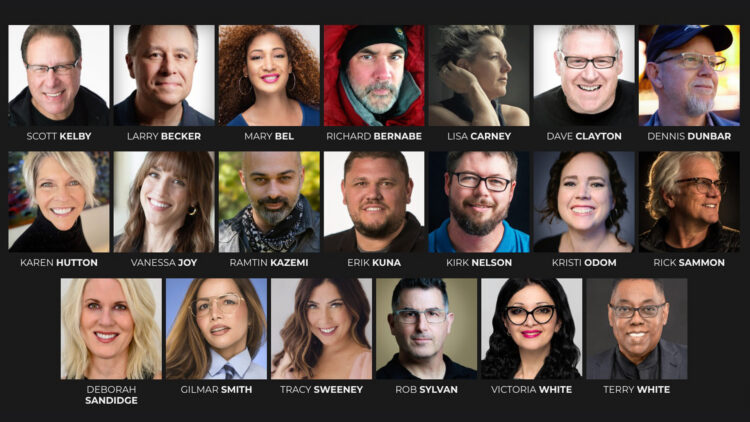
We’ve lined up a dream team of instructors — working pros across travel, street, portrait, landscape, commercial, and even astro photography — ready to show you how they make magic with the camera they carry everywhere. These creatives don’t just talk theory; they walk you through the real workflows they use every day to capture, edit, and deliver images that stop people in their tracks.

Learn to Make Images That Connect

Two high-energy days of live sessions, plus a bonus pre-conference day, will take you from “I want to try this” to “I just nailed it.” You’ll learn how to create expressive portraits with natural or studio light, shoot after dark (yes—even spectacular Milky Way and aurora shots), and capture magazine-quality travel images without lugging a bag full of heavy, expensive gear. We’ll cover composition, storytelling, and the latest editing workflows so your photos don’t just look great—they connect. From sweeping landscapes to macro details to documentary-style stories, our instructors will show you how to see differently, shoot smarter, and finish strong — starting with your iPhone and extending through mobile or desktop post-processing in Lightroom and Photoshop, and their favorite apps.

More Than a Conference — A Creative Leap

Whether you already shoot regularly on your iPhone or are ready to start treating it like a pro-level camera, this conference will push your mobile photography further than you thought possible. You’ll walk away with a skillset that works anywhere — giving you the confidence to capture sharp, striking, and fully realized images every time you pick up your iPhone.

Ready to make every shot count? Click the button below to grab your ticket, see full event details, and join photographers from around the world for three days of inspiration, insight, and serious creative growth.

https://layersmagazine.com/learn-how-the-pros-make-masterpieces-with-ultralight-gear.html


This Masking Tool in Lightroom is a Game Changer

Masking used to be one of the most frustrating parts of working in Lightroom Classic. Too many tools, too many decisions, and too much time spent trying to get a clean selection.

That’s changed in a big way—but a lot of photographers haven’t noticed yet.

One masking tool that changes everything

There’s one masking tool that fundamentally changes how you target and adjust specific parts of your photo. It’s faster, more intuitive, and eliminates much of the guesswork that used to slow edits down.

Click below to watch a free tip from Unlocking the Power of Lightroom’s Masking and see why you should not sleep on this tool!

Unlocking the Power of Lightroom’s Masking is just one part of The Complete Lightroom Learning System, a brand-new learning track included in a KelbyOne Membership. It’s designed to bring you up to speed quickly and help you take control of your Lightroom life.

https://layersmagazine.com/this-masking-tool-in-lightroom-is-a-game-changer.html


Editing Color in Lightroom Doesn’t Need to Be Complicated

Color is one of the most powerful parts of Lightroom Classic—but for many photographers, it’s also where edits start to feel overwhelming. With newer tools and more options than ever, it’s easy to second-guess yourself or feel unsure where to begin.

What’s the better launching point for your edit—Auto or Adaptive Color?

Click below for a free tip from Scott Kelby’s course How to Edit Like a Pro with Scott’s Seven Point System, inside The Complete Lightroom Learning System, our brand-new learning track.

Take the guesswork out of your editing workflow by applying Scott’s 7 Point System to your photography! This is the exact system Scott uses on his own photos, and he’s completely updated it to leverage the latest features in Lightroom Classic. It’s just one part of The Complete Lightroom Learning System—included in a KelbyOne membership. A system designed to make Lightroom feel clear, logical, and predictable again.

https://layersmagazine.com/editing-color-in-lightroom-doesnt-need-to-be-complicated.html


The Best Vintage Fonts Every Designer Should Have in Their Toolkit

There are many vintage fonts out there, but not many have been expertly crafted by a talented lettering artist who lives and breathes the vintage aesthetic. The Vintage Font Bundle from Heritage Type Co. contains 6 typefaces designed by Tobias Saul, whose inspirational vintage logos and type designs have been featured many times in showcases on Spoon Graphics. These beautiful fonts authentically capture the style of late 19th to early 20th century lettering and are packed full of features, such as alternate characters, ornamental graphics, and even ready-made logo templates. The bundle is currently on offer with 70% off, but I’ve teamed up with Heritage Type Co. to offer Spoon Graphics readers an extra 10% discount code, making the final price $44 ($149). Use the code SPOONER during checkout to secure the best price around!

The Vintage Font Bundle

The Vintage Font Bundle contains 6 typefaces in a variety of styles that can be used individually or combined to produce perfectly complementing font pairs. It includes the Blackriver font, which is inspired by old packaging designs; Royal Signage, which is based on vintage sign art; the victorian style Old Alfie and its duo Old Erika; Brilon, which is inspired by the Art Deco era; and the elegant Mirosa, which alone has over 400 alternate characters!

Additional Logo Templates and Ornaments

Also included in the bundle are 25 ready-made logo templates and type layouts for Adobe Illustrator, plus over 200 ornamental elements and frames so you can easily create your own beautiful vintage style designs.

How to create an ornate logo design

For an idea of how you could use these fonts and vector assets to create custom artwork, check out this detailed tutorial by Tobias Saul on how to create an ornate logo design, from the initial concept to exporting the final design files. The example design uses the Royal Signage and Old Erika fonts, plus several of the included vector ornaments from the collection to construct a beautiful vintage brand.

Benefit from an additional 10% discount on top of the current sale price with the code SPOONER to purchase The Vintage Font Bundle for $44.

Buy The Vintage Font Bundle for $44

20% Off Heritage Type Milkstore Collection Discount Code
20% Off Heritage Type Discount Code: Vintage Logo Bundle
Heritage Type Vintage Font Bundle Discount Code: Extra 10% Off!
20% Off Heritage Type Discount Code: Nostalgic Font & Label Collection

https://blog.spoongraphics.co.uk/latest_news/the-best-vintage-fonts-every-designer-should-have-in-their-toolkit


12 Photographer Portfolios Packed With Ideas and Inspiration

In the saturated creative landscape, your work deserves an online presence that is as refined and uncompromising as your images. When leading photographers, artists, and visual creatives need an online portfolio that understands their needs, they choose Format to easily build a professional website that performs. Countless artists rely on Format to present their work—including many recognized names already featured here on Booooooom. We’re proud to support the world’s best image-makers by amplifying resources and giving inspiration.

Here is a selection of twelve photographers whose sites serve as exceptional examples of visual storytelling, curation, and online gallery design. Showcase your work with the same level of creativity and confidence. Click here to start a 14-day free trial and explore Format’s designer templates, features and workflow tools made for photographers.

https://www.booooooom.com/2025/12/11/12-photographer-portfolios-packed-with-ideas-and-inspiration/


Photoshop Color Adjustments with the New Adjust Colors Tool with Kirk Nelson

Photoshop is full of long-time habits—and sometimes those habits keep us from noticing when a newer tool can make life a lot easier. In this excerpt from Kirk Nelson’s Photoshop World session, “Photoshop Has Changed, So Should You!, Kirk walks through the new Adjust Colors feature and shows how combining it with Photoshop’s smarter selections can dramatically speed up the color-change workflow. It’s a quick, practical update that fits right into the way photographers already work.

A Faster Way to Change Colors

Color adjustments have always been a big part of working in Photoshop—but Adobe has finally given us a way to handle them that doesn’t involve a dozen steps and a lot of cleanup.

This example starts with a shot I took while working with one of the teams. Let’s say we want to change the color of her jersey.

Now, there are a lot of ways to do this in Photoshop. Too many, honestly. And if you’ve taken my classes before, you know I’ve always gravitated toward Hue/Saturation. From the Contextual Task Bar, that’s accessed by the… what are they calling it now, the New York cookie? Black-and-white cookie? It’s the Create New Adjustment Layer icon.

All this does is click us over to the Adjustments panel. We were on Properties so we were over there anyway. In this instance the Contextual Task Bar doesn’t save us any time, really.

Hue/Sat absolutely works, but it takes a lot of fussing. As soon as you start dragging that hue slider or the Targeted Adjustment Tool (which I used), you’re not just shifting the jersey—you’re also adjusting the ball and anything else Photoshop thinks is in that color family. Then you’re messing with those little color-range brackets, trying to widen or narrow them. Before you know it, you’re cleaning up masks and doing way more work than you meant to.

Let’s delete all that and create our Hue/Saturation adjustment the new way.

Meet the Adjust Colors Tool

With the new Adjust Colors option in the Contextual Task Bar, Photoshop identifies the prominent colors in the image. Click the blue swatch and it targets the blues instantly.

At first, it still changes everything blue—you start moving sliders around, trying to pull the hue one way or the other, and Photoshop just grabs every blue pixel it can find. And I know what you’re thinking. You’re like, “Ha! Ha! That’s the same issue you had doing it the old way.” As my kids would say… “don’t @ me. I get it. But this is where the combination of new tools really clicks.

Use Object Selection to Get Specific

Instead of relying only on color, let Photoshop help. Grab the Object Selection Tool. Let it think for a moment. Then go to Select > Select People—Photoshop recognizes her right away. From there, choose Upper Clothes.

With a few clicks, Photoshop isolates just the jersey.

Could we have done that before? Not in the three clicks that that just took, that’s for sure. So now, the issue would be, now we don’t have that little adjust color thing over here. Where did that go? Why don’t we have that? Where is it? Honestly guys, I expect that in future generations of the program, we’re going to be able to put custom features in that Contextual Task Bar. It’s not there yet.

Here’s a little hack for what I’m going to do here. We’ve already got this selection. I’m going to go ahead and make that a mask. So it’s just there. Okay. Click back on the image. Now look, my Adjust Colors button is back. And when I click it, it just gives me the colors in the area that’s been masked out. So it’s just in this. Now, it’s still going to be applied to the entire image, but we just made a mask telling it where we want it to be, but the mask is just on the wrong layer. It’s on our base layer and not on the adjustment. Simply drag that mask up onto the adjustment layer. Yes, Photoshop warns you it’s replacing the mask. Yes, that’s what we want. Photoshop… relax.

Pick the blue again, shift the hue, and now only the jersey changes. No more collateral damage.

Why This Workflow Works So Well

When you combine Object Selection with Adjust Colors, this becomes one of the fastest ways to target and shift a color in an image. The prominent colors update, the mask keeps things contained, and the whole process feels natural and intuitive.

You can refresh the colors, switch to presets, or even adjust everything at once with the Master option. When I had to mock up different jersey colors for a coach, this literally saved me hours. No more old-school fiddling with hue brackets or cleaning up messy masks. It’s just… easy.

Adobe has changed Photoshop a lot in the last few years, and this is one tool that really shows how those changes can work in your favor.

Unlock the Best of KelbyOne Live 2025

Not a member yet? Join KelbyOne and, along with full membership benefits, you’ll unlock immediate access to The Best of KelbyOne Live 2025. This curated assortment of conference sessions from top photographers and educators is packed with Lightroom, Photoshop, iPhone, and creative workflow tips—everything you need to expand your skills and create your best images in 2026.

https://layersmagazine.com/photoshop-color-adjustments-with-the-new-adjust-colors-tool-with-kirk-nelson.html


Join Scott & Erik LIVE This Cyber Monday

Cyber Monday is going to be BIG this year — and we’re kicking it off with a special live webcast hosted by Scott Kelby and Erik Kuna!

 Monday, December 1, 2025
 11:00 AM ET
 Streaming on Facebook, YouTube, and the KelbyOne Members Site

Scott and Erik will be walking through everything happening right now at KelbyOne — including an inside look at our brand-new track, The Complete Lightroom Learning System (which is quickly becoming a member favorite).

If you want the full scoop on all things Cyber Monday, make sure you join us live!

https://layersmagazine.com/join-scott-erik-live-this-cyber-monday.html