Snapchat: How to Change a Snap’s Playback Speed


.article-native-ad { border-bottom: 1px solid #ddd; margin: 0 45px; padding-bottom: 20px; margin-bottom: 20px; } .article-native-ad svg { color: #ddd; font-size: 34px; margin-top: 10px; } .article-native-ad p { line-height:1.5; padding:0!important; padding-left: 10px!important; } .article-native-ad strong { font-weight:500; color:rgb(46,179,178); }

Learn how to harness the rising influence of the creator economy with marketing insights from brands including McDonald’s, Bombas and Duolingo at Social Media Week, May 16–18. Register now to save 30%.

Snapchat’s “Director Mode” gives creators access to a variety of tools they can use when creating Snaps. One of these tools allows users to change the playback speed of their video clips. With this tool, users can cause clips to play slower or faster than they normally would.

Our guide will show you how to change a clip’s playback speed in the Snapchat mobile application.

Note: These screenshots were captured in the Snapchat app on iOS.

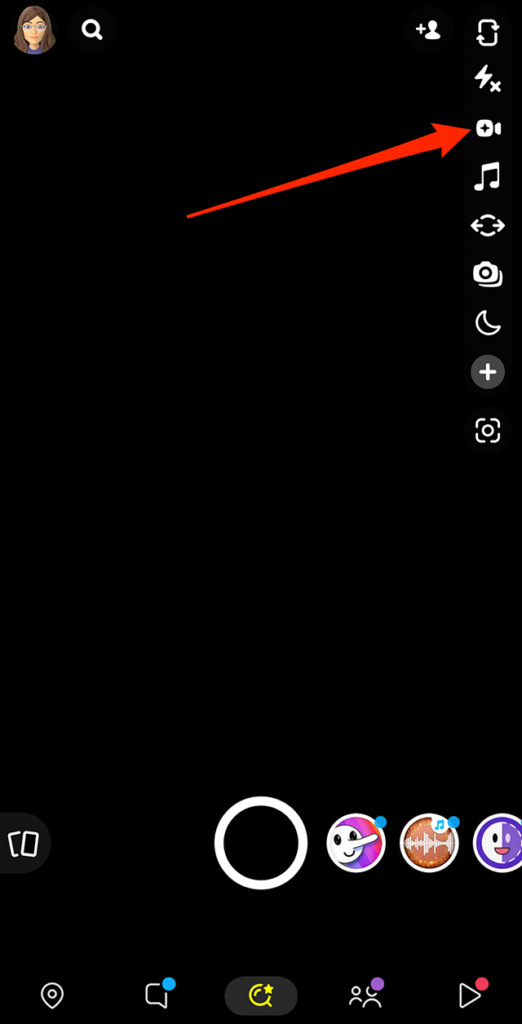
Step 1: On Snapchat’s camera screen, tap the video camera icon on the right side of the screen to turn on “Director Mode.”

image

Step 2: Tap the speedometer icon on the right side of the screen.

image

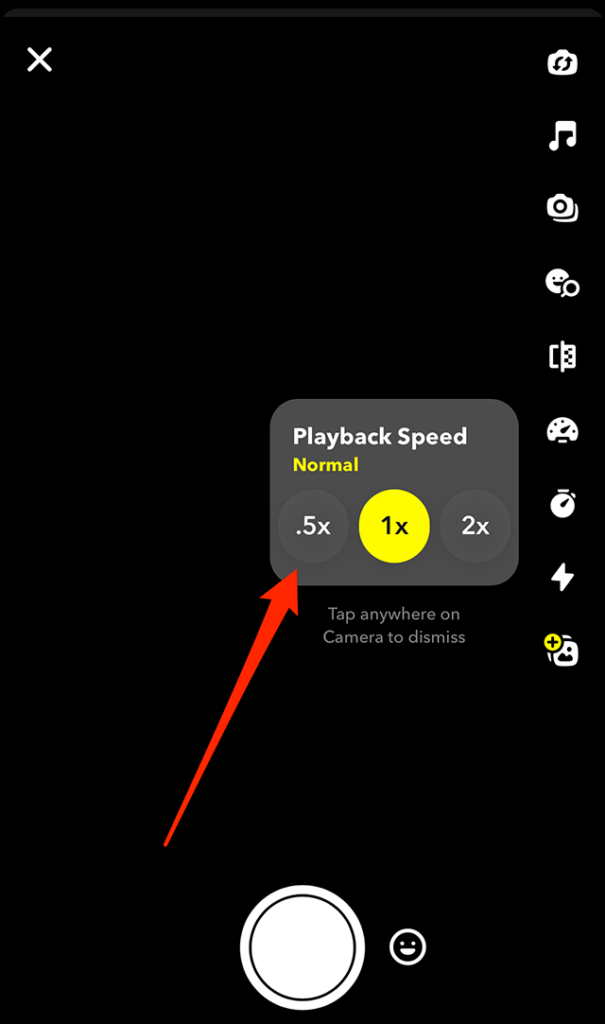
Step 3: Tap “.5x” if you want your clip to play in slow motion, or tap “2x” if you want your clip to play back at twice the normal speed.

image

Now, you can tap the capture button near the bottom of the screen to record a clip as you normally would. When you view the clip, it will play slower or faster than normal, depending on your selection.
image
.font-primary { } .font-secondary { } #meter-count { position: fixed; z-index: 9999999; bottom: 0; width:96%; margin: 2%; -webkit-border-radius: 4px; -moz-border-radius: 4px; border-radius: 4px; -webkit-box-shadow: 0 0px 15px 4px rgba(0,0,0,.2); box-shadow:0 0px 15px 4px rgba(0,0,0,.2); padding: 15px 0; color:#fff; background-color:#343a40; } #meter-count .icon { width: auto; opacity:.8; } #meter-count .icon svg { height: 36px; width: auto; } #meter-count .btn-subscribe { font-size:14px; font-weight:bold; padding:7px 18px; color: #fff; background-color: #2eb3b2; border:none; text-transform: capitalize; margin-right:10px; } #meter-count .btn-subscribe:hover { color: #fff; opacity:.8; } #meter-count .btn-signin { font-size:14px; font-weight:bold; padding:7px 14px; color: #fff; background-color: #121212; border:none; text-transform: capitalize; } #meter-count .btn-signin:hover { color: #fff; opacity:.8; } #meter-count h3 { color:#fff!important; letter-spacing:0px!important; margin:0; padding:0; font-size:16px; line-height:1.5; font-weight:700; margin: 0!important; padding: 0!important; } #meter-count h3 span { color:#E50000!important; font-weight:900; } #meter-count p { font-size:14px; font-weight:500; line-height:1.4; color:#eee!important; margin: 0!important; padding: 0!important; } #meter-count .close { color:#fff; display:block; position:absolute; top: 4px; right:4px; z-index: 999999; } #meter-count .close svg { display:block; color:#fff; height:16px; width:auto; cursor:pointer; } #meter-count .close:hover svg { color:#E50000; } #meter-count .fw-600 { font-weight:600; } @media (max-width: 1079px) { #meter-count .icon { margin:0; padding:0; display:none; } } @media (max-width: 768px) { #meter-count { margin: 0; -webkit-border-radius: 0px; -moz-border-radius: 0px; border-radius: 0px; width:100%; -webkit-box-shadow: 0 -8px 10px -4px rgba(0,0,0,0.3); box-shadow: 0 -8px 10px -4px rgba(0,0,0,0.3); } #meter-count .icon { margin:0; padding:0; display:none; } #meter-count h3 { color:#fff!important; font-size:14px; } #meter-count p { color:#fff!important; font-size: 12px; font-weight: 500; } #meter-count .btn-subscribe, #meter-count .btn-signin { font-size:12px; padding:7px 12px; } #meter-count .btn-signin { display:none; } #meter-count .close svg { height:14px; } }

Enjoying Adweek’s Content? Register for More Access!

https://www.adweek.com/social-marketing/snapchat-how-to-change-a-snaps-playback-speed/