Dealmaster: All the Apple devices worth buying at Black Friday prices
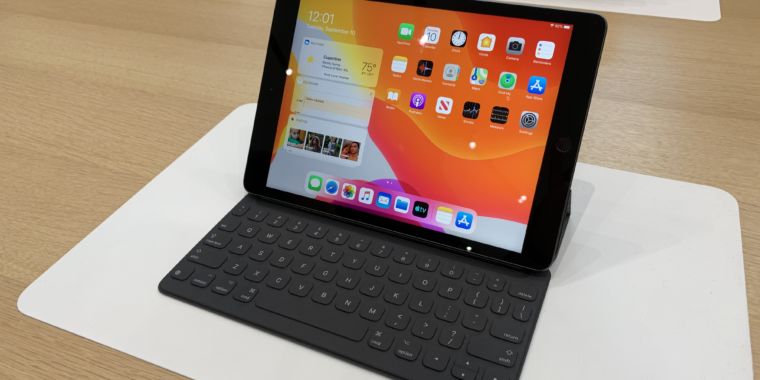
Enlarge/ The 2019, seventh-generation iPad with a 10.2-inch display.
Samuel Axon
Apple devices are constantly in high demand, and yet they rarely go on sale. But for Black Friday 2019, a number of retailers have sales and discounts on some of the most popular Apple products as of late.
Let’s start with Apple’s wireless earbuds—AirPods are now $139 at Amazon, and that includes the standard charging case. These are the second-generation AirPods and the regular charging case; the optional wireless charging case is available separately at its regular price of $79. AirPods were down to $129 a few hours ago, but that deal appears to have expired. Regardless, this AirPods bundle gives you the essentials at a good sale price.
The new AirPods Pro are also on sale today—now you can get the new and improved earbuds for $234.98, which is about $15 off their regular price of $250. These are in-ear version of the original AirPods, which could make them more comfortable for those that found the shape of AirPods less than ideal. AirPods Pro use the same H1chip found in second-gen AirPods to pair with Apple devices, but the have active noise cancellation and “transparency mode,” features that the original AirPods do not have. The former mode blocks out ambient noise, while the latter mode lets in some external sound so it’s easier to hear others around you.
Target has the 38mm Apple Watch Series 3 for $169, while the 42mm model is $199. That’s $30 cheaper than you’ll find those devices on Apple’s online store. While they aren’t as discounted as Walmart’s early Black Friday deals (which put the 38mm Series 3 at $129 and the 48mm model at $159), those deals are no longer available. It’s always worth checking to see if stock comes back at those sale prices, but that’s unlikely at this point.
The Apple Watch Series 3 is a solid option for those don’t need or want the bells and whistles that come with the more expensive Series 4 and Series 5 models, such as ECG technology and an always-on display. If ECG readings and fall detection are important to you, Best Buy has the Apple Watch Series 4 for $299, which is $50 off its regular price.
On the iPad spectrum, the best deal is $249 for the 2019 iPad. This is the lowest price we’ve seen this iPad hit (a 32GB model typically costs $329), and although it has hit this price before, this is probably the last time this year it will so affordable.
But that’s not the only iPad on sale: now you can get $150 to $200 off the 11-inch iPad Pro (depending on storage capacity). This is the latest model of the iPad Pro that Apple introduced last year that, in addition to being a powerful creative tool, could also be a laptop alternative.
Thanks to advancements and new features in iPadOS, the iPad Pros are more powerful and efficient than ever. When paired with a keyboard accessory (or even when connected to an external USB-C monitor), it’s possible to use the tablet almost like you would a typical laptop. Granted, it’s not exactly the same experience, but iPad diehards will appreciate the experience and may consider ditching their regular laptop for the iPad Pro. The device also works with the second-generation Apple Pencil, a tool that artists and notetakers swear by and one that has been much improved when compared to the first-generation Pencil (namely with wireless charging capabilities and automatic pairing).
Unsurprisingly, your best bet to get discounted Apple products is to shop at a retailer like Amazon, Walmart, or Best Buy. However, Apple is running its own Black Friday promotion that includes up to a $200 Apple Store gift card when you buy select Apple products. You can get a $25 gift card when you purchase AirPods, Apple TV, or an Apple Watch Series 3, a $100 gift card when you purchase an 11-inch or 12.9-inch iPad Pro, and a $200 gift card when you purchase a MacBook Pro or an iMac. That’s just a few of the gift card offerings Apple has, so browse the online store to see all of the options.
Check out the full list below for all of the worthwhile Black Friday Apple deals.
Dealmaster: An Ars newsletter
The Dealmaster is launching its very own newsletter! Sign up to receive a shorter, tightly curated list of the very best tech deals on the Web—no nonsense, direct to your inbox, and often before they make it to the Ars homepage.
Note: Ars Technica may earn compensation for sales from links on this post through affiliate programs.
Apple deals
https://arstechnica.com/?p=1623783
The hidden gems of Apple Arcade
The biggest problem facing games on the App Store has always been one of discovery. If a game doesn’t make it to the Featured section, or if it isn’t a massive hit, you’re probably not going to find it just by casually browsing.
Apple Arcade, with its smaller, more carefully curated library, helps remedy that problem a bit. But with dozens of games included in an Apple Arcade subscription, it’s still hard to find the hidden gems languishing behind those few hyped in the spotlight. In between the Sayonara Wild Hearts (which is beautiful) and Grindstone (oh, is it 2am already?) are games that you absolutely should be playing, if only you knew to take the time.
Well, friend, I’m here for you with my own tasting menu of hidden Apple Arcade delights. Here’s a sampler of some of the best entries on offer, chosen for their quality, inventiveness, and suitability for playing on a phone. (Though, if you have an Apple TV, I definitely recommend using it for more than Netflix).
Tangle Tower
Red herrings galore stand between you and the murderer. Hint: the painting didn’t do it.
Detective Grimoire and Sally are called to Tangle Tower, a structure as strange as the people who live there, to investigate a locked-room murder. Isolated from the rest of humanity on its own private island, Tangle Tower is home to an extended family whose members don’t necessarily hate each other but don’t particularly love each other, either.
The excellent animation, sharp writing, and exceptional voice acting make interrogating suspects and finding the killer a pure pleasure. The puzzles are a healthy mix of logic (can you use clues to figure out which paintbrush goes where) and observation (lining up magnifying glasses of varying strengths). Some you’ll solve in seconds and others will make you question your life choices, but all feel fresh and blend in well with the game’s surroundings. Best of all, Tangle Tower is adapted perfectly to play on a phone, with simple controls allowing for easy navigation, inventory management, and puzzle solving.
Tint
Enlarge/Combine colors and creative thinking to solve Tint’s increasingly devious designs.
Take a brush and drag it through some colors to mix them. That’s literally all you need to know in order to enjoy Tint, a pleasantly challenging puzzle game with a gorgeous watercolor aesthetic. In Tint, you simple connect blobs of paint with targets of a specific color by dragging your finger from one to the other, mixing tones along the way to get the proper shade. To activate a green flower, for example, you’ll have to drag blue through yellow, or vice versa.
The puzzles grow steadily more complex as you work your way through the sketchbook, adding multiple colors and obstacles to each page. If you make a mistake, a quick double-tap gives you a fresh page so you can try again, and hints are there to provide a nudge when you need one. Tint is the kind of gentle brainteaser you crave on a quiet Sunday morning as you sip a cup of tea.
Over the Alps
Enlarge/Play spy games via postcards in this thriller set during World War II.
I’ve always wanted to be a spy. Not a real spy, of course, but the movie kind of spy, fighting with fists one moment and bon mots the next. Over the Alps provides that kind of spy experience, set against a backdrop of World War II intrigue and told engagingly though postcards sent to your confidant. You play as a British agent accidentally sucked into a web of intrigue when a case of mistaken identity sends you off-mission. There’s a beautiful German agent hounding your steps, a set of secret blueprints that could turn the tide of war, and plenty of crosses and double-crosses.
As the story plays out via the text of the postcards, you simply choose how you want to respond by selecting a style of stamp. Will you be charming, tough, amusing, snarky? Your choices will impact those around you: start an argument in the village square and you’ll leave a “footprint,” making it easier for the authorities to track you down, for instance. But if you use your wiles to slip away, the “distraction” might send them on a fool’s errand. England is counting on you, Agent Smith. Do whatever it takes.
https://arstechnica.com/?p=1622289
Guidemaster: Our favorite accessories for iPhones and iPads
With the popularity of the iPhone and iPad comes a sea of accessories for both devices. While iPhones and iPads are powerful devices on their own, they can be enhanced by accessories that protect them, let you use them in different ways, and make them work harder for you.
But sifting through the plethora of cases, cables, keyboards, adapters and other accessories available today is a daunting task. It’s made even harder thanks to all the different companies making accessories—while that means you can find iPhone and iPad accessories to fit any budget, it also means that not all of those accessories are worth buying (the cheapest option isn’t always the way to go, nor is the most expensive option the best out there).
To make things easier for you, Ars has spent the fall testing a slew of iPhone and iPad accessories in order to find the best and most useful ones that are worth your hard-earned dollars.
Note: Ars Technica may earn compensation for sales from links on this post through affiliate programs.
Table of Contents
Best Lightning-to-USB-C cable
Anker PowerLine+ II
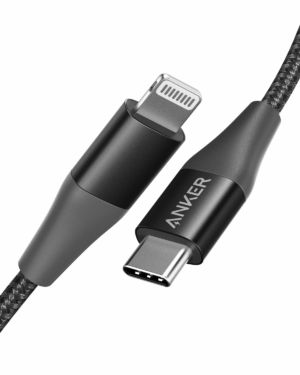
Enlarge/ Anker’s PowerLine+ II USB-C to Lightning cable.
Valentina Palladino
One lightning cable is never enough, even if you just have one Apple device. Anker’s PowerLine+ II family of cords are arguably better than Apple’s own lightning cables because they’re built to last longer and they’re MFi-certified. The double-braided nylon cables won’t break or fray like others might, and they come in different lengths so you don’t have to be so physically close to a power source while you’re charging your iPhone or iPad. They also support iPhone fast charging when connected to Apple or other Anker PD chargers. While a charging cable is only one part of the puzzle in terms of power delivery and charging speed, Anker’s Powerline+ II cords are solid options that provide all of the features you’d get from an Apple cable plus even better build quality and value for the money.
Anker PowerLine+ II USB-C to Lightning Cable
(Ars Technica may earn compensation for sales from links on this post through affiliate programs.)
Best portable battery pack
Anker PowerCore 10000 PD Redux
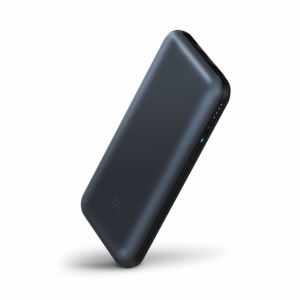
ZMI PowerPack 20000
The ZMI PowerPack 20000 (left) and the Anker PowerCore 10000 PD Redux (center) next to a 10.5-inch iPad Air.
A look at the front of our two battery pack picks.
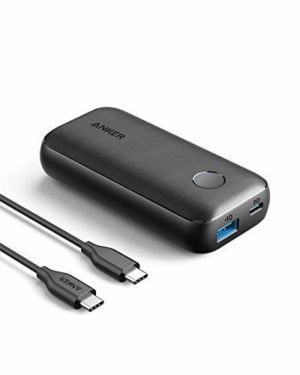
The benefits of a portable battery should be obvious by now: when your iPhone or iPad is low on power and there’s no outlet in sight, it’ll keep your device kicking. If you need a battery to primarily charge an iPhone, get Anker’s PowerCore 10000 PD Redux. It’s not the cheapest device in its class, but it has an 18W USB-C Power Delivery (PD) that can safely charge newer iPhones (and most other non-Galaxy Note 10+ phones) at maximum speeds. The battery itself can recharge quickly at 18W through that USB-C PD port. There’s a USB-A port rated at 12W beyond that, though the whole pack can only output 18W in total at a time.
Still, its 10,000mAh (or 36Wh) capacity is enough to get an iPhone 11 roughly two charges. There’s a USB-C to USB-C charging cable in the box. And most notably, it’s supremely portable, weighing less than seven ounces and measuring just 106×52.3×25.5mm. That means it can easily fit in a pants pocket or handbag. Having this kind of fast-charging power in a design that’s this small and well-built makes the PowerCore 10000 PD Redux ideal for travel. Just remember that you need an MFi-certified USB-C to Lightning cable like the PowerLine+ II above to actually take advantage of its fast charging speeds with an iPhone.
If you need a battery pack for charging a newer iPad, meanwhile, get the ZMI PowerPack 20000. It includes a 45W USB-C PD port that’s powerful enough to charge the latest iPad Pros—and various 12- and 13-inch laptops—at their fastest possible rate. (Those laptops just have to charge at 15V/3A, as the PowerPack maxes out at 40W of power at a 20V charge.) There are two USB-A ports that output around 12W of power alongside that, though the whole pack can only output a maximum of 45W at any given time. The 20,000mAh (or 72Wh) capacity is enough to give roughly
one and a half charges to an 11-inch iPad Pro. It’s not USB-IF certified, but we’ve used it safely for about a year now, and there are no widespread reports of failure across the Web. Again, the PowerPack 20000 stands out in the design department: its metallic finish feels premium, and at 14 ounces and 160×82×21mm, it’s more compact than most power banks with this level of power. Plus, at $70, it’s more affordable than most of its peers, and it includes a USB-C to USB-C fast charging cable in the box.
(Ars Technica may earn compensation for sales from links on this post through affiliate programs.)
ZMI PowerPack 20000
(Ars Technica may earn compensation for sales from links on this post through affiliate programs.)
Best wall charger
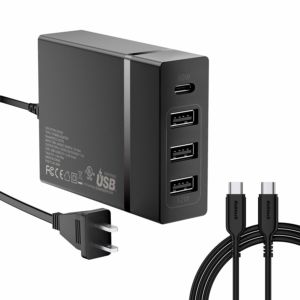
Nekteck 4-port 72W USB-C PD Charger
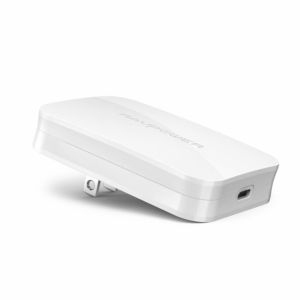
RAVPower PD Pioneer 45W GaN Wall Charger
The RAVPower PD Pioneer 45W GaN Wall Charger (left) and Nekteck 4-port 72W USB-C PD Charger (right).
The RAVPower charger uses GaN tech that lets it take up very little space for the power it provides.
Though Apple now includes an 18W fast charger in the box with new iPhone 11 Pros, the vast majority of iOS devices continue to ship with power adapters that don’t take full advantage of their charging capabilities. Unfortunately, you still have to pay extra for a good third-party USB-C PD wall charger in order to refill most iPhones and iPads as fast as possible.
We have a couple of preferred options: if you need a charger for your desk, try Nekteck’s 4-port 72W USB-C PD Charger. It’s a small brick that plugs into an outlet and carries four charging ports, including a 60W USB-C PD port that can easily charge all iPhones and iPads at max speeds (and charge various laptops to boot). There are three 12W USB-A ports as well, so you can refill an iPhone and iPad simultaneously, albeit with one device charging at less-than-optimum speeds. (As its name implies, the device can output a maximum of 72W at once.) There’s a USB-C to USB-C charging cable in the box, and the charger is USB-IF certified, meaning it has been verified to work safely by the body that maintains the USB standard.
For a wall charger that you can take with you more easily, we like RAVPower’s PD Pioneer 45W GaN Wall Charger. As you might guess, this charger uses gallium nitride (GaN), a semiconductor that allows chargers like this to provide the power of traditional silicon in a smaller footprint. Its rectangular design measures 72×54×14.2mm and weighs 2.6 ounces, which makes it significantly smaller and slimmer than a traditional wall charger. It’s more elongated than other GaN chargers like Anker’s PowerPort Atom PD 1, so it might take up more room on a power strip, but its foldable prongs and slim profile makes it easier to squeeze into tighter spaces. (Between an outlet and a piece of furniture, for instance.)
There’s only one port here, but it’s a 45W USB-C PD connector that, again, is capable of charging all iPhones and iPads as fast as possible. This one isn’t USB-IF certified and technically goes against the official USB-C spec by supporting Quick Charge 3.0 over its port, but various chargers have done that in the past without issue. We couldn’t find any sustained complaints over reliability online, and we’ve tested the charger with various devices over the past several months with no problems. It’s not the most affordable 45W wall charger, and you’ll need to supply your own USB-C to Lightning or USB-C to USB–C cable, but we think the combination of power and travel-friendly design is worth a few bucks extra.
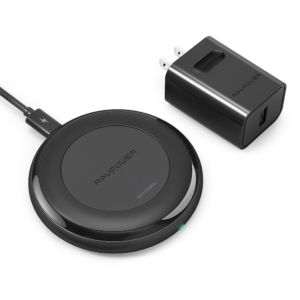
RAVPower’s Qi fast charger may not stick out in a bucket of wireless charging pads, but it sets itself apart by providing the most energy in a short amount of time. On average, smartphones had 34% juice after just one hour sitting on the RAVPower charging pad, so you’ll get a solid amount of juice in your device even if you have little time to spare for charging. It may not be the fanciest looking charger or even the thinnest we’ve come across, but it still has a solid design that is made better by rubberized rings on its top and bottom that prevent the pad from moving and prevent your smartphone from sliding off.
We also appreciate that RAVPower includes a fast-charge capable AC adapter with this pad, so you’re guaranteed to get max charging speeds without needing any additional adapters. If you want a wireless charging pad that looks a bit nicer, Mophie’s Charge Stream Pad+ is a good option that performs nearly as well in terms of charging time, but it costs a bit more money.
RAVPower RP-PC034
(Ars Technica may earn compensation for sales from links on this post through affiliate programs.)
For better or worse, modern iOS devices are adamant about making you use Bluetooth headphones. The iPhone ditched the headphone jack back in 2016, the iPad Pro followed suit last year, and neither looks likely to bring it back any time soon. Along the way, Apple has furthered a trend in which a manufacturer’s headphones work best with its own platform.
In this case, headphones with Apple’s H1 and W1 wireless chips—which are currently exclusive to Apple’s AirPods and headphones from the company’s Beats subsidiary—are more convenient to use with iPhones and iPads. They have a simplified pairing process, immediately get remembered across your iCloud devices, keep a more stable and power-efficient wireless connection, and, with H1 headphones, let you access Siri just by saying “Hey Siri.” So while there are tons of pairs that sound better and may be more comfortable to wear, Apple’s own pairs present the least friction—again, for better or worse.
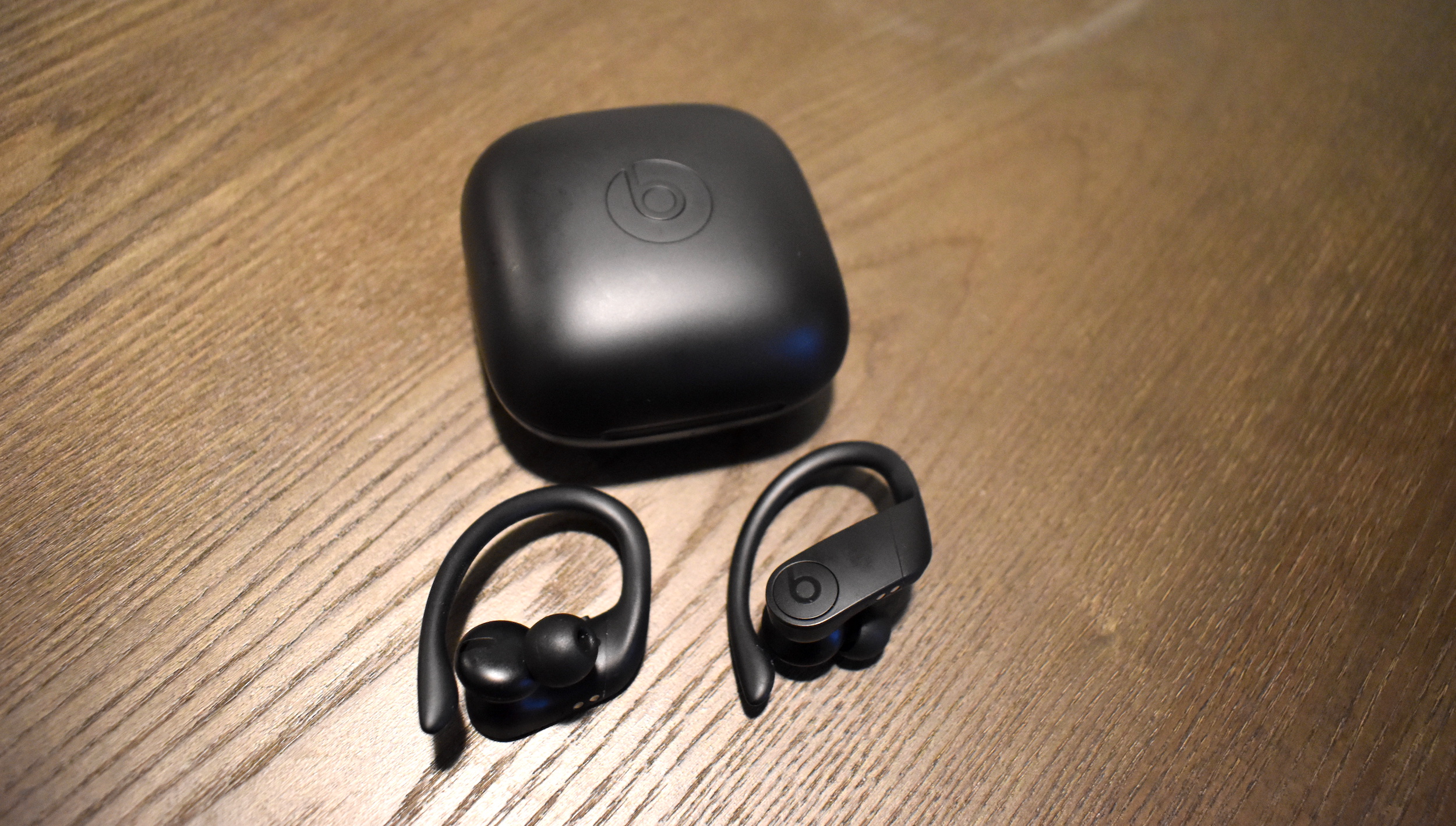
We’re still in the process of testing the just-announced AirPods Pro, but if you don’t mind giving in to ecosystem lock-in, our favorite Apple-made headphones for now are the Beats Powerbeats Pro. They’re true wireless earphones that do everything the regular AirPods do, but better. They have a more dynamic sound, for one: like any true wireless headphone, they’re still limited in soundstage and finer detail, but their bass-forward profile is lively and fun, if not exactly accurate. This is largely due to the Powerbeats Pro creating a tighter seal in the ear: it’s not airtight, so the outside world won’t be blocked out completely, but it lets in far less noise than the AirPods, which can be difficult to use in louder environments.
The Powerbeats Pro’s battery life is far superior to any other true wireless headphone we’ve used, lasting about 11 hours per charge in our testing—where we stream music to headphones continuously at 67% volume—with a total of 24 hours advertised through its charging case. By comparison, Apple rates the AirPods and AirPods Pro at five hours each, again bumped up to 24 with their charging cases. Either way, the Powerbeats Pro pair just as easily with iOS devices and keep just as reliable a Bluetooth connection—they can still experience dropouts in extremely hectic environments (think something like Times Square) but that remains the case with most true wireless pairs.
Their design is more agreeable, too. Whereas the AirPods can tend to hang loose in the ear, the sporty ear hooks of the Powerbeats Pro keep them nice and secure, even during intense workouts and runs. Their IPX4 sweat-resistance rating is relatively mild for exercise-minded earphones, but it’s equal to the AirPods Pro and a step up from the AirPods, which have no formal rating at all. Beyond that, they have physical playback and volume buttons that are mirrored on each earpiece, instead of relying on less precise touch controls. (And in the AirPods Pro’s case, having no built-in volume controls whatsoever.)
There are two major drawbacks to the Powerbeats Pro. First, their case is almost comically huge, to the point where it could be difficult to fit in most pants pockets. You’ll usually want to leave it at home or in a separate bag. Second, they’re undeniably expensive: at $250, and without any special app-driven features or active noise cancellation a la the AirPods Pro, they certainly carry the “tax” that typically comes with the Beats/Apple branding. The AirPods and the on-ear Beats Solo 3 Wireless are decent alternatives with similar W1/H1 chip benefits if you want something slightly more affordable. But if you can pay the premium (or just see them on sale), the Powerbeats Pro are arguably the best true wireless headphones for anyone, let alone iOS users.
(Ars Technica may earn compensation for sales from links on this post through affiliate programs.)
Best 3.5mm to Bluetooth adapter
Fiio μBTR
The Fiio μBTR can make your older wired headphones (like the Koss Porta Pro here) work over Bluetooth.
It’s tiny and discreet, with a handy built-in clip.
If you’ve already invested in a good pair of wired headphones, though, there are a couple of ways to continue using them with an iPhone or iPad Pro. The simplest would be to buy a Lightning-to-3.5mm dongle: it’s not an elegant solution, and it’s frustrating that Apple no longer packages one with new iPhones, but it’s only $9 and works easily enough. With newer iPad Pros, it’s the same deal, only you’d need a USB-C to 3.5mm dongle.
If you want at least some of the convenience of a wireless headphone, however, you could buy a Bluetooth headphone adapter. This pairs with your phone or tablet over Bluetooth, receives that source device’s audio, and sends it to whatever pair of 3.5mm headphones you plug into the adapter. You’re then free to keep your device charging across the room, keep it in a separate pocket or bag, and generally use it without any wires attached.
Of the Bluetooth headphone adapters we’ve tested, our favorite is the Fiio μBTR. It paired as easily as any other modern Bluetooth device and presented no significant connection hiccups or latency issues in testing. Sending audio over Bluetooth means an inherent loss in audio quality compared to a wired connection, but for what it is the μBTR doesn’t sacrifice too much fidelity. Importantly, it supports the AAC audio codec, which makes music sound noticeably sharper on an iPhone or iPad than the default SBC codec. (It also supports aptX if you ever use it with a Mac or Android device.) Just know that if your headphones have a particularly high impedance, you’ll likely need to turn up the volume a bit higher than usual.
The μBTR’s stick-style design is tiny and easily portable, with a built-in clip that neatly attaches to a pants or shirt pocket. There are dedicated buttons for volume, pause/play, and voice assistant activation, though its volume level won’t sync with your source device. Its 8-9 hours of battery life should be enough to get through a typical workday, and it charges quickly through a USB-C port. The built-in mic isn’t great for making calls or using Siri, but it’s at least there in a pinch. It’d still be nice if your iPhone didn’t make devices like this desirable in the first place, but for $30, the μBTR isn’t a huge investment for something that effectively makes your most beloved headphones more convenient on the go.
Fiio μBTR
(Ars Technica may earn compensation for sales from links on this post through affiliate programs.)
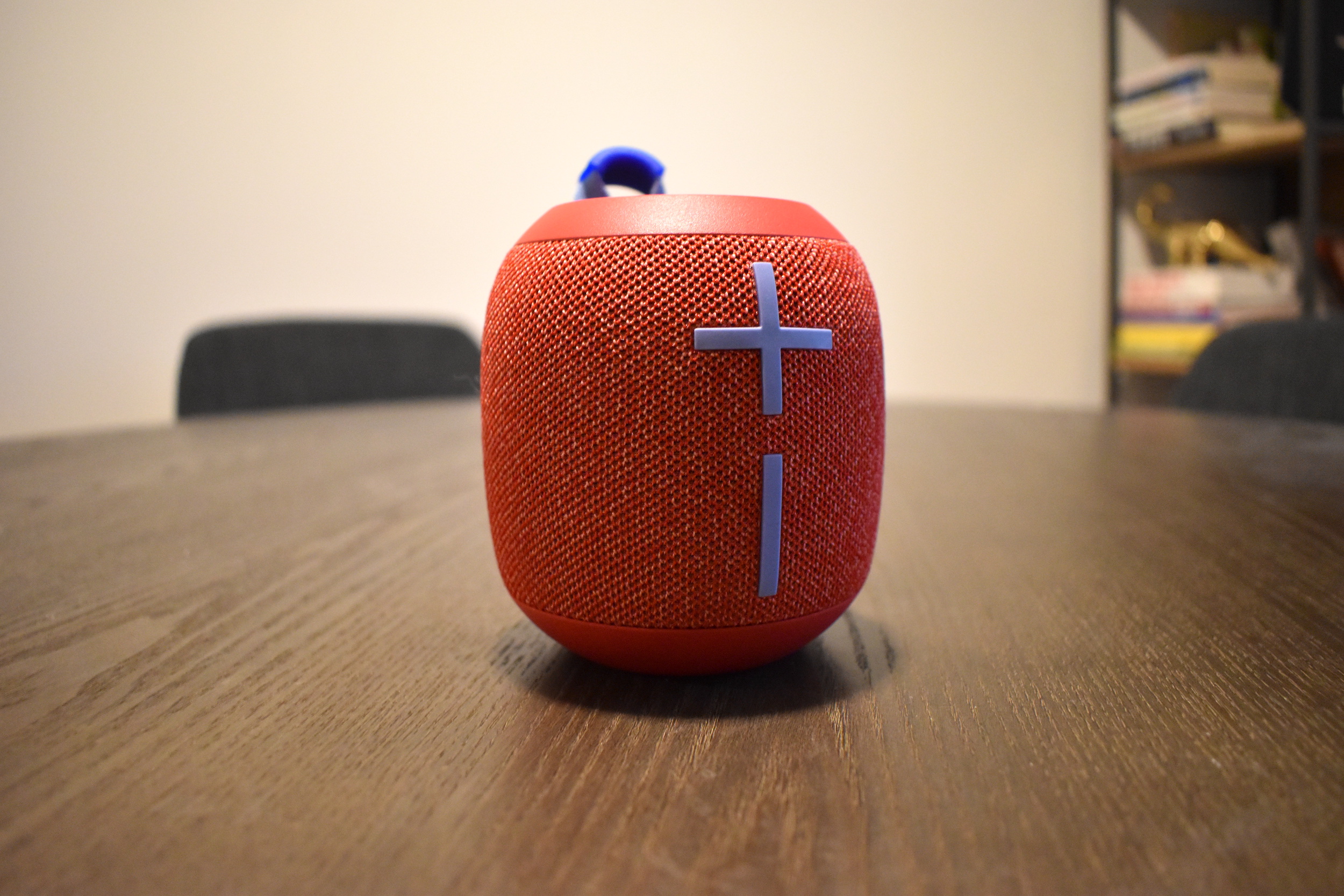
While the built-in speakers on iPhones and iPads have improved as the years have rolled on—particularly on recent iPad Pro models—they still aren’t the best for truly enjoying music. A good Bluetooth speaker can address that. We wouldn’t recommend paying a ton here given the inherent compromises with Bluetooth audio: you typically need to pay a premium for something large enough to sound passable, and at that point you might as well buy a Wi-Fi speaker that’ll sound significantly better. But for less than $100, the UE Wonderboom 2 achieves most of the things you’d want a portable wireless speaker to do well.
Chief among those: it’s really portable, with a squat candle-like shape that’s just 104mm high and 95.3mm wide. It’s also supremely durable, with an IP67 rating—meaning it’s waterproof and dustproof—and a fabric- and rubber-coated design that floats in water and can withstand drops from five or so feet without any signs of scuffing. A built-in elastic loop makes it easy to clip to a bag or hang from a towel hook. The giant volume buttons and playback controls on top are generally easy to comprehend and operate, though you can only skip tracks forward, not backward. Battery life is fine, if not spectacular, at about 9-10 hours a charge, but the speaker disappointingly charges over microUSB instead of a faster USB-C standard.
No Bluetooth speaker this small will produce fantastic audio in a vacuum. The Wonderboom 2 doesn’t change that: it can distort at the highest volumes, it loses detail with more complex tracks, and it has just about nothing when it comes to deep sub-bass. But given the context, it plays loud and relatively balanced, with good mids that make vocals nicely clear. You usually won’t hear the whole of a song, but you’ll get enough to make it enjoyable. You can use a second Wonderboom speaker to play in stereo as well. On its own, we found the Wonderboom 2 to sound cleaner than the Anker Soundcore Flare and Tribit StormBox, two speakers we’ve recommended in past gift guides, so it more than holds its own in the sub-$100 range.
In all, the Wonderboom 2 is something of an ideal portable Bluetooth speaker: it’s rugged, travel-friendly, easy to use, good-looking, and fun-enough sounding. For the shower, pool parties, or just better personal listening at home, it’s a nifty complement to your iPhone or iPad.
When we reviewed the 2018 iPad Pro, we were impressed by the power and potential of the hardware, but iOS 12 wasn’t up to the task of making the iPad a true content creation machine or a daily workhorse. We said it was time for Apple to branch out from iOS 13 with an iPad-specific operating system.
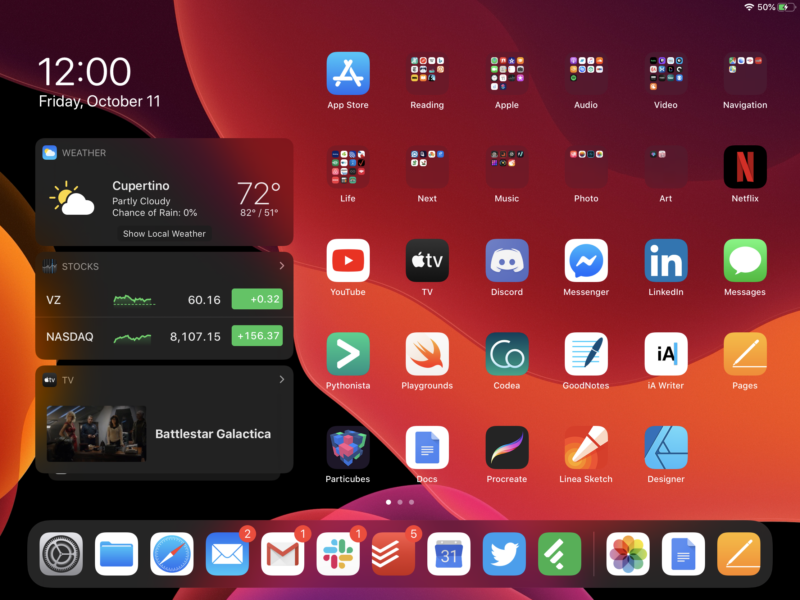
Just one year later, that’s exactly what Apple has done with iPadOS, which launched for modern iPads a few days after iOS 13 hit the iPhone and iPod touch. While iPadOS does not actually signify that big of a change under the hood, its new nomenclature is a statement of intent by Apple. This release takes strides toward making the machine more useful for power users who want to do more than just browse the Web, play games, watch videos, and write an email or two.
So as we’ve tinkered with iPadOS recently and analyzed the changes Apple made, we revisited the question we answered with a negative last year: is the iPad ready to replace your laptop?
One quick editor’s note beforehand: know this isn’t a full or standalone review—rather, it’s an addendum to our previously published iOS 13 review. Many of the interesting features of iPadOS are also iOS 13 features. So in most cases, if we discussed something particular in iOS 13, we either omit it here or link back to that review. The focus here is on iPad-specific features that aren’t part of the iOS 13 package for iPhone.
And to experience those, it helps to have one of the iPads that is compatible with iPadOS, which launched at version 13.1.
Table of Contents
Compatibility
As with iOS 13 on iPhones, Apple has ended support for all devices that have less than 2GB of RAM. After iOS 12 continued to support all devices that iOS 11 supported, iOS 13/iPadOS 13 represents a somewhat significant cut, which notably includes the popular first run of the iPad Air.
Supported iPad models in iPadOS 13 include:
12.9-inch iPad Pro
11-inch iPad Pro
10.5-inch iPad Pro
9.7-inch iPad Pro
iPad (5th generation)
iPad (6th generation)
iPad (7th generation)
iPad mini (5th generation)
iPad mini 4
iPad Air (3rd generation)
iPad Air 2
Whereas Apple has sometimes in the past continued to support older iPads while simply limiting certain advanced features only to newer iPads, in this case all software features of iPadOS 13 work on all supported hardware models.
Devices used for this review
This review was written based on two weeks using the iPadOS public 13.1 and 13.1.2 releases. We used iPadOS on two iPad models, both quite recent: the 2019 iPad Air and the 2019 iPad. We also published a separate article focused on performance testing on the iPad Air 2 from 2014—the oldest iPad supported by iPadOS.
Why Apple branched out from iOS
Before digging deep on individual changes and features, let’s first take a bird’s-eye view at iPadOS—why did Apple do this? Why isn’t this iOS 13? What does this change mean, and is it actually that different?
To be clear, not much has changed under the hood in the transition from iOS 13 to iPadOS. You could argue that this is “just a branding change.” Or, maybe more accurately, you could describe this as a branding change that reflects changes that started a while ago when the iPad began getting major multitasking features that were unique to the tablet. Apple is formalizing what we already knew: the iPad serves different use cases than the iPhone, therefore it needs a different design philosophy.
iPadOS works from an assumption that while iPhone users are often using the iPhone in brief spurts while doing other things in the real world, iPad users are more focused on the screen in front of them. iPad users are capable of and want to perform more complex tasks.
The new OS takes that assumption and also the greatly increased screen real estate of the tablet to introduce more sophisticated ways of running multiple applications at the same time. In iPadOS, Apple has given users the ability to organize those applications in customizable ways. A lot of this, perhaps unsurprisingly, draws design inspiration from macOS.
Apple is communicating its intentions with this branding—not just for this year’s update, but for upcoming years’ releases as well.
There’s still work to be done, though. iPadOS is not a radical remaking of the iPad user experience. It is in most cases simply another iterative step forward for Apple’s existing ideas about how to make the iPad more powerful as a workhorse.
While Android tablets have largely stalled, Apple faces a great deal of competition from Chromebooks and Microsoft’s Surface devices. Both represent two very different philosophies, and both have arguably been more powerful as multitasking workstations.
Whether “iPadOS” is just a name, this year’s operating system update brings iPads closer to parity with those two platforms that have their roots in the desktop.
Apple’s strategy for this hinges on changes to the home screen, long-press context menus both within and outside of apps, a much more robust file management system and Files app, showing desktop websites by default in Safari, and new keyboard shortcuts. But multitasking heralds the most significant changes.
Multitasking
While the iPhone does (and should) have multitasking functionality, the situations in which you’d need it are different.
On an iPhone, you just need to move between apps or share information between them, and it just needs to be quick and easy, because you might be walking down the street while talking to someone and trying to catch a train. The iPhone augments your moment-to-moment activities without expecting your full, continuous focus, and that has implications for the optimal user experience.
As stated before, Apple sees the iPad as a device that you focus your attention on for more prolonged periods of time—or at least, it’s more often going to be that. Multitasking on an iPad needs to be much more robust. You’re not just thinking about individual quick actions of multitasking; you’re thinking about users who are actively using three or four or more apps at a time and constantly working between them over a longer period of time.
In iOS 9, Apple started down this road with Split View, Picture in Picture, and Slide Over. The company has iterated on that initial push since, and iOS 13 marks a particularly aggressive reworking of how those and other aspects of multitasking work.
Apple has built upon previously existing concepts about spaces and app windows, and the biggest development is arguably the ability to open multiple windows from the same app, across multiple spaces, in various configurations.
A rethink of app windows
The crux of much of what Apple has done with multitasking in iPadOS is centered around the management of windows. These windows then live in spaces, either alone in fullscreen or next to other windows via the existing Slide Over or Split View.
It’s important to clarify that there is still no desktop as there is on a Mac, though. You can’t freely resize and stack as many windows as you want.
You can have up to three windows in view at once, however: two in Split View and one in either Slide Over or Picture-in-Picture. You could even have three windows from the same app in view at once by this method. There’s not enough screen real estate to make that practical in most cases, however, so you’ll often stick to two windows. But the two-window views work nicely, just as they did in the previous version of iOS. And the fact that you can hide and re-surface Slide Over windows makes a sort of half-measure to three windows possible.
That was possible before, though. What’s new in iPadOS is the ability to open multiple windows from the same app. There are also some big changes to the way the app switcher displays information about open windows, and a new feature called app Exposé.
Opening a new window
There are several ways to open additional instances of an app in a new window, which can either open full screen or share a space with another application—again, even with another window from the same application.
You can pull up the dock with a swipe gesture and drag an icon from the dock to create a new window, and this works whether it’s an already-open app or an unopened app. In many apps, dragging an item like a link in Safari, an email in Mail, a single note in Notes, or whatever else you might expect to one of the standardized create-a-new-window locations will create another window from that. And in some cases, you can drag notifications to turn them into windows, or you can open windows through context menus on certain UI elements and icons.
You can drag these icons or content items to the left or right edge of the screen to place the window, and iPadOS will create it in Split View with the currently open app. Alternatively, you can drag content to some areas in the middle of the screen to put it in Slide Over, or to the top edge of the screen to create a new space with that app window in fullscreen mode.
Let’s look at the two window types. First, the full Mail application…
Samuel Axon
And here’s the stripped down window that you get when you drag a message to its own window.
Two windows from the same app, open in one space.
Samuel Axon
You can even do this if you want to, you I can’t imagine why you would!
Samuel Axon
You can still of course view multiple apps the way you could before.
Samuel Axon
Unfortunately, there’s no way to tell whether what you’re dragging can turn into a window unless you do it. In practice, you might sometimes be surprised by exactly what you get when this feature does work.
I criticized this issue across iOS 13 as well: far too often with both iOS 13 and this release of iPadOS, you just have to take shots in the dark to learn what’s possible and what’s not. It’s a UX problem that Apple is going to have to address as soon as possible if it wants to keep claiming that the iPad is as easy to use (or easier to use) as a laptop running Windows or macOS.
Part of the potential confusion stems from the fact that there seem to be two kinds of windows: full-function windows that are complete instances of an app, and then more focused windows that are oriented around a specific task or view (like a draft of a single email).
In these focused windows, you can’t do anything but the task the app developer had in mind for you when you opened the window. This can cause some frustration, because you can’t really tell when a new window is going to do the task-specialized window or when it’s going to open a new instance of the full-fledged app until you try it.
But that frustration aside, you can do some crazy useful stuff with all this. You can make one piece of content—say, a PDF file view—persistent across all your spaces, all from the same app. You can have a different space for every one of your currently relevant emails. You can have one Note open in one half of your screen while you browse all your notes in another window right next to it in Split View. This option really opens up some possibilities.
Last year, Apple set users’ expectations with iOS 12, saying it would be focused on improving performance and fixing bugs and stability issues instead of adding a bunch of new features. And while there were still plenty of bugs over the course of the iOS 12 cycle, performance was improved—particularly on older devices.
Apple hasn’t tempered expectations for iOS 13 this year, so users might be expecting a big leap forward. iOS 13 does bring a new look to the software that runs on iPhones, overhauls a few oft-criticized first-party applications, and puts additional emphasis on user privacy. Most of all, it adds new, powerful interactions for power users—some of which we thought we’d never see in Apple’s mobile software.
iOS 13 is successful at most of what it sets out to do, even though it leaves some things that users have wanted to see overhauled—like the home screen—relatively untouched.
The big story this year is about the iPad. Apple has spun off iOS 13 into a distinct version for iPads, called iPadOS. But that’s not part of the initial iOS 13 release—instead it’s coming several days later, alongside iOS 13.1. For that reason, we’re focusing entirely on the iPhone experience in this initial review, and we’ll address the iPad after iPadOS goes live.
Today, we’ll take a look at Dark Mode on the iPhone, assess Apple’s latest efforts on privacy and augmented reality, and examine the changes to the most overhauled apps, including Maps, Photos, and more. There’s frankly more in this update than we can get to in one article (even though several thousand words await you, dear reader), but we’ve been spending a lot of recent time with iOS 13 in order to thoroughly consider Apple’s most significant changes, like those to Reminders and Files, for example.
We’ll also consider what all these changes mean for the future direction of iOS, which is gradually evolving away from its original philosophy of user experience. There’s a lot to talk about, but let’s start as we always do: with device compatibility.
Table of Contents
Compatibility
Compatibility with older devices was a cornerstone of iOS 12 last year because Apple was trying to fight against consumer perception that it purposely and aggressively ends support for older phones in order to drive new phone purchases.
Truth be told, as was the case with iOS 11 and iOS 12, if you want a phone that will get several years of software support rather than just one or two, the iPhone is the way to go. That hasn’t changed with iOS 13.
iOS 13 drops support for the following iPhone models that were supported by iOS 12: the iPhone 5S, the iPhone 6, and the iPhone 6 Plus. It also ends support for the first iPad Air, the iPad mini 3, and the iPad mini 2. It now supports the somewhat recently released seventh generation iPod touch, but this release drops the sixth generation.
This is a pretty dramatic culling, though it comes a year after iOS 12 did not drop support for any devices at all that were already supported by iOS 11. You can essentially summarize iOS 13’s cuts as Apple declining to support all iOS devices that had only 1GB of RAM.
Supported iPhone models
iPhone XS
iPhone XS Max
iPhone XR
iPhone X
iPhone 8
iPhone 8 Plus
iPhone 7
iPhone 7 Plus
iPhone 6S
iPhone 6S Plus
iPhone SE
Supported iPad models
iPads will soon technically run iPadOS, as distinct from iOS. Here’s which models are supported by this year’s software, though:
12.9-inch iPad Pro
11-inch iPad Pro
10.5-inch iPad Pro
9.7-inch iPad Pro
iPad (6th generation)
iPad (5th generation)
iPad mini (5th generation)
iPad mini 4
iPad Air (3rd generation)
iPad Air 2
Support iPod models
iOS 13 supports the 7th generation iPod touch.
Devices used in the course of this review
We based most of this review, including the screenshots, on several weeks of using late iOS 13 beta releases and the iOS 13 GM release on an iPhone X, an iPhone XS, an iPhone 8, and over just the past couple days, an iPhone 11 Pro. All testing was done using the GM release of iOS 13, and we verified several things in the final public release after it went live yesterday. We also used an iPhone 6S and iPhone SE to test performance on the lowest-end supported iPhones. We did not test or use iOS 13 on an iPod touch.
Design: Dark Mode, Share Sheets, and more
There has not been a major change to the visual design of iOS since 2013, and in some places it shows. But iOS 13 brings the biggest overhaul on this front since iOS 7. Not all of that is about the new Dark Mode feature, but that’s what many users will see first.
When you first install iOS 13, you’re asked if you want to use Light Dark or Dark Mode. You’re not stuck with your choice, though, as you can change it in the Settings app at any time (or in the Control Center). You reach it in the Control Center the same way you get to Night Mode: you hold down your finger (either with 3D Touch or Haptic Touch, depending on the device you’re using) on the brightness slider to pop up additional options, then toggle from there. You can also assign this setting to a more prominent place in the Control Center if you’d prefer.
It’s easiest to talk about Dark Mode by actually going through some images, though, so let’s do that.
Here’s the Control Center in Dark Mode.
Samuel Axon
Using Haptic or 3D Touch on the brightness slider brings up this view, which has the toggle for Dark Mode.
Samuel Axon
You can also swap in the Settings app, or make it automatic.
Samuel Axon
In wallpaper settings, you can also set Dark Mode to dim the wallpaper. (It’s off by default.)
Samuel Axon
This is the homescreen in Dark Mode with wallpaper dimming disabled.
Samuel Axon
And here it is with wallpaper dimming enabled.
Samuel Axon
These are some widgets in Dark Mode.
Samuel Axon
The Settings app in Dark Mode.
Samuel Axon
Maps in Dark Mode.
Samuel Axon
Reminders in Dark Mode.
Samuel Axon
We’ve got two images from Mail here. To start, this is a Mail folder.
Samuel Axon
And here’s an email.
Samuel Axon
Now for Photos. This is the For You tab.
Samuel Axon
And here we’re browsing an album.
Samuel Axon
Messages looks very dark, especially on an OLED iPhone.
Samuel Axon
This is Safari in iOS 13 Dark Mode, with Ars Technica’s dark mode!
Samuel Axon
Calendar in Dark Mode.
samuel Axon
The TV app in Dark Mode.
Samuel Axon
Also, podcasts.
Samuel Axon
And then there’s Stocks.
Samuel Axon
News has the same white-on-black look as Books’ nighttime reading mode. But individual stories may be black text on a white background, depending on the publisher’s styling.
Samuel Axon
Notes in Dark Mode.
Samuel Axon
The Health app looks particularly different.
Samuel Axon
The App Store in Dark Mode.
Samuel Axon
The Clock app.
Samuel Axon
And finally, here’s Find My.
Samuel Axon
Almost no part of iOS remains untouched by Dark Mode. The only major app exception I found was Weather, which still displays a colored, full-screen image matching the current conditions and time of day.
Other than a few customization options noted in the gallery above, there are no changes in functionality here. Everything is where it used to be; Dark Mode is an aesthetic change. But if you’re in the habit of using your phone in bed late at night while your significant other sleeps next to you, or if you want accurate color and contrast without blinding yourself when walking outside at night, it’s a pleasant addition.
Apple has provided third-party app developers (and Web developers) with the means to automatically enable or disable their own dark modes based on the system-wide status. We’ll have to wait and see how many support it—if some don’t (we’re looking at you, Slack-on-the-Mac-for-the-past-year), you might find yourself suddenly awash in white light at undesirable moments as you switch between apps.
The new share sheet
The share sheet, that standardized pop-up menu that appears when you try to share something from an app or a webpage in iOS, was functional in iOS 12, but Apple sought to improve it in a few ways with this release. As with Dark Mode, the best way to get it is to see it.
Let’s start by sharing a picture from Photos. Here you can see a few notable things: the thumbnail and accompanying text (a title and the location the photo was taken), Siri suggestions for Messages contacts to send this to, and AirDrop existing as a virtual “app” in the app bar. Now let’s see what happens when we tap Options by the title…
Samuel Axon
This options screen differs based on the app you’re using. In Photos, it allows you to strip location or other meta data, or decide whether to share the photo as an image file or an iCloud link.
Samuel Axon
Let’s look at some other examples. Here, we’re sharing an image file from files, but you can see the header text is different; it shows the filename, file type, and file size.
Samuel Axon
And for another point of reference, here’s the top-level share sheet view for a website in Safari.
Here’s the options view in Safari. In this case, it lets you pick what format to send the website in.
Samuel Axon
Back to the Photos example. This is what you get when you scroll the main view all the way down; share sheet actions are formatted vertically now, and they’re accompanied by Apple’s new SF Symbols glyphs—which are also available to use by third-party devs, by the way.
Samuel Axon
You can tap edit to change what actions are available in the main view. They’re divided into actions specific to this app, and then others.
Samuel Axon
You can edit the apps list too. Apple has now made it so these are either categorized as favorites, which you define, or suggestions, which are automatically generated. You can hide suggestions you don’t want to keep seeing or add actions from suggestions to your favorites after tapping the edit button.
Samuel Axon
Tapping a Messages contact brings up Messages in this card view, which iOS 13 is pretty much in love with and uses wherever it makes any sense at all.
Samuel Axon
Many of the things you can do in the share sheet could be done before, but Apple has put options that used to be buried in the Settings app in the options menu here instead, for example. It arguably makes for a more organized share sheet experience, depending on your own personal workflow and habits, but it’s not a game changer by any means.
https://arstechnica.com/?p=1569271
Apple iPad 2019 hands-on: A 6th-generation iPad in a 2019 iPad Air’s body
The 2019, seventh-generation iPad with a 10.2-inch display.
Samuel Axon
It’s also available in silver/white, if you’re into that.
Samuel Axon
Here’s the back in silver.
Samuel Axon
And here’s the back of the gray model, with an Apple Pencil (which it supports).
Samuel Axon
It has Lightning, not USB-C.
Samuel Axon
The Smart Keyboard connector is in the same place as it is on the 2019 iPad Air.
Samuel Axon
In fact, it looks pretty much like the iPad Air from most angles, although it’s very slightly thicker.
Samuel Axon
There’s still a headphone jack, thankfully.
Samuel Axon
There’s no camera bump.
Samuel Axon
It also has a home button—no fancy Face ID or TrueDepth on this entry-level device.
Samuel Axon
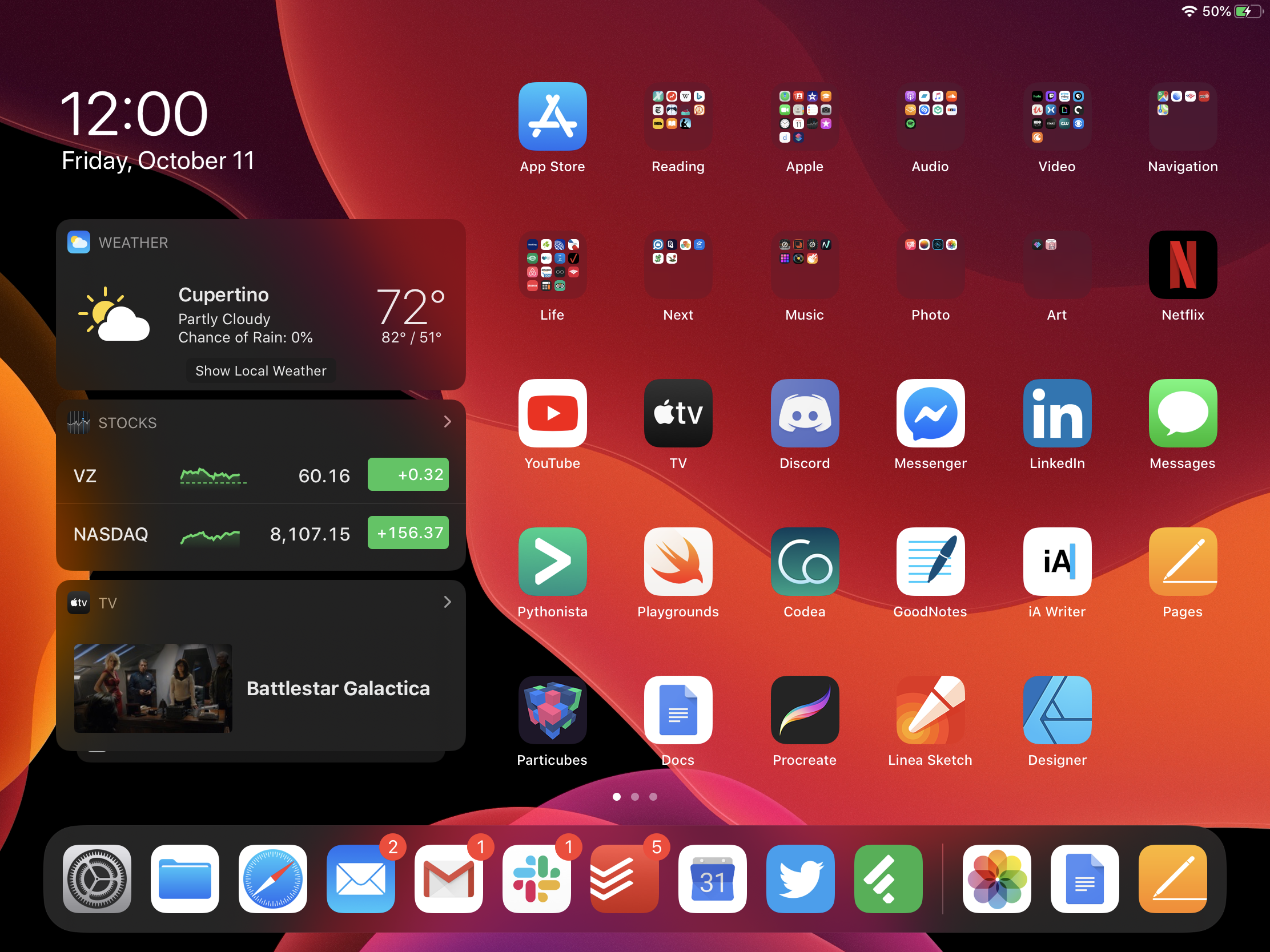
Later this month, iPads will get iPadOS, which will overhaul the home screen, among other things.
Samuel Axon
Here’s the home screen in portrait mode, though.
Samuel Axon
CUPERTINO, Calif.—Apple’s iPad lineup has been in considerable flux of late. Just in the past year, Apple totally overhauled both iPad Pro sizes, introduced a new iPad Air based on the chassis of the prior iPad Pro, and relaunched the iPad mini (albeit without much in the way of modern hardware to recommend it).
Today, the company’s representatives took the stage to announce new iPhones, but they also revealed a major update to the entry-level iPad.
The biggest news here is that the screen is bigger, at 10.2 inches. That’s thanks to a significant bezel reduction, among other tweaks. The other major change is the addition of Smart Keyboard support, using the same Smart Keyboard connector as the 2019 iPad Air. Of course, since this iPad starts at $329 and the Smart Keyboard costs $159, you’re looking at spending almost half the cost of your tablet just to get a keyboard for it.
I tried the keyboard and, well, it’s identical to the one people are using with the iPad Air right now. So there’s not much new to say. It’s good for a tablet keyboard, but it won’t hold a candle to a good desktop or laptop keyboard.
The new iPad feels almost exactly the same in your hands as the 2019 iPad Air; it’s only slightly different in a couple of minor ways. This iPad has a 10.2-inch display, whereas the iPad Air comes in at 10.5 inches; the difference is the bezels. There are the same number of pixels-per-inch as you see in the iPad Air display; it’s just a little less display.
The iPad Air is slightly thinner—just 0.05 inches less. Perhaps most importantly, the Air has an A12 chip, whereas this iPad has the A10 from a couple of years ago. There’s a dramatic performance difference between those two CPUs/GPUs, especially for augmented reality applications and games. But the A10 is still fast enough for most light browsing and content-consumption activities.
It’s the same chip as was in last year’s entry-level iPad, though, so don’t expect improved performance if you do a one-year upgrade here. And it still just supports the first-generation Apple Pencil.
If you look at Apple’s website promoting the seventh-generation iPad, you’ll find that most of the pitch is about iPadOS, a new tablet-specific branch of Apple’s iOS mobile operating system due at the end of this month. It changes the home screen, adds a bunch of new multitasking features, attempts to make working with text less nightmarish, and more. We’ll review that later this year, and we wrote about it when it was first unveiled this summer.
But the very, very short version is that it’s more powerful and useful for sure. But the device is still not going to replace a laptop for anyone looking to get serious work done.
The new iPad comes in 32GB and 128GB variants and ships starting September 30. You can pre-order it now, and it starts at $329 for most people or $299 for education customers.
Listing image by Samuel Axon
https://arstechnica.com/?p=1566945
Pasticcio Apple su iOS: patch per correggere l’ultimo aggiornamento
Grande confusione dalle parti di Cupertino. L’update per iOS aveva cancellato una patch che correggeva una grave falla di sicurezza. Ora hanno rimediato.
Patch, altra patch e contro-patch: dalle parti di Cupertino si sonno trovati costretti a distribuire un nuovo aggiornamento per iOS. Un “fuori programma” causato da un pasticcio clamoroso degli sviluppatori.
Al centro della vicenda c’è una vulnerabilità (CVE-2019-8605) che consente, in pratica, il jailbreak di iPhone e iPad. Sfruttandola, sarebbe possibile installare applicazioni al di fuori del (rigidissimo) recinto predisposto da Apple per i suoi dispositivi.
La falla di sicurezza, che in pratica permette di eseguire codice a livello kernel di iOS, era stata scovata da Ned Wialliamson, del solito Project Zero di Google. Apple, ricevuta la segnalazione aveva predisposto la patch e l’aveva inserita nell’aggiornamento alla versione 12.3.
In seguito, però, qualcosa è andato storto. Con i rilascio della versione successiva (12.4) del sistema operativo per i suoi dispositivi mobile, gli sviluppatori hanno fatto qualche pasticcio.
La nuova versione, che conteneva un fix per bloccare gli attacchi tramite iMessage, ha in pratica cancellato la patch precedente. Risultato: i dispositivi con la versione 12.4 sono di nuovo vulnerabili alla falla che consente il jailbreak di iOS.
Ieri Apple ha dovuto quindi pubblicare un nuovo aggiornamento (12.4.1) che reintroduce la patch già distribuita precedentemente, eliminando così il rischio che qualcuno sfrutti la vulnerabilità per distribuire malware per iPhone e iPad.
Report: Apple will unveil overhauled MacBook Pro, “Pro” iPhones this fall
This is the new Mac Pro.
Samuel Axon
And here’s a rear view.
Samuel Axon
Let’s zoom in to see some of the ports in this configuration.
Samuel Axon
There’s more to see at the bottom.
Samuel Axon
On top, you’ll notice a couple more ports, a power button, and this handle. When you grab it, you can twist and pull the entire cover off in one motion for 360-degree access to the internals.
Samuel Axon
This is what the frame looks like with nothing in it.
Samuel Axon
These stands can optionally be replaced with wheels.
Samuel Axon
The cheese-grater design serves a cooling function, but it’s also a deliberate nod to the past.
Samuel Axon
OK, from this angle, it really does look like an ultra-shiny cheese grater.
Samuel Axon
Apple has already had a busy year with the launch of the Apple Card and the reveal of the above-pictured Mac Pro, but it’s about to get much, much busier. A new report by Bloomberg’s Mark Gurman and Debby Wu—who have reported reliably on Apple’s plans in the past—details numerous upcoming product announcements from Apple.
Citing people familiar with the situation, the report mentions three iPhones, a MacBook Pro, an Apple Watch, iPad Pros, an entry-level iPad, a higher-end iteration of AirPods, and a more affordable alternative to HomePod.
And those are just the as-yet-unannounced products: Apple has already stated its intentions to release a new Mac Pro, an ultra-high-end display for creative professionals, the Apple TV+ streaming service, the Apple Arcade games subscription service, and new versions of its iOS and iPadOS, macOS, tvOS, and watchOS software—all before the end of the year. The report doesn’t specify whether Apple will announce all of the new products at the rumored September 10 event. That seems unlikely; last year Apple held two events, one in September and one in October. The September one focused entirely on the iPhone and Apple Watch, while the October one covered new Macs and iPads.
The new iPhones, iPads, MacBook Pro, and Apple Watch are all expected by the end of 2019, the report said, whereas the revised AirPods and HomePod could come later.
The iPhone lineup
According to Bloomberg’s sources, Apple will release direct successors to all three current iPhones: the iPhone XS, XS Max, and XR.
Successors to the two XS models will carry a “Pro” label—perhaps iPhone 11 Pro. Their flagship feature will be an entirely new rear-facing camera system that includes an ultra-wide angle lens that would “let users zoom out and capture a larger field of view.” The sensors would capture three different images to do this and combine them using artificial intelligence.
The report also claims the new iPhones will take high-resolution photos that would rival “some traditional cameras” and that low-light performance will get better. The rear array will reportedly include new 3D camera components to improve augmented reality experiences.
Video recording capabilities will also improve; a new feature will allow users to tweak videos while they’re being recorded live—cropping, color alterations, effects, and so on.
Meanwhile, the iPhone XR successor will get one additional rear camera for optical zoom. All the new iPhones will also have an updated version of the front-facing TrueDepth sensor array, the report says, allowing the phones to identify users’ faces for Face ID authentication at new angles such as when the phones lay flat on a table. This would address a common complaint by users and reviewers about current Face ID-equipped iPhones.
All new iPhones will also include Apple’s new A13 processor, which will add a new component called either the AMX or the matrix coprocessor. This new silicon will aid with computer vision and augmented reality tasks.
The three new models will offer a reverse wireless charging feature, allowing users to charge their AirPods from their phones, provided they have the AirPods’ wireless charging case introduced this year. Samsung also introduced a similar feature to its phones recently.
As long-rumored, 3D Touch will be discontinued in the new iPhones. It will be replaced across the line by Haptic Touch, as previously seen on the iPhone XR. Finally, Bloomberg claims that water resistance will improve on the new phones and that all three models will ship with OLED displays.
Bloomberg expects the new iPhones to ship to customers by the end of September.
The MacBook Pro
Less is known about the new MacBook Pro Apple plans to unveil, but it is likely to be the most major redesign since the introduction of the Touch Bar and butterfly keyboard to the line in 2016.
The Bloomberg report joins a choir of supply line voices claiming that the new MacBook Pro will include a 16-inch screen, but in a form factor similar in size to the current 15-inch model. This is because the new MacBook Pro will have significantly smaller bezels around its screen.
iPad Pro and iPad
Apple will refresh both the 11-inch and 12.9-inch iPad Pro models this fall, Bloomberg’s sources say. However, it will not be a radical update. The cameras will be upgraded, though the report doesn’t specify how, and faster processors will be introduced.
We’ll also evidently see a refresh of Apple’s entry-level iPad—the one positioned for educators, among other things—with a 10.2-inch screen.
Apple Watch, AirPods, and HomePod
Finally, the report included tiny details about three other upcoming products. The Apple Watch will see a very small update focused on the new watchOS 6 software and new case finishes—that’s expected to launch this year.
A pricier upgrade to AirPods with noise-cancelation and water resistance may be announced this year, but the device will likely ship in 2020. The same goes for a cheaper version of the poor-selling HomePod smart speaker, which will reportedly come with two tweeters instead of the seven in the current model.
As previously leaked, Apple’s first event of this year will likely occur on September 10. We’ll cover all the announcements as they happen when the day comes.
Listing image by Samuel Axon
https://arstechnica.com/?p=1556315
Apple acquires Intel’s 5G smartphone modem business for $1 billion
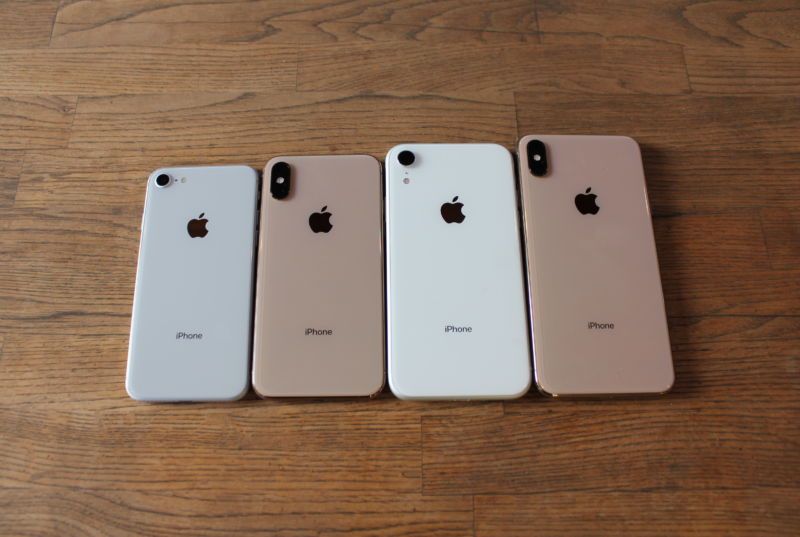
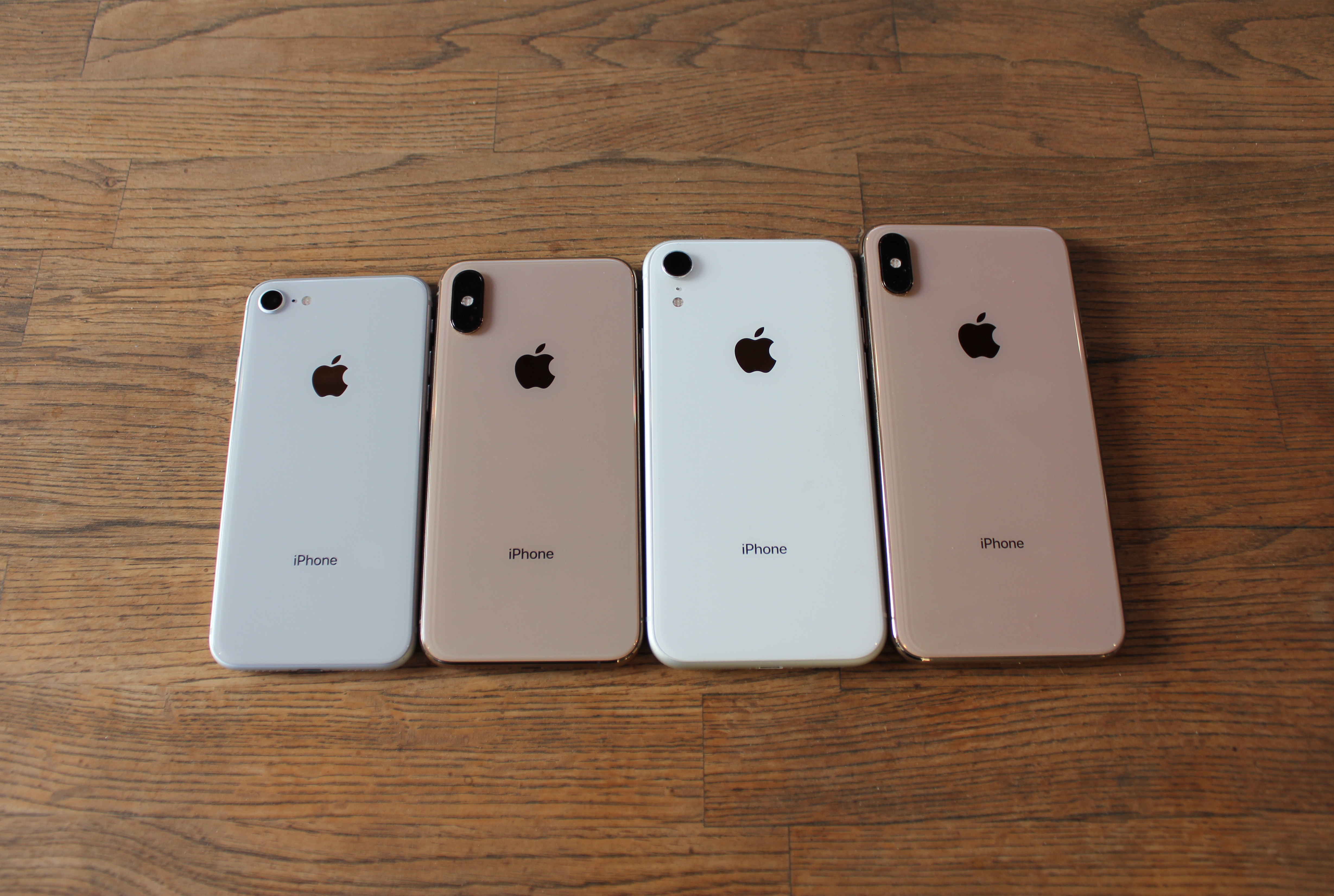
Enlarge/ From left to right: the iPhone 8, the iPhone XS, the iPhone XR, and the iPhone XS Max.
Samuel Axon
Apple today announced that it will acquire the majority of Intel’s smartphone modem business for $1 billion. The acquisition will bring 2,200 Intel employees under Apple’s umbrella, along with various intellectual properties, leases, and equipment. After the move is complete, Apple will hold more than 17,000 wireless technology patents, and Intel will still be able to develop modems for PCs, vehicles, IoT devices, and other products that aren’t smartphones.
The confirmation of the sale comes after a series of on-again-off-again reports and rumors about the deal going back several months. However, a Wall Street Journal report earlier this week made it appear all-but-certain that the finalization of the deal was right around the corner.
Intel built its wireless modem arm out of an acquisition of Infineon’s wireless business almost a decade ago. The company aimed to compete directly with industry leader Qualcomm, which today dominates modems in smartphones and many other devices. However, Intel never managed to overcome its rival in the smartphone space. Apple has historically used Qualcomm modems in the iPhone, but it has lately suffered a painful and litigious relationship with Qualcomm.
Apple began shipping iPhones with Intel modems, and Qualcomm sued for patent infringement, among other things. The litigation was dropped in April, leading Intel to say it would exit the 5G smartphone modem business; Apple’s make-nice with Qualcomm meant the Cupertino company would no longer be dependent on Intel, leading to questions about the viability of Intel’s business.
By acquiring that business, Apple is looking to forge its own path into the 5G era for future iPhones. Apple has also sought to reduce its dependence on third-party vendors and partners by building its own chips and other components.
Over the years, the company has taken it upon itself to design more and more parts of the iPhone itself. This falls in line with Apple’s long-standing, deeply held philosophy of end-to-end integration of all aspects of a product. The company’s leadership believes this approach allows it to provide superior user experiences in many cases, to define its own roadmap, and to improve its profit margins on each device.
Here are the official statements from Intel and Apple spokespersons. First, Intel CEO Bob Swan:
This agreement enables us to focus on developing technology for the 5G network while retaining critical intellectual property and modem technology that our team has created. We have long respected Apple and we’re confident they provide the right environment for this talented team and these important assets moving forward. We’re looking forward to putting our full effort into 5G where it most closely aligns with the needs of our global customer base, including network operators, telecommunications equipment manufacturers and cloud service providers.
And Apple’s senior VP of hardware technologies, Johny Srouji:
We’ve worked with Intel for many years and know this team shares Apple’s passion for designing technologies that deliver the world’s best experiences for our users. Apple is excited to have so many excellent engineers join our growing cellular technologies group, and know they’ll thrive in Apple’s creative and dynamic environment. They, together with our significant acquisition of innovative IP, will help expedite our development on future products and allow Apple to further differentiate moving forward.
Apple says the acquisition will be completed in the fourth quarter of 2019, pending regulatory approvals.
https://arstechnica.com/?p=1541889
Journey creator’s Sky debuts on iPhone and iPad
Sky has a beautiful, dreamy, and minimalist art style.
Samuel Axon
Unsurprisingly, members of Sky‘s dev team worked on the gorgeous 2009 game Flower. They sure do look similar.
Sam Machkovech
Flying feels great, and it’s one of the core mechanics of the game. You upgrade your flying capacity over time.
Samuel Axon
Making friends is a multi-step process, and collaboration (while not required) is an important part of the experience.
Samuel Axon
Tap a “hold hands” icon when you’re near another player, and you can do things like fly in unison.
Sam Machkovech
Find semi-transparent spirits from a past era to unlock new emotes and abilities. This spectral traveler teaches you how to point, which you’ll likely need to use if you cooperate with other online players.
Sam Machkovech
This mysterious, robed man waves a wand around for a while before bestowing upon you the power of flight.
Sam Machkovech
You can customize your characters with numerous cosmetics; collecting these is one of the main tasks in the game.
Samuel Axon
You can leave messages for other players Dark Souls-style.
Samuel Axon
Sky‘s built-in screen-capture button lets you tap on the screen to get a nice-looking image. When you do this, your on-screen avatar will temporarily hold a tiny camera. It’s a cute touch (but it doesn’t appear in your screen caps).
Sam Machkovech
The game has in-app purchases. So far, we haven’t seen these as essential for getting through the game in a fun way, but time will tell.
Samuel Axon
The environments in the game are varied and lovely.
Samuel Axon
This week marks the launch of Sky: Children of Light, a game from famed designer Jenova Chen and beloved studio thatgamecompany, on iOS devices. Intended as an entry point to gaming that upends conventions and seeks new ranges of emotional expression, Sky was revealed during Apple’s iPhone keynote in 2017 as a mobile-first game and an iOS exclusive at launch.
The game is expected to arrive on Android, Mac, Apple TV, Windows PC, and consoles sometime in the future, though. Its initial wide launch this week follows a long soft-launch period and a launch-date delay as the game went through some big changes in testing to get its social aspects—a key part of the experience—just right.
In Sky, you play as a nondescript, child-like being who walks and flies through varied 3D environments collecting light, helping beings, solving puzzles, and working with friends to bring light back to your world.
The game is laid out like a theme park—thatgamecompany President Jenova Chen told the Los Angeles Times that he explored Disneyland for inspiration—with a central hub connected to numerous other areas, some essential to the story and others not. As in Journey, you will come across other players in your travels, but the social and communication systems in the game are much deeper now. You can make friends by sharing light, using emotes, hugging, and performing other joint activities to establish a bond of friendship. Ultimately, you can even chat with them—something you couldn’t do in Journey.
[embedded content]
Welcome To Sky: A Traveler’s Guide by thatgamecompany
The goal is to explore emotions that are not often part of games but are common in other media. “In terms of the emotional range of interactivity, games are very biased toward younger men,” Chen told the Los Angeles Times. “So when I started the company, our mission was to create more emotions that a game can communicate.”
It took several phases of testing to reach this point. In an interview with The Verge, Chen said the game had to be designed to combat players’ worst natures:
In childhood psychology, any gamer that goes to a virtual world immediately reverts to baby mode. The morality, the moral value, does not carry into a virtual space. In any virtual space, people are seeking maximum feedback. If I can get you frustrated and you display that emotion, that’s way more exciting than just me helping you out.
The team that made Sky went through a series of iterations to not only make a game where collaborative play is more central than competitive play or trolling, but where it comes from a place of sincerity rather than necessity.
Chen and his team believe that games like this could bring more people into the hobby. “I want gamers to be able to show their skeptical friends that games are more than what they think,” he said to Variety. “If there are 200 million consoles in the world, there are 2 billion smartphones. Well, if you’re trying to reach the most people possible, then it’s an easy decision to make.”
Sky is free to play, but it comes with a few in-app purchase options. In some cases, you can buy currencies—these currencies could also be acquired through normal play without too much friction, based on our experience so far—and in others, the game’s scheme resembles the seasonal model found in popular free-to-play titles like Fortnite and Apex Legends. Buying a season pass gives you access to more content and more options for progression.
In the Los Angeles Times interview, Chen described most mobile games as “predatory” with gambling-like mechanics. “I felt really, really sad,” he said. “All the work we’ve been doing trying to make games appeal to more people and make games look like a respectable industry, suddenly went backwards… Now new people, their impression of games is this completely different picture. We want to use our game to change more people’s opinion of what games can be.”
Sky will be updated over time. We played it for a couple of hours over the past day and found it to be gorgeous and engaging, if a little overwhelming with its numerous systems. It feels in some ways like Journey meets Destiny, and it is substantially more ambitious than its predecessors, even though it has a similar aesthetic of pastel-colored, minimalist 3D art and sweeping orchestral music.
thatgamecompany hasn’t revealed when Sky will be released on other platforms. It was initially pitched as part of Apple’s Apple TV 4K game lineup, but that version has been delayed for now.