Photoshop Color Adjustments with the New Adjust Colors Tool with Kirk Nelson

Photoshop is full of long-time habits—and sometimes those habits keep us from noticing when a newer tool can make life a lot easier. In this excerpt from Kirk Nelson’s Photoshop World session, “Photoshop Has Changed, So Should You!, Kirk walks through the new Adjust Colors feature and shows how combining it with Photoshop’s smarter selections can dramatically speed up the color-change workflow. It’s a quick, practical update that fits right into the way photographers already work.

A Faster Way to Change Colors

Color adjustments have always been a big part of working in Photoshop—but Adobe has finally given us a way to handle them that doesn’t involve a dozen steps and a lot of cleanup.

This example starts with a shot I took while working with one of the teams. Let’s say we want to change the color of her jersey.

Now, there are a lot of ways to do this in Photoshop. Too many, honestly. And if you’ve taken my classes before, you know I’ve always gravitated toward Hue/Saturation. From the Contextual Task Bar, that’s accessed by the… what are they calling it now, the New York cookie? Black-and-white cookie? It’s the Create New Adjustment Layer icon.

All this does is click us over to the Adjustments panel. We were on Properties so we were over there anyway. In this instance the Contextual Task Bar doesn’t save us any time, really.

Hue/Sat absolutely works, but it takes a lot of fussing. As soon as you start dragging that hue slider or the Targeted Adjustment Tool (which I used), you’re not just shifting the jersey—you’re also adjusting the ball and anything else Photoshop thinks is in that color family. Then you’re messing with those little color-range brackets, trying to widen or narrow them. Before you know it, you’re cleaning up masks and doing way more work than you meant to.

Let’s delete all that and create our Hue/Saturation adjustment the new way.

Meet the Adjust Colors Tool

With the new Adjust Colors option in the Contextual Task Bar, Photoshop identifies the prominent colors in the image. Click the blue swatch and it targets the blues instantly.
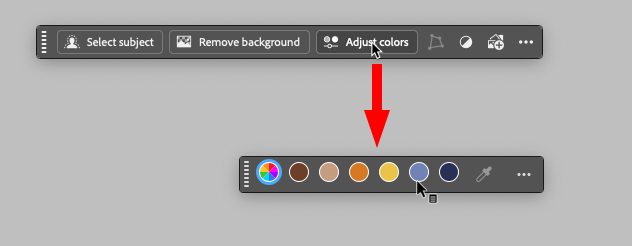
At first, it still changes everything blue—you start moving sliders around, trying to pull the hue one way or the other, and Photoshop just grabs every blue pixel it can find. And I know what you’re thinking. You’re like, “Ha! Ha! That’s the same issue you had doing it the old way.” As my kids would say… “don’t @ me. I get it. But this is where the combination of new tools really clicks.

Use Object Selection to Get Specific

Instead of relying only on color, let Photoshop help. Grab the Object Selection Tool. Let it think for a moment. Then go to Select > Select People—Photoshop recognizes her right away. From there, choose Upper Clothes.
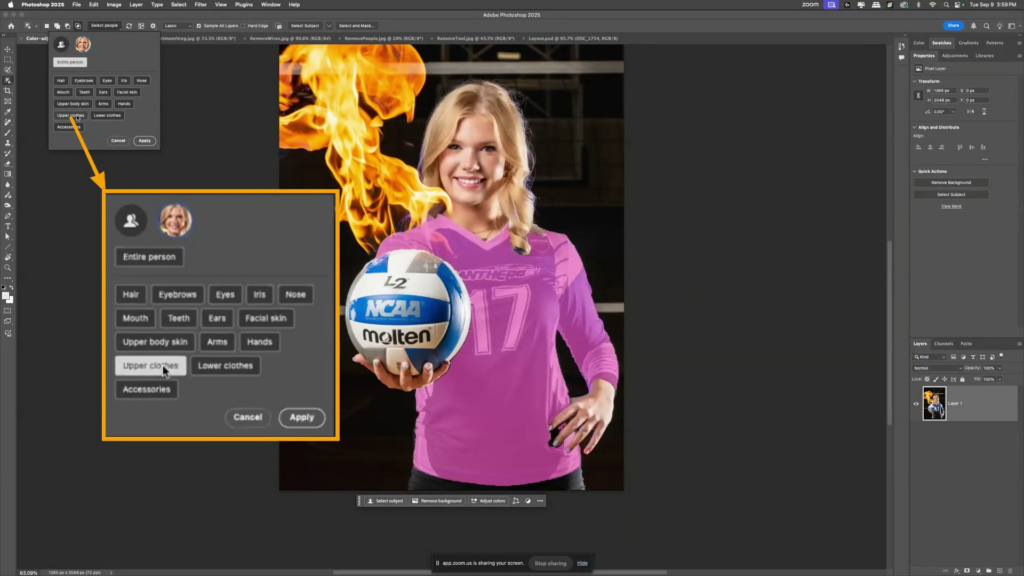
With a few clicks, Photoshop isolates just the jersey.

Could we have done that before? Not in the three clicks that that just took, that’s for sure. So now, the issue would be, now we don’t have that little adjust color thing over here. Where did that go? Why don’t we have that? Where is it? Honestly guys, I expect that in future generations of the program, we’re going to be able to put custom features in that Contextual Task Bar. It’s not there yet.

Here’s a little hack for what I’m going to do here. We’ve already got this selection. I’m going to go ahead and make that a mask. So it’s just there. Okay. Click back on the image. Now look, my Adjust Colors button is back. And when I click it, it just gives me the colors in the area that’s been masked out. So it’s just in this. Now, it’s still going to be applied to the entire image, but we just made a mask telling it where we want it to be, but the mask is just on the wrong layer. It’s on our base layer and not on the adjustment. Simply drag that mask up onto the adjustment layer. Yes, Photoshop warns you it’s replacing the mask. Yes, that’s what we want. Photoshop… relax.

Pick the blue again, shift the hue, and now only the jersey changes. No more collateral damage.

Why This Workflow Works So Well

When you combine Object Selection with Adjust Colors, this becomes one of the fastest ways to target and shift a color in an image. The prominent colors update, the mask keeps things contained, and the whole process feels natural and intuitive.

You can refresh the colors, switch to presets, or even adjust everything at once with the Master option. When I had to mock up different jersey colors for a coach, this literally saved me hours. No more old-school fiddling with hue brackets or cleaning up messy masks. It’s just… easy.

Adobe has changed Photoshop a lot in the last few years, and this is one tool that really shows how those changes can work in your favor.

Unlock the Best of KelbyOne Live 2025

Not a member yet? Join KelbyOne and, along with full membership benefits, you’ll unlock immediate access to The Best of KelbyOne Live 2025. This curated assortment of conference sessions from top photographers and educators is packed with Lightroom, Photoshop, iPhone, and creative workflow tips—everything you need to expand your skills and create your best images in 2026.
https://layersmagazine.com/photoshop-color-adjustments-with-the-new-adjust-colors-tool-with-kirk-nelson.html


Join Scott & Erik LIVE This Cyber Monday

Cyber Monday is going to be BIG this year — and we’re kicking it off with a special live webcast hosted by Scott Kelby and Erik Kuna!

 Monday, December 1, 2025
 11:00 AM ET
 Streaming on Facebook, YouTube, and the KelbyOne Members Site

Scott and Erik will be walking through everything happening right now at KelbyOne — including an inside look at our brand-new track, The Complete Lightroom Learning System (which is quickly becoming a member favorite).

If you want the full scoop on all things Cyber Monday, make sure you join us live!

https://layersmagazine.com/join-scott-erik-live-this-cyber-monday.html


Your Journey to Landscape Mastery Starts Here

Announcing the Landscape Photography Conference 2025! Produced by KelbyOne Live, this online event takes place December 9–10, 2025. Join photographers from around the world for two immersive days designed to help you sharpen your eye, refine your composition, strengthen your portfolio, and push your creative vision. From capturing breathtaking scenes in the field to elevating your work with post-processing, this is your chance to learn from the best and transform the way you shoot.

Learn from Legends Behind the Lens

We’ve gathered an extraordinary lineup of landscape photography experts—artists and educators who know what it takes to bring a scene to life. These are photographers who have braved the elements, chased the light, and crafted award-winning portfolios. Now they’re ready to share their stories, techniques, and field-tested tips with you.

Sessions That Inspire & Challenge

Sessions cover every stage of the process, including:

  • How to see like a landscape pro and compose more impactful images
  • In-the-field shooting techniques to make the most of light and weather
  • Post-processing techniques that help take your shots from “meh” to “masterpiece”
  • Strategies for building a portfolio that reflects your unique vision
  • Lightroom and Photoshop workflows for creative finishing, blending exposures, printing, and more

Whether you’re aiming to refine your technical skills, streamline your editing, or find fresh creative inspiration, you’ll find sessions tailored to your journey.

Prepare for Your Journey

This is your chance to join a live-online gathering of landscape lovers, photo storytellers, and people hungry to elevate their craft. Tickets are now available. Claim yours now to guarantee access, get in on all the inspiration, and start forming the vision that’ll define your next great images.

P.S. Why wait? Register now to save big with our Early Bird Special pricing. Get your 2-day conference pass for just $149 (regularly $299). This discounted price is only available until December 9, 2025, at 11:00 a.m. EDT. See you at the conference!

https://layersmagazine.com/your-journey-to-landscape-mastery-starts-here.html


Luminar Neo Fall Upgrade 2025: A Giant Leap Toward Cross-Platform Creativity

Skylum is raising the bar again. The Fall 2025 upgrade to Luminar Neo isn’t just another update — it’s a reimagining of what photo editing can be in a connected, multi-device world. With a massive rollout of new tools, platform expansions, and an all-new ecosystem, Luminar Neo is now primed to be more than a photo editor. It’s becoming a complete creative environment.

Luminar Neo Is Now Truly Cross-Platform

Earlier this spring, Luminar Neo expanded beyond iOS with the release of Android and ChromeOS apps, completing its reach across all major platforms. Now, whether you’re editing on a tablet, Android phone, Chromebook, or desktop, you get the same powerful tools and unified experience.

No compromises. No stripped-down mobile versions. Just one seamless creative environment that travels with you.

This full-platform integration laid the groundwork for what Skylum is now rolling out: the Luminar Ecosystem, launching this fall.

Coming November 2025: Phase One of the Luminar Ecosystem

Cross-Device Mobile-to-Desktop Editing

Imagine starting a photo edit on your phone while commuting — cropping, adjusting lighting, maybe adding a mask — and then picking up right where you left off on your desktop at home. With real-time sync powered by Luminar Neo’s cloud-based infrastructure, that workflow is now seamless.

As you make edits on your mobile device, every change — sliders, masks, layers, even undos — is automatically saved to the cloud. When you open the same image on your desktop, it appears exactly as you left it, with all edits fully intact and ready to refine further.

There’s no need to export, upload, or transfer files manually. No version mismatches. Just a clean, uninterrupted editing experience across all your devices.

This isn’t just convenient — it’s a true workflow upgrade for creators who need flexibility without compromise, whether you’re working in the field, on the move, or back in the studio.

Web Galleries: Share Stories, Not Just Images

Luminar’s Web Galleries turn finished edits into beautiful, interactive web pages — instantly. No need for a website, coding knowledge, or design tools. Just select your images, pick a style, and publish.

This feature is aimed squarely at creators who want to share stories, not just pictures. Whether it’s a wedding, travel journal, or professional portfolio, Web Galleries help you tell a visual story with ease and elegance.

And for pros? It’s a fast, polished way to deliver work to clients.

New Tools Rolling Out This Fall

Alongside the ecosystem launch, Luminar Neo is introducing three major editing features that make advanced photography more accessible and powerful than ever.

Restoration Tool

Have old family photos collecting dust? With a single click, the new Restoration tool revives faded prints, removes scratches, and brings back lost detail. Whether you’re preserving history or cleaning up an archive, this tool makes photo restoration effortless — and remarkably fast.

AI Assistant

The AI Assistant is your built-in photo editing guide. It intelligently scans your image and suggests precise edits using tools like Develop Raw, Curves, and Color Harmony. It’s perfect for new users who want great results fast, and for seasoned editors looking to speed up their workflow without sacrificing control.

Volume Tool

The new Volume tool adds a rich sense of depth by automatically enhancing light and shadow across the image. With one click, your photos get more drama, contrast, and atmosphere — no manual dodge and burn required.

Limited-Time Deals: Till September 15, 2025

To celebrate the upgrade, Skylum is offering special pricing for new and existing users:

New users can purchase:

Luminar Neo Cross-Device Perpetual License (Neo + Mobile) for $159
Luminar Neo Max Perpetual License (Neo + Mobile + Creative Library) for $179

Grab the offer here 

Existing Skylum users can purchase :

Ecosystem Pass (including Generative Tools + New Tools + Mobile + Web Galleries + Cross-Device Editing) for $79

2025/26 Upgrade Pass (including Generative Tools + New Tools) for $59 

Upgrade here

Final Thoughts: A Vision for Creative Freedom

The Fall 2025 Luminar Neo upgrade marks a turning point. It’s no longer just a powerful editor — it’s a creative ecosystem designed for modern workflows and modern lives.

Skylum is clearly betting on flexibility, intelligence, and storytelling as the future of photo editing. And with mobile apps, cloud-syncing, AI-powered tools, and web-ready galleries all in the same package, it’s hard to argue with that vision.

Whether you’re just starting out or have years behind the lens, Luminar Neo now meets you where you are — on your phone, your desktop, or somewhere in between — and takes your creativity further than ever.

https://layersmagazine.com/luminar-neo-fall-upgrade-2025-a-giant-leap-toward-cross-platform-creativity.html


Will You Be One of Our 2025 Guru Winners?

The clock is ticking—get your entry in by next Friday!

The Guru Awards are Photoshop World’s ultimate bragging rights—and the deadline to enter is almost here. If you’re attending PSW 2025, this is your chance to put your best work on display and maybe even walk away with a super cool trophy (and eternal bragging rights).

Deadline: Friday, August 29

You can submit your work in these categories:

  • Landscape Photography
  • Creative Photography
  • Portrait Photography
  • Macro Photography
  • Mobile Photography
  • Wildlife Photography
  • AI Enhanced

Winners and finalists are celebrated live during Photoshop World, streamed to the entire community of photographers, designers, and creatives tuning in online. It’s your chance to have your work seen and celebrated by the creative community worldwide.

Enter your images now

Don’t let the deadline slip by. Hit submit, take your shot, and you could be one of this year’s Guru legends. Read all the details and rules here.

Don’t Have Your Photoshop World Ticket Yet?

Photoshop World 2025 isn’t just about the Guru Awards—it’s about sharpening your skills, exploring new techniques, and connecting with the best creative community around. From Photoshop and Lightroom to photography and beyond, it’s three days packed with inspiration, hands-on learning, and game-changing ideas.

Get your Photoshop World 2025 ticket today

Join us for THE ULTIMATE PHOTOSHOP TRAINING EVENT and take your creativity further than ever before.

https://layersmagazine.com/will-you-be-one-of-our-2025-guru-winners.html


Advantages of Adding Luminar Neo to Your Lightroom Setup

Ever felt like Lightroom’s editing power, while impressive, could use a little creative boost? What if you could access high-level AI editing tools without disrupting your established workflow? If you’re looking to level up your image edits without leaving your favorite environment, it might be time to explore the Luminar Neo plugin for Lightroom

This article unpacks the seamless integration between Luminar Neo and Lightroom, dives into its most compelling AI tools, and gives you practical steps to bring it into your workflow. If you’re curious about unlocking next-level editing speed and creativity, you’re in the right place. 

Best Features of Luminar Neo Plugin for Lightroom 

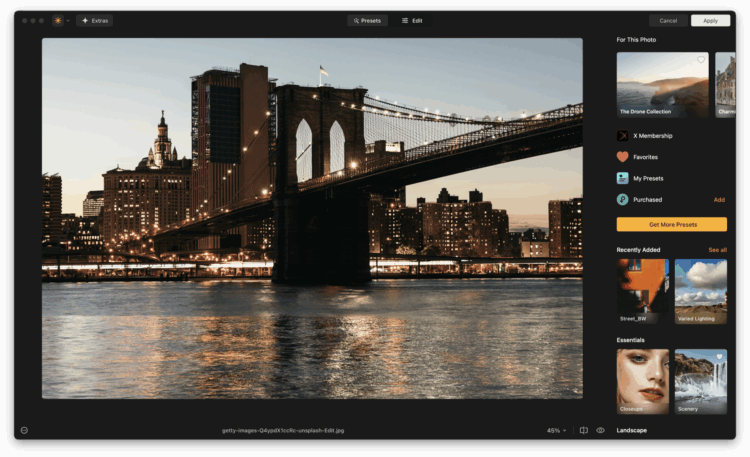
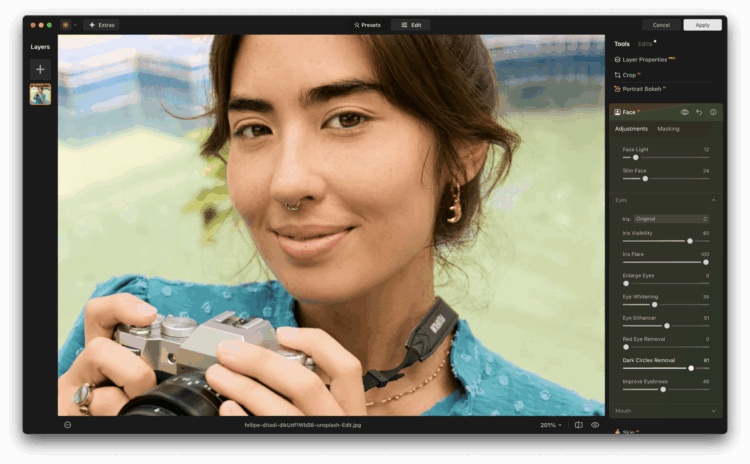
At its core, Luminar Neo is designed to enhance, not replace, your Lightroom experience. Once installed, it acts as a plugin, meaning you can send an image from Lightroom into Luminar Neo, apply edits, then roundtrip it right back. This process keeps your Lightroom catalog intact while opening doors to Luminar’s cutting-edge AI features and creative tools. 

1. Seamless Round-Trip Editing 
One of the most appreciated features is the ability to launch Luminar Neo directly from Lightroom and return edited images right back into your Lightroom catalog. This makes it easy to build Luminar into your regular workflow. You can start your basic edits and color correction in Lightroom, then pass the file to Luminar Neo for more complex or creative enhancements. Once done, Luminar sends a new version of your image back to Lightroom, preserving the original and giving you an easy way to manage variations. It’s a smooth, non-destructive workflow that saves you time and frustration. 

2. Creative AI Tools at Your Fingertips 
Luminar Neo excels in creative enhancement tools, especially those powered by AI. These tools allow you to apply cinematic effects, dynamic lighting, dramatic skies, or subtle portrait touch-ups, all with just a few clicks. What makes this especially useful in a Lightroom workflow is that you can skip the hassle of masking or complex brush work. If you’re a creative editor or someone who loves to push the visual storytelling of an image, Luminar Neo becomes an invaluable extension. It’s particularly helpful for photographers working under tight deadlines who still want to deliver high-quality, polished work. 

3. Layer Support and Masking 
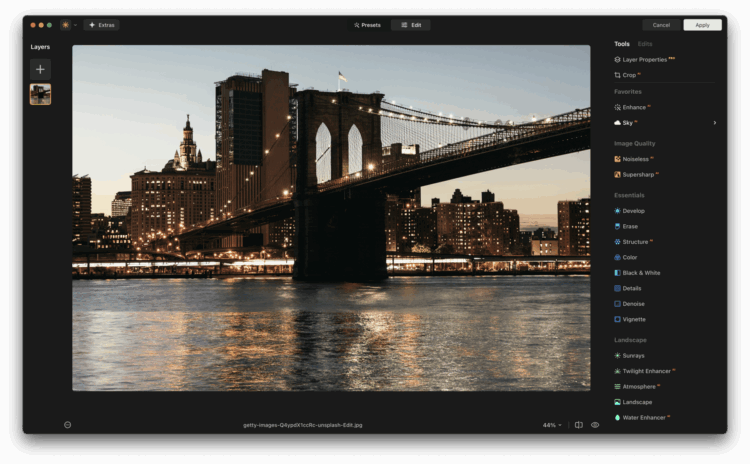
Lightroom doesn’t offer traditional layers, which can be limiting for photographers who want to experiment with compositing or blending textures. Luminar Neo fills that gap with full support for layers, giving you the ability to stack images, add elements like fog or light leaks, or insert your own overlays. Each layer can have its own adjustments, blending modes, and masking, giving you Photoshop-style flexibility in a much simpler interface. For creative portraiture or fine art photographers, this opens up a new world of possibilities, no need to leave Lightroom and jump into another heavyweight application. 

4. Speed and Simplicity 
Many photographers are drawn to Luminar Neo because of how fast and easy it is to use. Despite the deep editing power under the hood, the user interface remains uncluttered and intuitive. The tools are grouped logically and labeled clearly, with real-time previews that let you see exactly what you’re doing. For busy professionals, this means getting more done in less time. For hobbyists and enthusiasts, it reduces the learning curve and encourages experimentation. When paired with Lightroom’s batch processing and catalog management, you get a complete system that’s both fast and flexible. 

5. Smart Presets and Workflows 
In addition to standard filters, Luminar Neo includes smart templates and AI-driven presets that adapt to your photo content. This feature can identify the subject, lighting, and type of scene, then recommend a starting look tailored to that image. Whether you’re editing a beach scene, a moody portrait, or a bustling street photo, Luminar gives you a creative head start. When used inside a Lightroom workflow, these presets help you maintain consistency across photo sets while still leaving room for creative tweaks. It’s a perfect companion for event photographers or travel shooters who want to build a signature style quickly. 

Which AI Tools Can You Find in Luminar Neo Plugin? 

When photographers think of the Luminar Lightroom plugin, what stands out most is Luminar’s AI-driven toolset. These tools are more than just trendy buzzwords, they’re practical, timesaving, and artistically empowering. 

1. Sky AI 
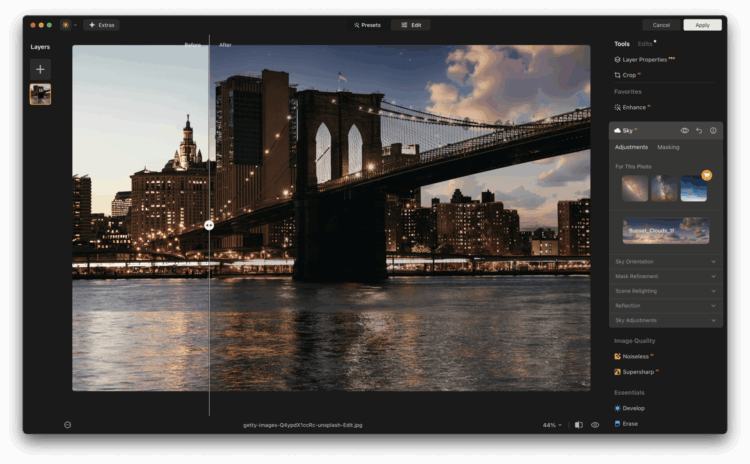
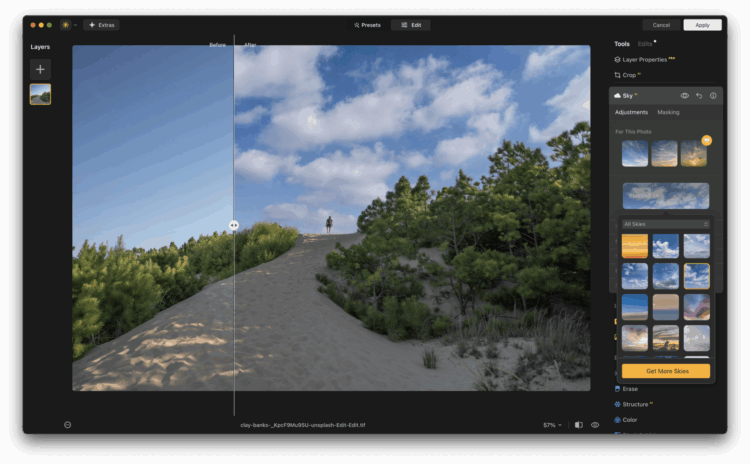
Sky AI automatically detects the sky in your image and allows you to replace it with one of your choosing. The plugin even adjusts lighting and reflections in the scene to match the new sky, creating believable results that would otherwise take hours to composite manually. 

2. Portrait Bokeh AI 
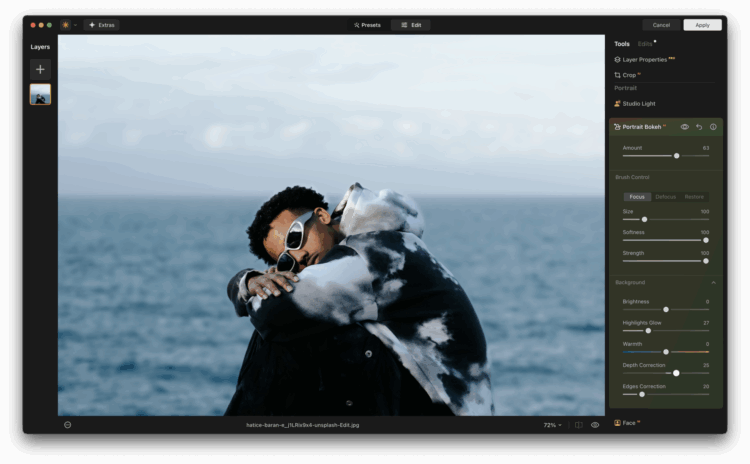
This tool uses depth mapping to simulate a shallow depth-of-field effect, perfect for portraits shot in distracting environments. You can blur the background and control the strength, edge transitions, and even the focus point with surgical precision. 

3. Skin AI and Face AI 
Ideal for photographers who specialize in headshots or lifestyle images, these tools smooth skin, reduce blemishes, and enhance eyes and lips without making subjects look plastic or over-edited. The adjustments are subtle and refined. 

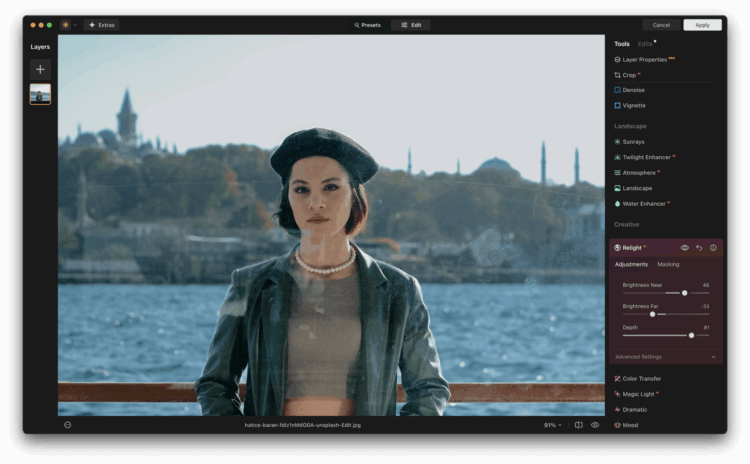
4. Relight AI 
Perhaps one of the most game-changing features, Relight AI separates your image into foreground and background lighting zones. You can fix underexposed subjects or creatively relight scenes to match mood and atmosphere. 

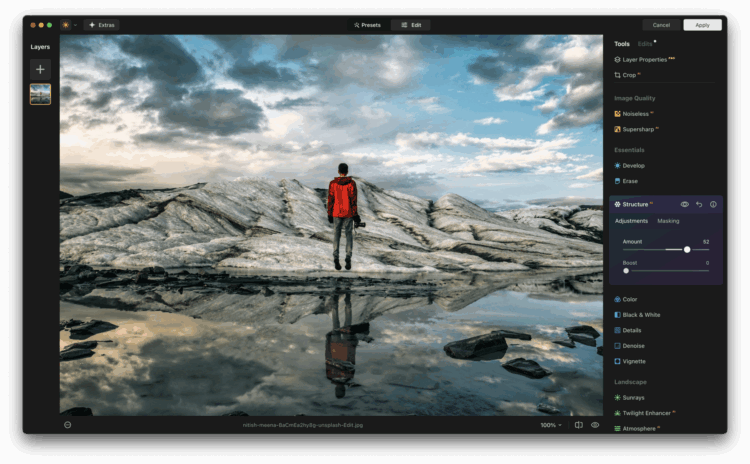
5. Structure AI and Enhance AI 
Structure AI adds intelligent detail and contrast without introducing unwanted noise or artifacts. Enhance AI gives you a one-slider improvement tool that adjusts contrast, clarity, color, and detail in a balanced way. 

These tools are especially helpful for wedding, travel, and portrait photographers who need fast, beautiful results without hours of retouching. 

Try This: 
Open a portrait photo in Luminar Neo from your Lightroom library. Use Portrait Bokeh AI and Face AI to quickly enhance the subject and soften the background. Compare it to what you could achieve with Lightroom alone. It’s a huge difference with minimal effort. 

How To Integrate Luminar Neo Plugin with Lightroom? 

Getting started with the Luminar Neo plugin for Lightroom is surprisingly straightforward, even if you’re not a tech wizard. Here’s how to set it up and start editing. 

Step 1: Install Luminar Neo 
Download and install Luminar Neo from theofficial website. Make sure it’s the latest version to ensure plugin compatibility. 

Step 2: Enable Plugin Support 
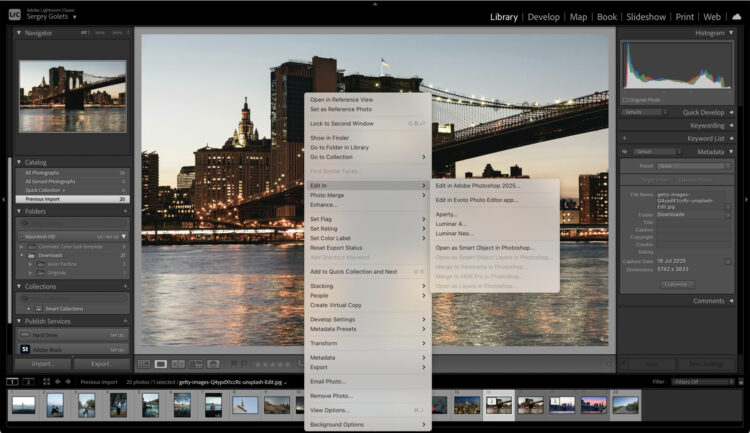
Once Luminar Neo is installed, launch it as a standalone app first. Then go to “File” → “Install Plugins.” A dialog will pop up showing all available host applications. Click “Install” next to Adobe Lightroom. 

Step 3: Launch Lightroom and Access Luminar 
Open Lightroom Classic and right-click on an image. Go to “Edit In” and select Luminar Neo. Lightroom will send a TIFF (or another selected format) to Luminar Neo. Make your edits, hit “Apply,” and the finished image will appear back in your Lightroom catalog. 

Step 4: Set Your Preferences 
In Lightroom, you can choose how your edited files are saved (TIFF, PSD, JPEG) and whether you want them stacked with the original. Tweak these settings to match your workflow for better file management. 

Step 5: Create Presets and Streamline Workflow 
Once you find an edit style you love in Luminar Neo, save it as a preset. This allows batch processing of Lightroom images via Luminar’s plugin, especially helpful for event or wedding photographers dealing with large sets of similar photos. 

Try This: 
Once the plugin is installed, send a landscape photo from Lightroom into Luminar Neo. Use Sky AI to replace a dull sky with something dramatic. Let the AI match the lighting and tone automatically, then hit “Apply” to send it back. It’s a fast way to see the power of Luminar Neo in action. 

Let Your Edits Work Smarter, Not Harder 

For photographers who want the best of both worlds, Lightroom’s robust cataloging and basic adjustments combined with Luminar Neo’s intelligent editing, this plugin integration is a perfect match. Whether you’re enhancing portraits, retouching skies, or exploring creative compositions, Luminar Neo doesn’t disrupt your Lightroom flow. It elevates it. 

If you haven’t already tried it, give the Luminar Neo Lightroom plugin a spin. You’ll be surprised at how much time it saves and how creatively satisfying it can be. Want to make your edits faster and more artistic at the same time? Now you can, without switching programs or learning a new system from scratch. And now you can save 10% using the discount code KELBY10.

About the Author: Vanelli 
Vanelli is a passionate photographer, educator, and storyteller with years of experience behind the lens. He currently serves as the Director of Education for Skylum, where he helps photographers around the world improve their creative process through practical training and inspiration. Known for his energetic teaching style and deep love for visual creativity, Vanelli has spent much of his career helping photographers, from beginners to pros, build confidence and sharpen their skills. Whether he’s capturing dynamic portraits or leading workshops globally, he brings a unique blend of technical know-how and artistic intuition to every project. His approachable style makes complex concepts easy to grasp, and his mission is simple, to inspire others to create with purpose and passion. 

https://layersmagazine.com/advantages-of-adding-luminar-neo-to-your-lightroom-setup.html


Top Harvard Cancer researchers accused of scientific fraud; 37 studies affected

The Dana-Farber Cancer Institute in Boston.
Enlarge / The Dana-Farber Cancer Institute in Boston.

The Dana-Farber Cancer Institute, an affiliate of Harvard Medical School, is seeking to retract six scientific studies and correct 31 others that were published by the institute’s top researchers, including its CEO. The researchers are accused of manipulating data images with simple methods, primarily with copy-and-paste in image editing software, such as Adobe Photoshop.

The accusations come from data sleuth Sholto David and colleagues on PubPeer, an online forum for researchers to discuss publications that has frequently served to spot dubious research and potential fraud. On January 2, David posted on his research integrity blog, For Better Science, a long list of potential data manipulation from DFCI researchers. The post highlighted many data figures that appear to contain pixel-for-pixel duplications. The allegedly manipulated images are of data such as Western blots, which are used to detect and visualize the presence of proteins in a complex mixture.

DFCI Research Integrity Officer Barrett Rollins told The Harvard Crimson that David had contacted DFCI with allegations of data manipulation in 57 DFCI-led studies. Rollins said that the institute is “committed to a culture of accountability and integrity,” and that “Every inquiry about research integrity is examined fully.”

The allegations are against: DFCI President and CEO Laurie Glimcher, Executive Vice President and COO William Hahn, Senior Vice President for Experimental Medicine Irene Ghobrial, and Harvard Medical School professor Kenneth Anderson.

The Wall Street Journal noted that Rollins, the integrity officer, is also a co-author on two of the studies. He told the outlet he is recused from decisions involving those studies.

Amid the institute’s internal review, Rollins said the institute identified 38 studies in which DFCI researchers are primarily responsible for potential manipulation. The institute is seeking retraction of six studies and is contacting scientific publishers to correct 31 others, totaling 37 studies. The one remaining study of the 38 is still being reviewed.

Of the remaining 19 studies identified by David, three were cleared of manipulation allegations, and 16 were determined to have had the data in question collected at labs outside of DFCI. Those studies are still under investigation, Rollins told The Harvard Crimson. “Where possible, the heads of all of the other laboratories have been contacted and we will work with them to see that they correct the literature as warranted,” Rollins wrote in a statement.

Despite finding false data and manipulated images, Rollins pressed that it doesn’t necessarily mean that scientific misconduct occurred and the institute has not yet made such a determination. The “presence of image discrepancies in a paper is not evidence of an author’s intent to deceive,” Rollins wrote. “That conclusion can only be drawn after a careful, fact-based examination which is an integral part of our response. Our experience is that errors are often unintentional and do not rise to the level of misconduct.”

The very simple methods used to manipulate the DFCI data are remarkably common among falsified scientific studies, however. Data sleuths have gotten better and better at spotting such lazy manipulations, including copied-and-pasted duplicates that are sometimes rotated and adjusted for size, brightness, and contrast. As Ars recently reported, all journals from the publisher Science now use an AI-powered tool to spot just this kind of image recycling because it is so common.

https://arstechnica.com/?p=1997993


Join Us Tonight for an After Hours Book Chat with Scott Kelby!

Scott just released a new Photoshop book, so you know what that means—it’s time for a Book Chat! Join us TONIGHT, Thursday 12/14 for some tips and tricks from the book, Q&As, amazing book deals, cool prizes, and lots of laughs. Hope to see you there! It’s over on Scott’s Facebook page: facebook.com/skelby.

https://layersmagazine.com/join-us-tonight-for-an-after-hours-book-chat-with-scott-kelby.html


Book Spotlight!

How Do I Do That In Photoshop? 2nd Edition by Scott Kelby

Scott is back with a totally updated and revised new edition of his bestselling book. Here’s how this book works: When you need to know how to do a particular thing in Photoshop, you turn to the chapter where it would be found (Layers, Printing, Masking, Special Effects, etc.), find the thing you need to do (it’s easy; each page covers just one single topic), and Scott tells you exactly how to do it just like he was sitting there beside you, using the same casual style as if he were telling a friend. That way, you get back to editing your images fast! Order your print book or eBook today.

KelbyOne members: Remember, you can save 50% on ALL titles from Rocky Nook using their discount code found under Perks in your Dashboard!

https://layersmagazine.com/book-spotlight.html


Adobe launches new symbol to tag AI-generated content—but will anyone use it?

The Content Credentials logo in front of a penguin desert background.
Enlarge / The Content Credentials “CR” logo presented in front of an AI-generated image provided by Adobe.

On Tuesday, Adobe announced a new symbol designed to indicate when content has been generated or altered using AI tools, reports The Verge, as well as verifying the provenance of non-AI media. The symbol, created in collaboration with other industry players as part of the Coalition for Content Provenance and Authenticity (C2PA), aims to bring transparency to media creation and reduce the impact of misinformation or deepfakes online. Whether it will actually do so in practice is uncertain.

The Content Credentials symbol, which looks like a lowercase “CR” in a curved bubble with a right angle in the lower-right corner, reflects the presence of metadata stored in a PDF, photo, or video file that includes information about the content’s origin and the tools (both AI and conventional) used in its creation. The information is automatically added by supporting digital cameras and AI image generator Adobe Firefly, or it can be inserted by Photoshop and Premiere. It will also soon be supported by Bing Image Creator.

If credentialed media is presented in a compatible app or using a JavaScript wrapper on the web, users click the “CR” icon in the upper-right corner to view a drop-down menu containing image information. Or they can upload a file to a special website to read the metadata.

[embedded content]
Adobe’s promotional video for Content Credentials.

Adobe worked alongside organizations such as the BBC, Microsoft, Nikon, and Truepic to develop the Content Credentials system as part of the C2PA, a group aiming to establish technical standards for certifying the source and provenance of digital content. Adobe refers to the “CR” symbol as an “icon of transparency,” and the C2PA chose the initials “CR” in the symbol to stand for “credentials,” avoiding potential confusion with Creative Commons (CC) icons. Notably, the coalition owns the trademark for this new “CR” icon, which Adobe thinks will become as common as the copyright symbol in the future.

An example of Content Credentials in action, provided by Adobe. Clicking the "CR" symbol will show information on how the image was created.
Enlarge / An example of Content Credentials in action, provided by Adobe. Clicking the “CR” symbol will show information on how the image was created.

Adobe likens the content credentials to a “digital nutrition label,” or list of ingredients that make up the piece of media. “This list of ingredients will show verified information as key context so people can be sure of what they’re looking at,” the C2PA writes on its website. “This can include data about a piece of content, such as: the publisher or creator’s information, where and when it was created, what tools were used to make it, including whether or not generative AI was used, as well as any edits that were made along the way.”

Adobe isn’t the only company working on measures to provide ways to track the provenance of AI-generated content. Google has introduced SynthID, a content marker that similarly identifies AI-generated content within the metadata. Additionally, Digimarc has released a digital watermark that includes copyright information, aimed at tracking the use of data in AI training sets, according to The Verge.

https://arstechnica.com/?p=1975166