4 tips to prepare for Black Friday and Cyber Monday by Digital Drew SEM

Black Friday And Cyber Monday 1920 1080 800x450

Did you know? In 2022, Black Friday online sales totaled over $9.12 billion, and Cyber Monday sales totaled over $11.3 billion.

Black Friday and Cyber Monday are two of the biggest shopping days of the year in the United States. These events are a great opportunity for retailers to boost sales and generate excitement for the holiday season and for people to shop all at discounted rates. 

However, for online businesses, it is very important to prepare for these days by using digital marketing services. So, before we dive into the topic, let’s first understand the significance of these days.

How to prepare for Black Friday and Cyber Monday

Black Friday and Cyber Monday are two of the biggest shopping days of the year, and businesses can use digital marketing services to prepare for them. Here are some specific digital marketing services that businesses can use to prepare for Black Friday and Cyber Monday:

1. Start planning your email marketing campaigns

Black Friday and Cyber Monday are two of the biggest shopping days of the year, and email marketing is a great way to reach your existing customers and promote your deals. Here are some tips for starting your email marketing campaigns early:

  • Start planning early. The best time to start planning your Black Friday and Cyber Monday email marketing campaigns is in September. This will give you enough time to create engaging and effective emails and to test and optimize your campaigns.
  • Personalize your emails. People are more likely to open and click on emails that are personalized to them. Use your email marketing software to segment your list by customer interests and demographics and send targeted emails that are relevant to each group.
  • Offer exclusive deals. One of the best ways to get people to open your emails is to offer exclusive deals they can’t find anywhere else. This could be a discount on a specific product, free shipping, or a gift with purchase.
  • Track your results. It’s important to track the results of your email marketing campaigns to see what’s working and what’s not. This will help you improve your campaigns over time and get better results.

2. Optimize your website for search engines with SEO

By optimizing your website for Black Friday and Cyber Monday keywords, you can increase your chances of being found by people who are looking for deals.

  • Optimize your product pages for Black Friday and Cyber Monday keywords. When people are looking for deals, they are likely to search for keywords related to Black Friday and Cyber Monday. Make sure your product pages are optimized for these keywords so that they rank higher in search results.
  • Create holiday-specific content. In addition to optimizing your product pages, you can also create holiday-specific content, such as blog posts, infographics, and social media posts. This content should be informative and engaging and help people learn more about your products and discounts.
  • Build backlinks. Backlinks are links from other websites to your website. They are a signal to Google that your website is authoritative and trustworthy. In the weeks leading up to Black Friday and Cyber Monday, focus on building backlinks from relevant websites.
  • Track your SEO performance. It’s important to track your SEO performance to see what’s working and what’s not. This will help you make necessary adjustments to your strategy.

3. Use search engine marketing to reach new customers

By running SEM campaigns during Black Friday and Cyber Monday, you can reach a large audience looking for deals.

Here are some tips for running SEM campaigns for Black Friday and Cyber Monday:

  • Set a budget. Before you start running any SEM campaigns, setting a budget is important. This will help you avoid overspending and ensure that you’re getting a good return on your investment.
  • Choose the right keywords. When choosing keywords for your SEM campaigns, it’s important to select those relevant to your products and that people are likely to search for. You can use a keyword research tool to help you find the right keywords.
  • Create effective ad copy. Your ad copy should be clear, concise, and persuasive. It should also be relevant to the keywords you’re targeting.
  • Track your results. It’s important to track the results of your SEM campaigns to see what’s working and what’s not. This will help you improve your campaigns over time and get better results.

4. Run paid social ads

Paid social ads are a great way to reach a large audience looking for deals during Black Friday and Cyber Monday. You can boost your sales and reach your marketing goals by running paid social ads on the right platforms and targeting your ads to the right people.

Here are some tips for running paid social ads for Black Friday and Cyber Monday:

  • Choose the right platform. Not all social media platforms are created equal. When choosing a platform for your paid social ads, choose one your target audience is using. For example, if you’re targeting millennials, you might want to focus on Instagram and TikTok.
  • Target your ads. When you’re targeting your paid social ads, it’s important to be as specific as possible. You can target your ads by demographics, interests, and even past purchase behavior. This will help you ensure that your ads are seen by the people who are most likely to be interested in your offer.
  • Create engaging content. Your paid social ads should be engaging and relevant to your target audience. They should also be visually appealing and easy to understand. Use high-quality images and videos and write clear and concise ad copy.
  • Offer exclusive deals. One of the best ways to get people to click on your paid social ads is to offer exclusive deals. This could be a discount on a specific product, free shipping, or a gift with purchase.
  • Track your results. It’s important to track the results of your paid social ads so that you can see what’s working and what’s not. This will help you improve your campaigns over time and get better results.

By following these tips, you can run effective paid social ads to help you reach your Black Friday and Cyber Monday goals.

It’s time to act now 

As the holiday season approaches, the competition will only intensify. By implementing the strategies outlined here, you’re setting yourself up for a successful Black Friday and Cyber Monday. Remember, the time to act is now. Start refining your email marketing campaigns, optimizing your SEO, fine-tuning your SEM strategies and crafting eye-catching paid social ads. With these pillars in place, you’ll be well on your way to surviving and thriving during the holiday sales period. Your success story begins with the steps you take today.

For some great additional ad examples check out this blog: https://digitaldrewsem.com/black-friday-facebook-ads-examples/


Related stories

New on Search Engine Land

About the author

Digital Drew SEM

Digital Drew SEM is a full service marketing and advertising agency based in NYC. We offer a wide range of services such as Search Engine Optimization, Email Marketing, Paid ads, Search Engine Marketing, and more! With a passion for staying at the forefront of digital advertising trends and a commitment to delivering exceptional results, Digital Drew SEM is your go-to partner for maximizing your online visibility and conversions. Whether you’re a startup looking to establish your digital footprint or an established brand seeking to amplify your online reach, we are dedicated to helping you achieve your goals.

https://searchengineland.com/4-tips-to-prepare-for-black-friday-and-cyber-monday-431297
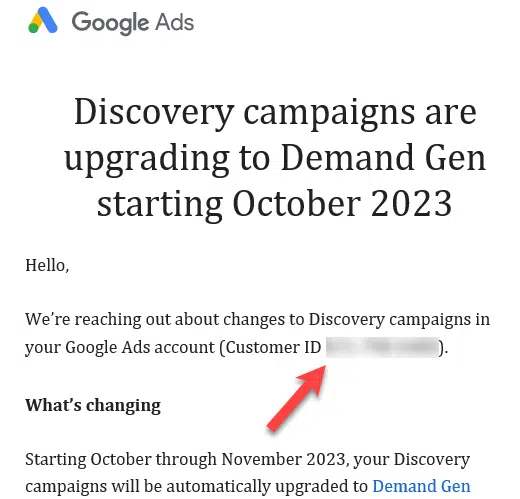


Google Ads emails now include customer IDs

Google Ads is finally including customer ID numbers in its emails.

The change was first spotted by digital marketing expert Greg Kohler, who shared a screenshot on X (the platform formerly known as Twitter):

1 2

He said: “Customer ID’s in Google’s emails? Going to chalk this one up to #PPCChat respectfully grumbling about it not being included in past emails.”

Why we care. Marketers working across multiple accounts will now immediately know which client a Google Ads email is referring to, meaning they don’t have to waste time playing a guessing game.

Why now? Advertisers in the PPC community have long complained about the confusion caused when Google Ads doesn’t specify which client it’s referring to. It appears as though the platform has acted on this feedback.

Deep dive. Visit the Google Ads Help Center for more information.


Related stories

New on Search Engine Land

@media screen and (min-width: 800px) { #div-gpt-ad-3191538-7 { display: flex !important; justify-content: center !important; align-items: center !important; min-width:770px; min-height:260px; } } @media screen and (min-width: 1279px) { #div-gpt-ad-3191538-7 { display: flex !important; justify-content: center !important; align-items: center !important; min-width:800px!important; min-height:440px!important; } }

About the author

Nicola Agius

Nicola Agius is Paid Media Editor of Search Engine Land after joining in 2023. She covers paid search, paid social, retail media and more. Prior to this, she was SEO Director at Jungle Creations (2020-2023), overseeing the company’s editorial strategy for multiple websites. She has over 15 years of experience in journalism and has previously worked at OK! Magazine (2010-2014), Mail Online (2014-2015), Mirror (2015-2017), Digital Spy (2017-2018) and The Sun (2018-2020). She also previously teamed up with SEO agency Blue Array to co-author Amazon bestselling book ‘Mastering In-House SEO’.

https://searchengineland.com/google-ads-emails-customers-ids-431606


Google will allow NFT gaming ads under updated cryptocurrency ad policy

Google will allow NFT gaming ads, provided they don’t promote gambling content, from next month.

This change will take place on September 15 when Google issues its updated advertising policy for cryptocurrencies and blockchain-based games.

To have their ads approved, advertisers must comply with Google’s gambling and games policy, attain the necessary Google Ads certification and meet specific requirements.

Acceptable NFT game examples include those that let players buy in-game items to improve their experience or help them progress, like virtual clothing and weapons.

Why we care. Advertisers interested in running NFT gaming ads will be able to connect with a previously untapped market, significantly expanding their reach and potential audience.

Which games are excluded? Google will still ban game ads that:

  • Allow players to wager or stake NFTs in exchange for the opportunity to win anything of real-world value (including other NFTs).
  • Promote social casino games that reward NFT.
  • Promote “real money gambling” destinations. This includes gambling-related advertisements that appear on your game’s destination.

Penalties. Violations of this policy will not lead to immediate account suspension without prior warning. A warning will be issued, at least 7 days, before any suspension of your account.

Why now? This change is being rolled out under plans to update Google’s policy on cryptocurrencies and related products. The updated policy is set to offer clearer guidelines for advertising blockchain-based games with NFTs.


Get the daily newsletter search marketers rely on.


What has Google said? Google said in a statement:

  • “As a reminder, we expect all advertisers to comply with the local laws for any area that their ads target. This policy will apply globally to all accounts that advertise these products.”

Deep dive. Read Google’s cryptocurrencies and related products policy for more information.


Related stories

New on Search Engine Land

@media screen and (min-width: 800px) { #div-gpt-ad-3191538-7 { display: flex !important; justify-content: center !important; align-items: center !important; min-width:770px; min-height:260px; } } @media screen and (min-width: 1279px) { #div-gpt-ad-3191538-7 { display: flex !important; justify-content: center !important; align-items: center !important; min-width:800px!important; min-height:440px!important; } }

About the author

Nicola Agius

Nicola Agius is Paid Media Editor of Search Engine Land after joining in 2023. She covers paid search, paid social, retail media and more. Prior to this, she was SEO Director at Jungle Creations (2020-2023), overseeing the company’s editorial strategy for multiple websites. She has over 15 years of experience in journalism and has previously worked at OK! Magazine (2010-2014), Mail Online (2014-2015), Mirror (2015-2017), Digital Spy (2017-2018) and The Sun (2018-2020). She also previously teamed up with SEO agency Blue Array to co-author Amazon bestselling book ‘Mastering In-House SEO’.

https://searchengineland.com/google-nft-gaming-ads-cryptocurrency-ad-policy-431600


Google adds URL Contains targeting functionality to Performance Max

Google has launched the URL Contains targeting functionality on Performance Max.

The feature, which is also available on Dynamic Search ads (DSA), enables you to manually specify which URL to show your PMax ads to.

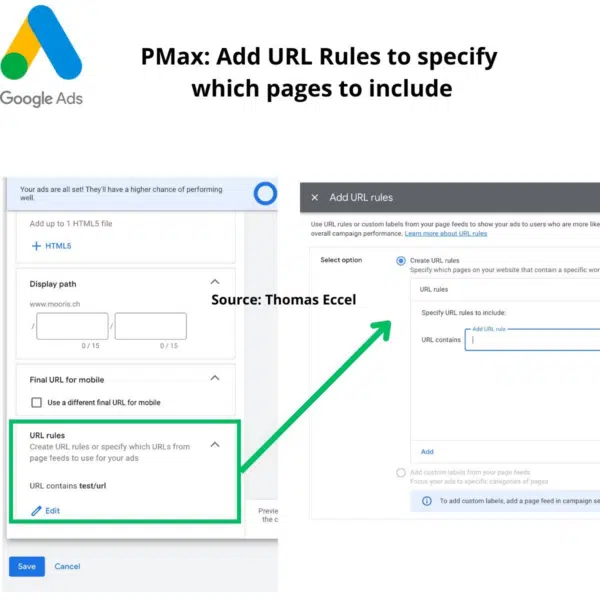
Here’s a preview of how to access the new tool on the platform, as shared by Google Ads expert Thomas Eccel on LinkedIn:

1 1 600x600

Explaining why this new feature could be super useful for advertisers, Eccel told Search Engine Land:

  • “Since a Pmax campaign with the Final Url expansion turned on can basically re-direct users on every URL possible (for example, to your blogs, about us page etc), non-monetizable pages should be excluded.”
  • “Now, with this new URL rule, I can tell PMax to only redirect users to pages that include them. For example ‘/shop’. Or if I run the PMax campaign for just one product category, let’s say Nike shoes, I can just include ‘/shoes’, for instance .”

Why we care. This feature provides marketers with more control over how their ads are served as you manually get to choose which tokens to target in order to reach a more specific and relevant audience for your brand.

How it works. You can use this functionality to target pages with URLs that contain a certain piece of text – also known as a “token”. Within URLs, a token is a piece of text surrounded by a limiter like “/” or ‘-” – among others.

This feature cannot be used in conjunction with URLs like “electronicsexample.com/servicesmenu/” because the word “menu” appears after the targeted keyword “services”. However, this feature can work for URLs like “electronicsexample.com/services-menu/” because the keyword “services” is separated from the word “menu” with the “-“. Other URL separators include:

  • “:”
  • “/”
  • “?”
  • “+”
  • “&”

What has Google said? A Google told Search Engine Land:

  • “This is a new feature rolling out for Performance Max.”
  • “We are bringing the same URL Contains targeting functionality from Dynamic Search ads (DSA) into Performance Max to better support DSA use cases in PMax as part of the voluntary upgrade we announced in July.”
  • “This feature works exactly as it does in DSA today.”

Deep dive. Visit the Google Ads Help Center for more information on the URL Contains in DSA.


Related stories

New on Search Engine Land

@media screen and (min-width: 800px) { #div-gpt-ad-3191538-7 { display: flex !important; justify-content: center !important; align-items: center !important; min-width:770px; min-height:260px; } } @media screen and (min-width: 1279px) { #div-gpt-ad-3191538-7 { display: flex !important; justify-content: center !important; align-items: center !important; min-width:800px!important; min-height:440px!important; } }

About the author

Nicola Agius

Nicola Agius is Paid Media Editor of Search Engine Land after joining in 2023. She covers paid search, paid social, retail media and more. Prior to this, she was SEO Director at Jungle Creations (2020-2023), overseeing the company’s editorial strategy for multiple websites. She has over 15 years of experience in journalism and has previously worked at OK! Magazine (2010-2014), Mail Online (2014-2015), Mirror (2015-2017), Digital Spy (2017-2018) and The Sun (2018-2020). She also previously teamed up with SEO agency Blue Array to co-author Amazon bestselling book ‘Mastering In-House SEO’.

https://searchengineland.com/google-url-contains-targeting-functionality-performance-max-431572


Meta may remove ads on Facebook and Instagram for subscribers in Europe

Meta is reportedly considering paid versions of Facebook and Instagram that would ban ads in Europe.

The cost of the subscription and potential rollout date has not yet been confirmed by the company.

However, Meta will continue to offer free versions of its apps which will still serve ads regardless, according to the New York Times.

Why we care. Depending on user adoption, this could significantly affect brand reach and campaign performance. While an ad-free subscription service is currently under consideration for Europe, it may extend to the US in the future. Advertisers should closely watch this development as they may need to consider reallocating their ad spend to other platforms accordingly.

Why now? A Meta subscription service has been suggested in response to the European Union’s Digital Services Act, which comes into effect on 1 January 2024.

Under the new regulations, more onus is being put on large platforms that have more than 45 million regional users, such as Google and Meta, to:

  • Create a safer digital space.
  • Establish a level playing field for businesses.

Get the daily newsletter search marketers rely on.


What has Meta said? The company has not commented on launching paid-for versions of Facebook and Instagram. However, Meta CEO Mark Zuckerberg hinted in 2018 when he appeared before the US Senate that such a product could be on the horizon. When asked if he would consider charging users for access to his apps to avoid ads, he said:

  • “There will always be a version of Facebook that is free.“

Then Meta COO, Sheryl Sandberg, added:

  • “We have different forms of opt-out. We don’t have an opt-out at the highest level. That would be a paid product.”

Deep dive. Read Meta’s statement on the DSA, issued by Nick Clegg, President, Global Affairs, for more information.


Related stories

New on Search Engine Land

@media screen and (min-width: 800px) { #div-gpt-ad-3191538-7 { display: flex !important; justify-content: center !important; align-items: center !important; min-width:770px; min-height:260px; } } @media screen and (min-width: 1279px) { #div-gpt-ad-3191538-7 { display: flex !important; justify-content: center !important; align-items: center !important; min-width:800px!important; min-height:440px!important; } }

About the author

Nicola Agius

Nicola Agius is Paid Media Editor of Search Engine Land after joining in 2023. She covers paid search, paid social, retail media and more. Prior to this, she was SEO Director at Jungle Creations (2020-2023), overseeing the company’s editorial strategy for multiple websites. She has over 15 years of experience in journalism and has previously worked at OK! Magazine (2010-2014), Mail Online (2014-2015), Mirror (2015-2017), Digital Spy (2017-2018) and The Sun (2018-2020). She also previously teamed up with SEO agency Blue Array to co-author Amazon bestselling book ‘Mastering In-House SEO’.

https://searchengineland.com/meta-remove-ads-facebook-instagram-paid-for-subscription-431564


Microsoft Advertising Editor expands audiences to all markets

Microsoft Advertising Editor has rolled out in-market audiences across all of its markets in EMEA, APAC and LATM.

The platform has also launched new audience types.

Alongside this expansion, the platform now supports bulk associations for In-market audiences, as well as:

  • Remarketing.
  • Dynamic remarketing lists.
  • Similar audiences.
  • Customer match.
  • Custom audiences.
  • Custom combination lists.

Why we care. Advertisers have historically only been able to use Microsoft Advertising online to manage audiences. However, they can now do this using the Microsoft Advertising Editor tool, which means they now have the flexibility to monitor and tweak their audience campaigns offline.

How it works. Marketers have been advised that audience creation and management should still be done via Microsoft Advertising online. However, Microsoft Advertising Editor can now be used to update associations in bulk. To update associations in bulk, navigate to the ‘Audience’ tab on Microsoft Advertising Editor and select an option.

Alternatively, to update audience targeting associations, you can import a file or import from Google Ads.


Get the daily newsletter search marketers rely on.


Read more. Read Microsoft’s Audience options guide for more information on audiences, or Microsoft’s In-Market guide for a full list of markets and available audiences.


Related stories

New on Search Engine Land

@media screen and (min-width: 800px) { #div-gpt-ad-3191538-7 { display: flex !important; justify-content: center !important; align-items: center !important; min-width:770px; min-height:260px; } } @media screen and (min-width: 1279px) { #div-gpt-ad-3191538-7 { display: flex !important; justify-content: center !important; align-items: center !important; min-width:800px!important; min-height:440px!important; } }

About the author

Nicola Agius

Nicola Agius is Paid Media Editor of Search Engine Land after joining in 2023. She covers paid search, paid social, retail media and more. Prior to this, she was SEO Director at Jungle Creations (2020-2023), overseeing the company’s editorial strategy for multiple websites. She has over 15 years of experience in journalism and has previously worked at OK! Magazine (2010-2014), Mail Online (2014-2015), Mirror (2015-2017), Digital Spy (2017-2018) and The Sun (2018-2020). She also previously teamed up with SEO agency Blue Array to co-author Amazon bestselling book ‘Mastering In-House SEO’.

https://searchengineland.com/microsoft-advertising-editor-exapnds-audiences-all-markets-431561


A guide to effective PPC projections

“We want to hit {goal}. What should we expect to spend?”

Whether in-house or at an agency, if you’ve been in PPC account management, odds are you’ve been asked some version of that question at least once. 

And for some, there’s a tendency to want to spit out a ballpark figure with little context or calculation.

For a few reasons, that approach could get you into trouble.

This article will give you a better way to answer that question – and keep expectations in check at the same time. Learn:

  • How to communicate your spend projections and next steps.
  • How to align on KPIs for the projections.
  • Variables to consider.
  • References to employ.

How to communicate your spend projections

Before we get into the nitty-gritty, remember: this is an exercise in estimates, and whether you’re delivering your projections to a client or a leadership team in charge of budget, you need to convey that.

Another good thing to remember is the possible range of motivators for the question itself.

  • A CMO may report overall budget projections to a CFO or board of directors.
  • A founder may include the estimate in a pitch deck for VC funding.
  • A client point of contact may simply be assessing viability and options of a mandate handed down from management.

For this reason, the best first step in building a projection is to ask who you deliver the projections for and how the inquiring party plans to use them. 

The answer will tell you a lot about what you need to deliver – and if the question comes from outside the marketing team, benchmarks like CVR, CTR, and CPC might be too granular to reference when a higher-level outlook would have more of an impact.

How to align on KPIs

Often, there’s a straight line between understanding how the inquiring party will use the projections and deciding which KPI should be the focus. 

Occasionally, a little digging will get you to a different way of answering the question.

Suppose a client asks, “How much will it cost per month to rank in the top spot in Google?” 

It might take a few follow-up questions to determine if they’re intent on:

  • Outranking a competitor for a head term.
  • Protecting their brand queries in perpetuity.
  • Simply trying to increase brand awareness and/or impressions in general, not necessarily on Google alone.

Ultimately, you may end up with the same goal KPI you started with, but often it takes some preliminary work to nail down the most accurate one. 

In this example, the KPI could be anything from brand search impressions to website traffic to impression share of brand terms.


Get the daily newsletter search marketers rely on.


Variables to consider

Once you lock in your KPI(s), you’ve got an anchor for your projections.

We recently had a good, specific request from a client to give them spend projections for driving three quantities of leads: 1,000, 5,000 and 10,000. 

Their goal was to get a ballpark budget figure for each so they could make a pitch to the brand’s CEO for more budget.

We began with our anchor KPI: lead volume. 

From there, for each lead volume target, we identified variable metrics:

  • Spend
  • Clicks
  • Cost per click
  • Conversion rate

The formulas we ultimately needed to solve to answer the client were: 

  • Leads / CVR = Clicks
  • Clicks * CPC = Spend

We started with leads as a known quantity. Calculating and/or researching the other three metrics (variables) came next.

References to employ

Ideally, you’d have old campaigns for the client or brand to use for benchmarking. 

But even if you’re doing projections for a new campaign, you might be able to pull from account history.

For instance, let’s say the same client had only run brand campaigns for lead gen, and they wanted to know how much spend it would take to hit their lead targets in non-brand campaigns. 

We would take a few brands in similar verticals and with similar brand maturity (in this case, high-growth SaaS) and calculate the ratio of non-brand to brand CVR (let’s say non-brand CVR was typically 25% lower than brand CVR). 

We would apply the same ratio to the old brand campaigns’ CVR and get our estimated CVR.

Since we’re talking about Google, we’d get CPC estimates from Google Keyword Planner, Semrush, or other tools. 

You also need to factor in anything specific to the client. For instance, CVR for homepage visits, featured landing pages, and webpages you might re-use, all of which you should be able to find in Google Analytics.

We now have the estimates needed to fill in the formulas above. (And you’re welcome to use the calculator sheet we work with at my agency.)

In this example, our projections would look like this:

  • 1,000 leads – $30,000 – $50,000
    • CVR = 10%
    • Clicks = Leads / CVR
    • CPC = $3-$5
    • Spend = Clicks * CPC
  • 5,000 leads – $150,000 – $250,000
    • CVR = 10%
    • Clicks = Leads / CVR
    • CPC = $3-$5
    • Spend = Clicks * CPC
  • 10,000 leads – $300,000 – $500,000
    • CVR = 10%
    • Clicks = Leads / CVR
    • CPC = $3-$5
    • Spend = Clicks * CPC

If this seems a little simplistic (it’s hard to achieve 10x scale without losing efficiency), it is. 

Advanced math, like calculating diminishing returns, isn’t necessary if all parties agree that you’re looking for a high-level ballpark figure. 

(If a client sees these numbers and asks for more precision, calculating diminishing returns and/or suggesting channel diversification to increase scale efficiently are considerations to include.)

Getting alignment on your PPC projections

Projections done well are a valuable service you can provide to your clients or leadership. 

Like any other service, alignment of expectations and output is a big component of the perceived value. 

A blend of artful communication, audience understanding, and strategic math – qualities that happen to define a great marketer – is key to nailing the delivery.


Opinions expressed in this article are those of the guest author and not necessarily Search Engine Land. Staff authors are listed here.


Related stories

New on Search Engine Land

@media screen and (min-width: 800px) { #div-gpt-ad-3191538-7 { display: flex !important; justify-content: center !important; align-items: center !important; min-width:770px; min-height:260px; } } @media screen and (min-width: 1279px) { #div-gpt-ad-3191538-7 { display: flex !important; justify-content: center !important; align-items: center !important; min-width:800px!important; min-height:440px!important; } }

About the author

Laura Schiele

Laura Schiele, Head of Paid Acquisition at Jordan Digital Marketing, has nearly a decade of experience in paid media strategy and execution in both agency and in-house accounts and uses advanced analytics skills to scale growth within efficiency goals across Google, LinkedIn, Facebook, and more. Laura manages a large team of paid media experts remotely from her home in Burlington, VT.

https://searchengineland.com/ppc-projections-guide-431506


Google introduces new Limited Ads Serving policy

Google Ads is introducing a new policy to combat scams and help prevent misleading ads.

The platform will now have a “get-to-know-you” period for advertisers it doesn’t know well. During this time, Google Ads may limit how many impressions unfamiliar advertisers receive.

The Limited Ads Serving policy will apply when an advertiser targets specific brands in their campaign but the relationship between the ad and brand is unclear, Google said.

This gradual rollout aims to curb bad actors while giving legitimate advertisers time to clarify their branding strategies on the platform before they’re rewarded with full reach.

Why we care. Implementing stricter ad policies could build user trust, giving people more confidence to click on buy from brands advertising on Google. The actual impact will likely be small for advertisers, but this could help some brands by reducing the reach of low-quality advertisers targeting them.

What’s next? Google Ads will notify advertisers impacted by the new policy. Those advertisers will get guidance on meeting the requirements to reach what Google calls “qualified status.”

Google Ads plans to slowly phase in enforcement before gradually expanding the policy’s reach.

Measuring trust. Google Ads shared how it will gauge an advertiser’s trustworthiness based on its track record:

  • User feedback: Google Ads will closely monitor user feedback and consider negative and positive reviews.
  • Advertising history: Google Ads will analyze whether advertisers have a good track record of adhering to its advertising policies.
  • Advertiser Identity Verification: The platform confirmed that completing this step is an “important” factor in establishing trust between users and advertisers.

Help for advertisers. Google Ads stated that it will provide advertisers with advice on how to create clear ads – for example, pinning their domain to the title of the ad, especially if they are not a widely known brand.


Get the daily newsletter search marketers rely on.


What Google is saying? Advertisers without a record of good behavior could have their impressions limited under this policy until they build their track record, a Google Ads spokesperson told Search Engine Land:

  • “While we want to allow users the opportunity to interact with relevant and helpful ads, this policy will reduce the chance that they’ll see a misleading or confusing ad from an advertiser with an unproven track record.”
  • “It’s important to us that we keep our platform open to new advertisers and give them the opportunity to deliver a helpful experience. This policy won’t block or remove any ad from our platform, and any limitations on an ad will only apply in certain scenarios like when a user could be confused by an advertiser’s brand identity. We’ll be rolling out this policy gradually and making adjustments to ensure it’s working effectively.”

Related stories

New on Search Engine Land

@media screen and (min-width: 800px) { #div-gpt-ad-3191538-7 { display: flex !important; justify-content: center !important; align-items: center !important; min-width:770px; min-height:260px; } } @media screen and (min-width: 1279px) { #div-gpt-ad-3191538-7 { display: flex !important; justify-content: center !important; align-items: center !important; min-width:800px!important; min-height:440px!important; } }

About the author

Nicola Agius

Nicola Agius is Paid Media Editor of Search Engine Land after joining in 2023. She covers paid search, paid social, retail media and more. Prior to this, she was SEO Director at Jungle Creations (2020-2023), overseeing the company’s editorial strategy for multiple websites. She has over 15 years of experience in journalism and has previously worked at OK! Magazine (2010-2014), Mail Online (2014-2015), Mirror (2015-2017), Digital Spy (2017-2018) and The Sun (2018-2020). She also previously teamed up with SEO agency Blue Array to co-author Amazon bestselling book ‘Mastering In-House SEO’.

https://searchengineland.com/google-new-policy-scams-misleading-ads-431463


7 Google Ads features to streamline your workflow

If you’re a PPC manager, you likely spend a significant part of your week working on the Google Ads interface. 

Several built-in features can help you work more efficiently, reducing time to access data and speeding up bulk edits so that you can focus on bigger-picture tasks. 

This article will walk you through some examples and how to access them in the web UI. 

1. Saved views

Previously launched as Workspaces, Views allow you to save a set of filters that will carry over as you navigate between campaigns, ad groups, keywords, and other sections of the UI. 

These differ from just saving filters within the data table, which will reset once you go to a different section. They can be helpful when you have multiple campaigns divided up between lines of business, service lines, or geographies to allow quicker access without having to manually apply filters.

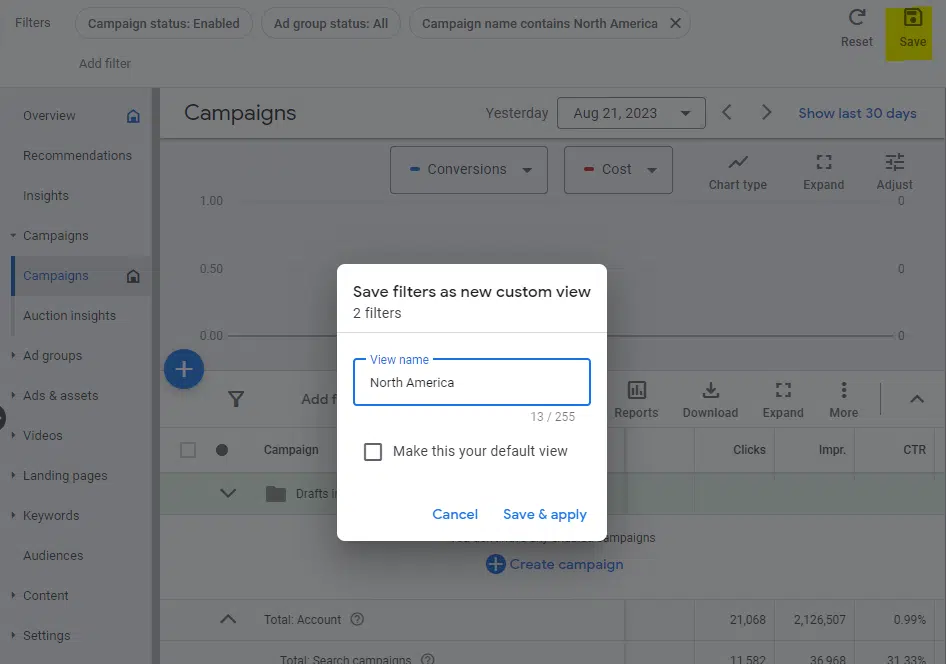
To create a view, apply the filters you’d like from the top bar in the UI and select Save in the upper right. Next, you’ll see a prompt to name and save your view. 

In this example, we’re creating a filter to see all campaigns targeted toward North America. 

Google Ads - Save filters as custom view

In more advanced use cases, you could apply several filters together to narrow down what you’d like to see in a view.

In the future, you can apply saved views by going to the dropdown at the top of the left sidebar, selecting Views from the dropdown, and choosing your desired view to display.

2. Custom columns

With custom columns, you can create unique metrics to view in the UI, allowing for segmenting data beyond what’s available by default or using formulas to define more advanced metrics.

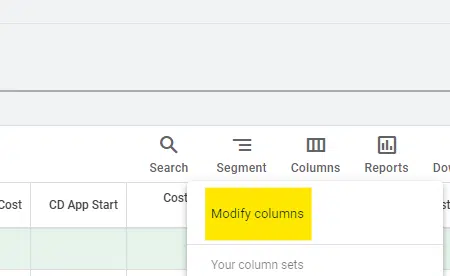
To create a custom column, select the Columns button above the data table in the UI and then choose Modify columns.

Google Ads - Modify columns

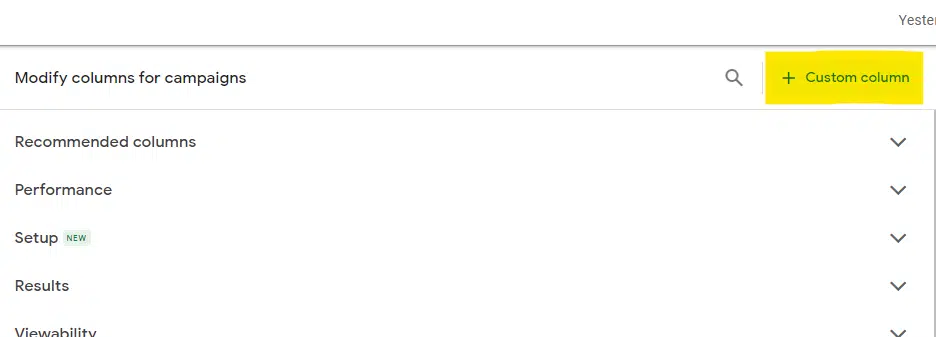
Next, select the + Custom column button in the upper right section of the window that appears.

Google Ads - Add custom column

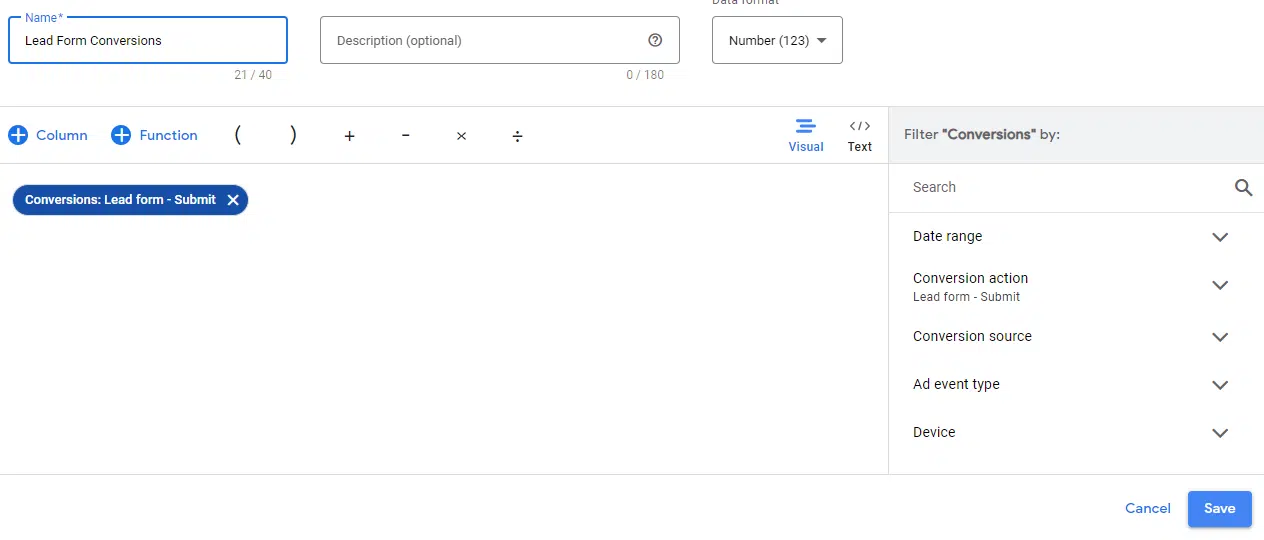
One popular use for custom columns can be to segment to individual conversion actions.

For instance, if you offer both free trial signups and demo registrations, you can create separate columns for each.

To do this, add the Conversions column and then use the right sidebar to filter by Conversion Action to the specific action you’re looking for.

You can even select multiple conversion actions to group together.

Google Ads - Custom column for conversion actions

You can also select Conversion Rate or Cost Per Conversion metrics and filter those to specific actions to see additional metrics narrowed down.

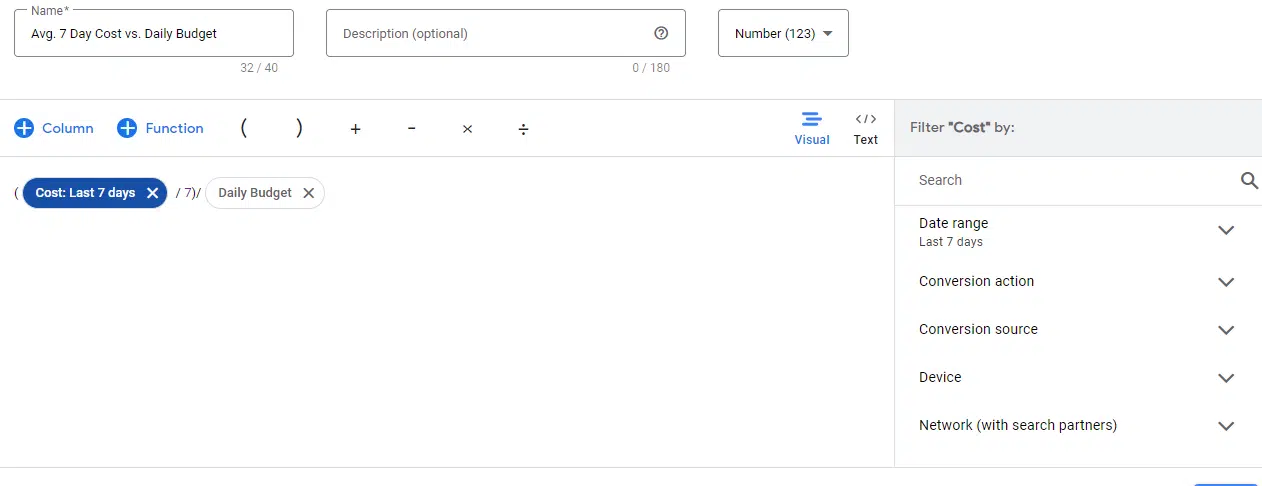
Next, formulas can help to provide more advanced data in the UI. While you can get as complex as you want by incorporating custom logic, there are several more basic formulas to provide useful data. 

For instance, the example below allows you to see the average cost over the past 7-day period vs. the daily budget, allowing you to know how much you’re overspending or underspending. 

Google Ads - Custom column with formula

3. Saved column sets

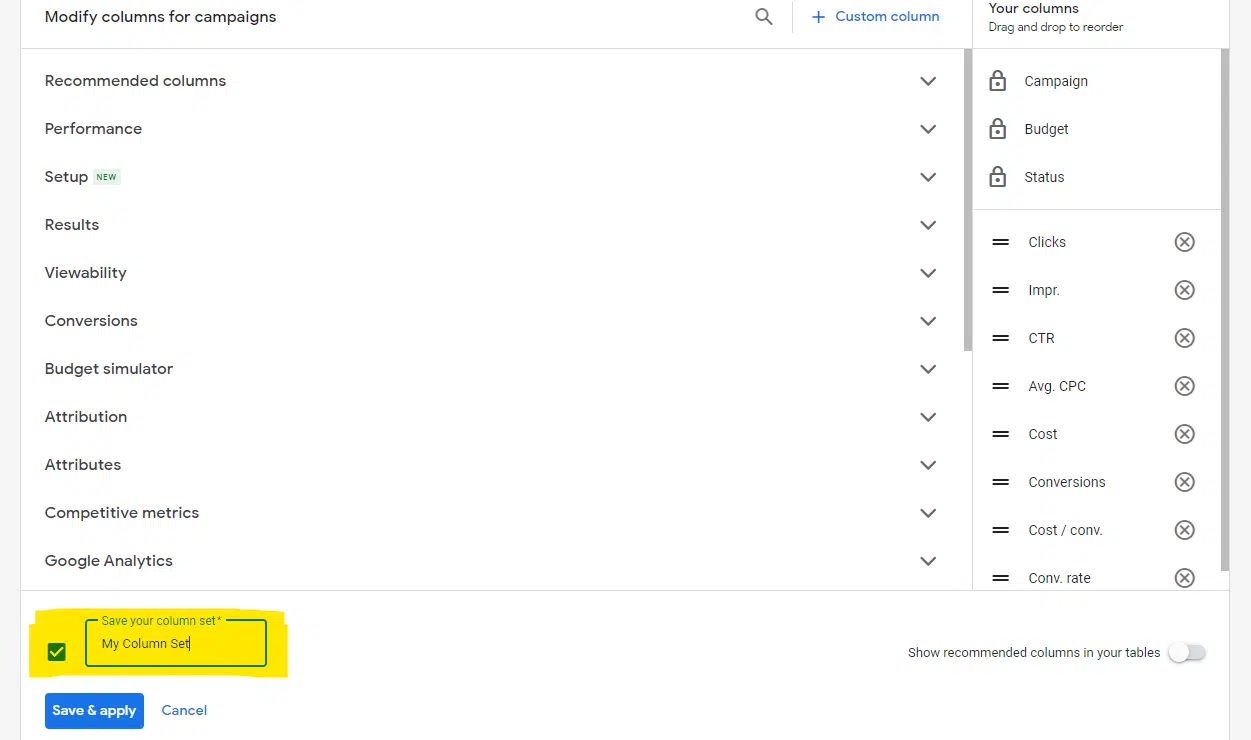
Often going hand-in-hand with custom columns, you can save a set of columns to quickly view data that’s most relevant to the campaigns you’re reviewing. 

For instance, if you are tracking multiple conversion actions, you can set up a custom column set that breaks out those conversions separately. 

Google Ads - Saved column sets

Saved column sets can also reduce frustration from the sometimes arbitrary default columns that Google Ads chooses to display. 

Once created, you can quickly select a column set from the Columns dropdown instead of manually adding the columns you want each time.


Get the daily newsletter search marketers rely on.


4. Policy Manager

If you’ve been managing Google Ads campaigns for some time, you’ve likely run into ad approval issues and had to appeal.

Unfortunately, you don’t receive any notification by default once an appeal is successful, and it’s a pain to have to sift through disapproved and “approved limited” ads in the interface if you are dealing with multiple policy issues simultaneously. 

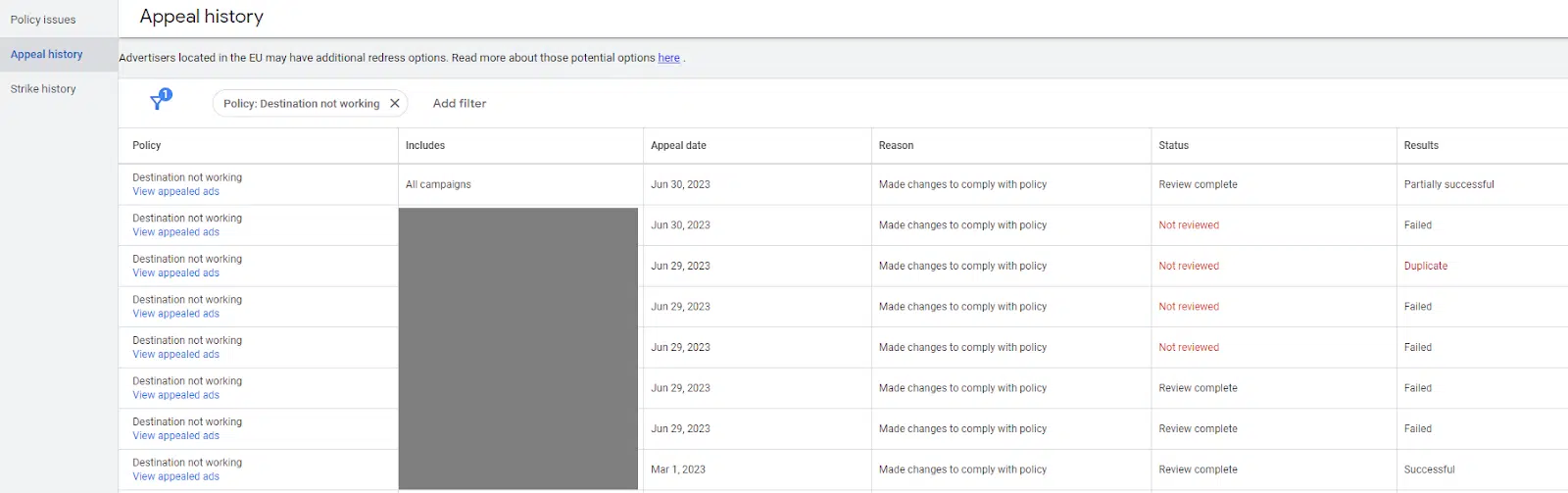
You also want to be careful about appealing the same issue too often, mainly if you’re waiting for a response from the first round of appeals. Thankfully, the Policy Manager offers a centralized place to monitor appeals.

Access this section by navigating to Tools and Settings from the top bar and selecting Policy Manager. 

On the Policy Issues page, you’ll see a view of current violations, which you can appeal. 

On the Appeal History page, you’ll see the status of appeals you have submitted, including the date and whether it was successful, failed, or is still pending.

Google Ads - Policy Manager

5. Negative keyword and placement exclusion lists

Negative keywords are crucial to control spend and help ensure the relevance of traffic in search campaigns. 

Using negative keyword lists can help you to be able to quickly and efficiently mark unwanted queries across your account instead of having to add them to individual campaigns.

You can create up to 20 negative keyword lists per account. Consider ways to categorize them based on your campaign structure. 

For instance, you may have a catch-all negative list for obviously junky queries that you want to exclude across the board and a brand negative list that you only apply to non-brand campaigns. 

Placement exclusion lists operate similarly but for display and video campaigns. You can select placements, including websites, mobile apps, YouTube channels, and YouTube videos.

Both can be accessed from Tools and Settings via the top navigation bar.

6. Automated rules and scripts

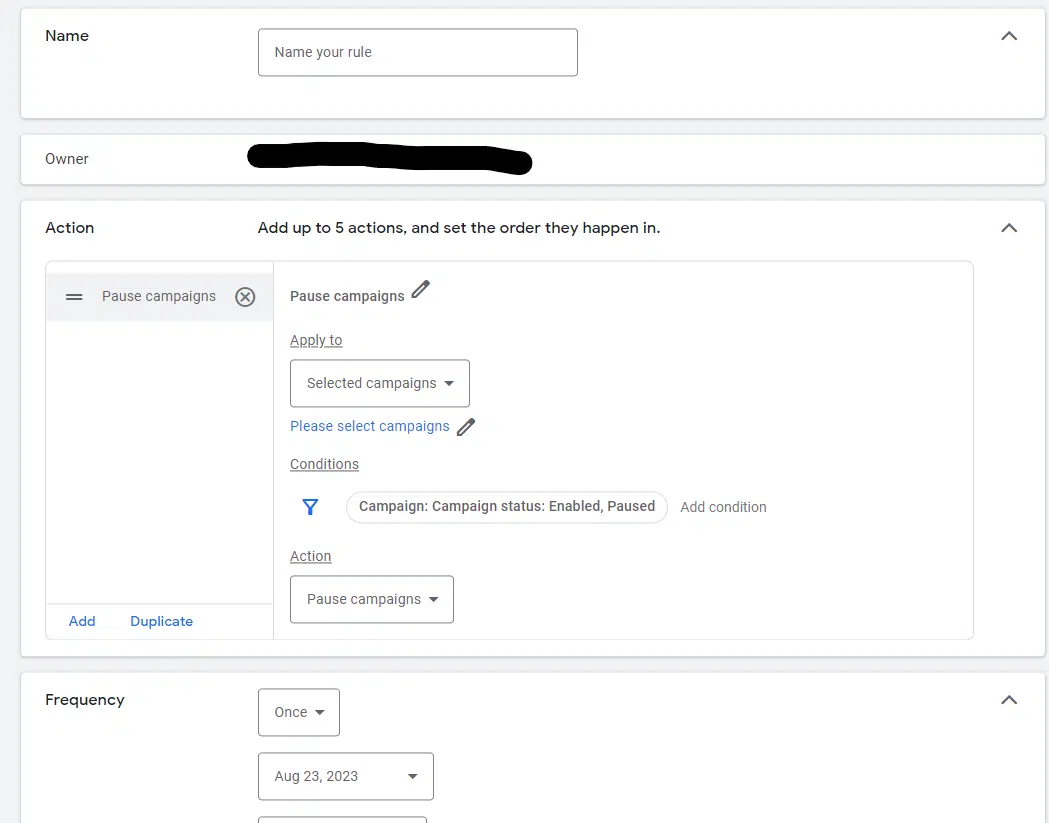
Automated rules are invaluable to set up simple bulk actions and notifications. 

For instance, you may want to automatically pause campaigns over a holiday weekend and re-enable them afterward. 

Google Ads - Automatically pausing campaigns

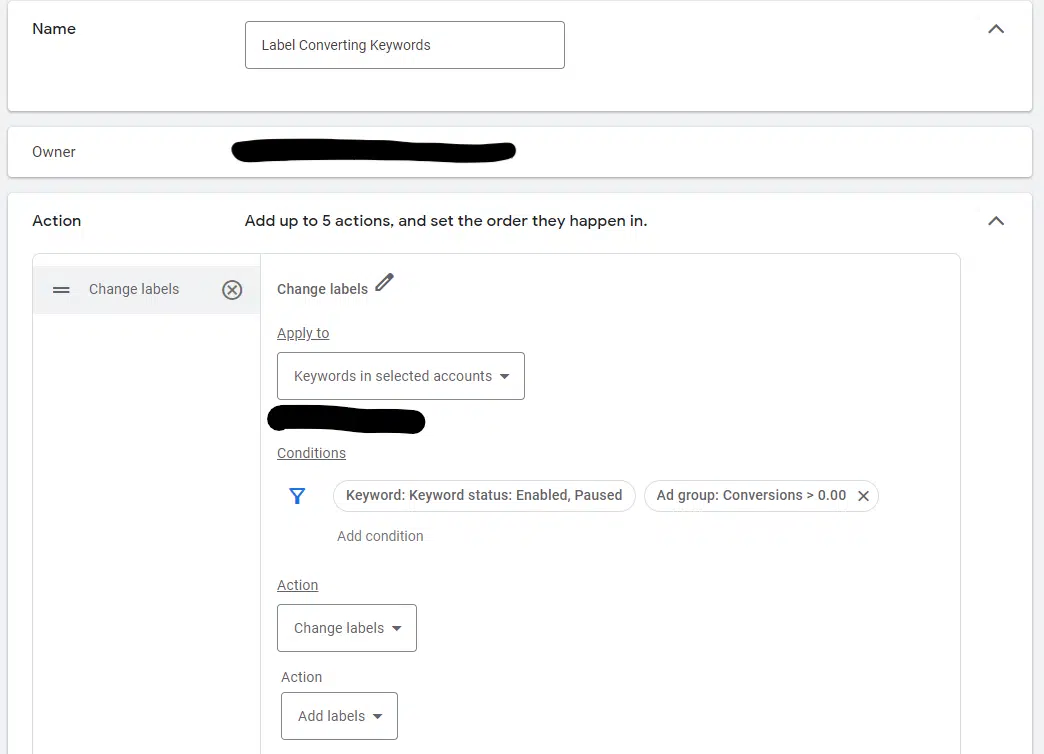
Another use for a rule could be to label keywords once they have received a conversion so you can see which ones have historically converted.

Google Ads - Change labels

You can also use rules to send you notifications, such as when a campaign has spent over $10,000 in a 30-day timeframe.

Google Ads Scripts provides more advanced options for more complex bulk actions and campaign monitoring solutions. 

You don’t necessarily need to know any JavaScript, as many helpful individuals have created ready-to-use scripts that you can copy and paste into the interface. 

7. Asset library

The asset library in Google Ads allows you to see image, video, and text assets you’ve used in ads in one place. Access this section from the Tools and Settings dropdown on the top navigation bar. 

If you’d like to upload images for future use in a responsive display ad, Discovery ad, or image extension, you can add them ahead of time here. 

You can also create folders to organize assets by category and search for individual items.

Additionally, for assets with enough data, you can see top-level audience insights to view those most likely responding.

Start streamlining your Google Ads workflow

We’ve covered several sections of Google Ads that allow you to more easily review custom data, save time accessing reporting, and conduct edits in bulk. 

If you come across features you haven’t tested, take some time to dig into the interface and think about how you could use them for your account. 

  • What custom columns are applicable to your business KPIs? 
  • Are you using negative keyword lists and placement exclusion lists to keep ads from showing up where you don’t want them? 
  • Are there rules that could help you manage campaigns more efficiently or send notifications for anomalies? 

Stay tuned to Google’s support section and announcements, as these features often change in name and location within the UI.

Dig deeper: 5 hidden areas of Google Ads you probably didn’t know about


Opinions expressed in this article are those of the guest author and not necessarily Search Engine Land. Staff authors are listed here.


Related stories

New on Search Engine Land

@media screen and (min-width: 800px) { #div-gpt-ad-3191538-7 { display: flex !important; justify-content: center !important; align-items: center !important; min-width:770px; min-height:260px; } } @media screen and (min-width: 1279px) { #div-gpt-ad-3191538-7 { display: flex !important; justify-content: center !important; align-items: center !important; min-width:800px!important; min-height:440px!important; } }

About the author

Tim Jensen

Tim Jensen is a Sr. Search Engine Marketing Specialist at M&T Bank. With over a decade of experience in the digital marketing industry, Tim has worked with both B2B and B2C brands in a wide variety of industries. While comfortable managing ads across all major platforms, he’s particularly intrigued with the crossover between analytics and PPC.

https://searchengineland.com/google-ads-features-streamline-workflow-431355


5 hidden areas of Google Ads you probably didn’t know about

Google Ads has been around for 23 years and is arguably the most complex PPC ad platform within digital marketing. 

Over the past few years, there has been a conscious effort to consolidate campaign settings and simplify the available levers within an account. 

On the one hand, I think it reduces friction on campaign setup for the less marketing savvy. 

However, as someone who has dedicated their professional career to digital marketing, it can cause frustration. In some cases, the tools and features I had before are slowly disappearing. 

After using Google Ads for over a decade, there are a few areas that I think most advertisers or agencies don’t utilize enough.

This guide aims to bring light to some of the lesser-known tools and areas of the platform that can pack a big punch when implemented right.

1. Dynamic product remarketing

The first and the most underutilized Google Ads feature is checking a little-known area called “dynamic parameters.” 

The premise is that dynamic product marketing is only made possible by making sure you are passing through the right parameters via the Google Tag. 

For some reason, there is an expectation that dynamic product remarketing with Performance Max is automatic. But this is only true if your pixel is set up properly. 

For ecommerce, we believe it’s a huge miss if you are not dynamically remarketing to your potential customers, specifically when a customer visits a potential product(s) and does not purchase. 

The ideal strategy is to allow Google to have visibility into which products each customer looks at. 

In a way, it generally does, but to get the best results, you want to ensure that you are passing through the “id” value in your pixel. 

This is a critical variable that the Google Ads tag needs visibility into so it can properly remarket. 

I dug up the Google help article on Tagging your website for dynamic remarketing. You need to work with your developers to ensure the structured data passes through. 

I suggest using the Datalayer checker plugin for Chrome. This will help you and your developers identify the correct variables you want to pass through. 

Where to access this in Google Ads

  • Click on Tools and settings > Audience manager > Your data sources > Details.
  • Review the ‘id’ parameter.
    • If you don’t have one, then you’ll need to work with a developer to make sure you’re passing it through.
    • If you see IDs passing through, make sure that they match Google Merchant Center. If they don’t, then dynamic remarketing will not work.

2. Seasonality adjustments

In the age of smart bidding, most marketers rely entirely on the algorithm to do the job. 

However, a computer cannot anticipate or understand outside factors in many instances. 

If you’re using smart bidding, you will want to know the next hidden setting, seasonality adjustment. 

This lesser-known tool within Google Ads allows you to give the smart bidding algorithm a heads up on what’s to come. 

This is the most useful if you know definitively that conversion rates will increase or decrease significantly. 

By inputting these dates and the expected conversion rate variance, smart bidding will use that in the process.

Where to access this in Google Ads

  • Click on Tools and settings > Bid strategies > Advanced controls.
  • Navigate to Seasonality adjustments, then click on New seasonality adjustment.

Get the daily newsletter search marketers rely on.


3. Data exclusion

In the same area, you’ll see my next hidden feature, data exclusion. 

This tool lets you exclude specific dates across an account, campaign, or campaign type. As Google states: 

“Data exclusions are meant to account for outages or major issues related to conversion tracking. Using them often or for long periods could negatively impact Smart Bidding performance.”

This is extremely useful if you experience a conversion drop or the pixel is over-reporting. 

If you can identify the issue, you can remove that data from the algorithm. This can save you a lot of potentially wasteful spend if you encounter a tracking issue. 

Where to access this in Google Ads

  • Click on Tools and settings > Bid strategies > Advanced controls.
  • Navigate to Data exclusions, then click on New data exclusion.

4. Account-level automated extensions

A few years ago, I started to get an influx of screenshots from clients saying, “What is this?” and then I’d scratch my head in confusion. 

They would share an image with an asset (formerly extensions) I didn’t recognize or set up. 

I soon realized that Google was rolling out account-level automated extensions. 

These extensions will automatically be generated based on your website, ranging from site links and callouts to longer headlines. 

I generally will turn these off for many clients because we want to control the messaging (sorry, Google). 

Although Google will tell you that these improve performance, I haven’t necessarily observed that myself, except for a few. 

If you are fortunate enough to have a lot of Seller reviews, that has made an impact on click-through rates. 

Using dynamic images, we have also observed a lift in click-through rates for larger retailers. Dynamic images will crawl your site and apply relevant imagery to your ad. 

Where to access this in Google Ads

  • Click Ads & assets > Assets > More options > Account-level automated assets > More > Advanced settings.

5. Your data insights

The last one is more insightful but can be actionable depending on how you want to use it. I think many of my clients are always super interested in this one.

The hidden feature is called Your data insights, which takes your pixel data and lets you get a read on your customer base. 

There are two primary areas that we like to look at:

  • In-market audiences we’re indexing highly for.
  • Affinity segments we index high for.

This information can help shape customer profiles and personas and be used for targeting. All of the segments can be used in some campaigns to bid again.

You can also use this information to help adjust for ad copy or creative. Seeing some of the interests or affinities you wouldn’t expect is fun. You’ll see what I mean when you look at it.

Where to access this in Google Ads

  • Click on Tools and settings > Audience Manager > Your data insights.

Maximizing your Google Ads results with overlooked features

Many useful areas are tucked away in Google Ads – options that many advertisers may be entirely unaware of. 

Each one of the features I mentioned should provide a bit more insight and control over your campaigns. I hope this article will help you find different ways to influence your Google Ads performance. 


Opinions expressed in this article are those of the guest author and not necessarily Search Engine Land. Staff authors are listed here.


Related stories

New on Search Engine Land

@media screen and (min-width: 800px) { #div-gpt-ad-3191538-7 { display: flex !important; justify-content: center !important; align-items: center !important; min-width:770px; min-height:260px; } } @media screen and (min-width: 1279px) { #div-gpt-ad-3191538-7 { display: flex !important; justify-content: center !important; align-items: center !important; min-width:800px!important; min-height:440px!important; } }

About the author

Aric Whiteley

Aric is a Co-founder and Managing Director at Lockhern Digital, a paid digital marketing agency. He carries over a decade of both client and agency experience spanning B2C & B2B brands. Aric has been invited to speak on multiple marketing podcasts and loves to discuss the latest strategies in PPC. He takes great pride in helping struggling brands gain traction and improve their digital presence while focusing on key performance metrics.

https://searchengineland.com/google-ads-hidden-areas-431282