Hear from the Big Ten Conference CIO on how they create a unified data strategy to amp up fan engagement and drive sales. Register for this webinar, sponsored by Snowflake, on March 14.
Discord now allows users to change their video upload quality in the Discord mobile application. While the “Standard” quality is selected by default, “Best Quality” and “Data Saver” options are also available to everyone. Discord Nitro subscribers also have access to 1080p video uploads.
Our guide will show you how to change your video upload quality in the Discord mobile app.
Note: These screenshots were captured in the Discord app on iOS.
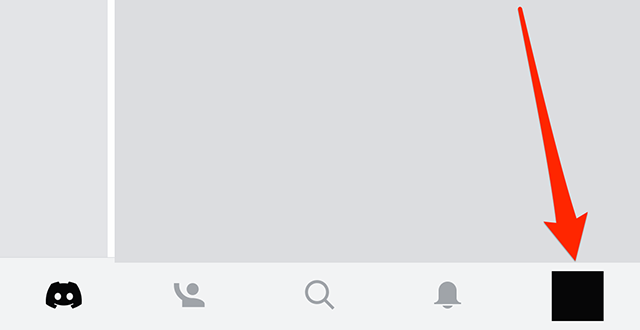
Step 1: Tap your profile picture in the bottom-right corner of the screen.
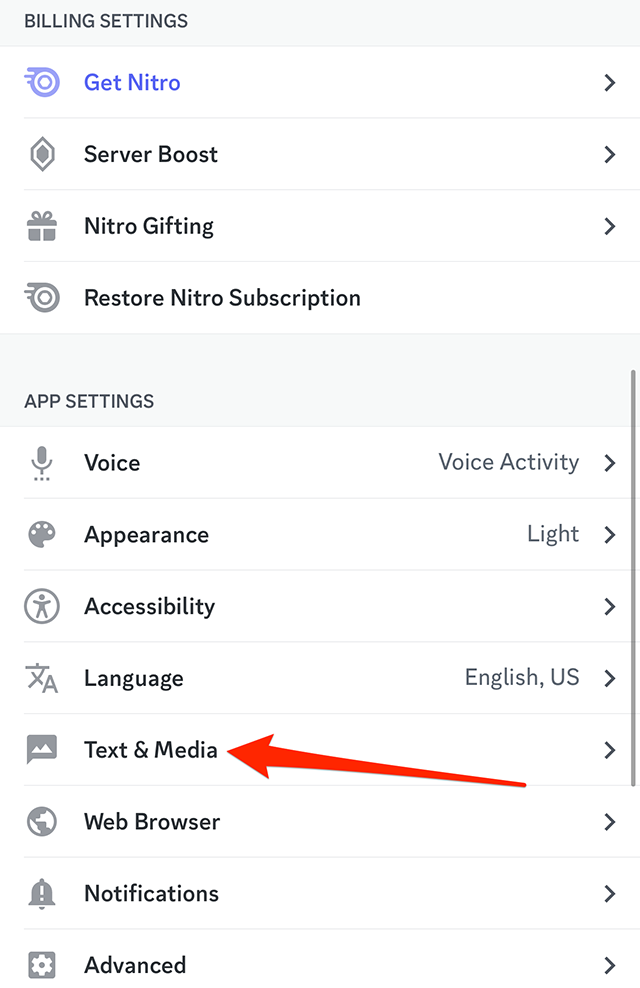
Step 2: Scroll down to the “App Settings” section and tap “Text & Media.”
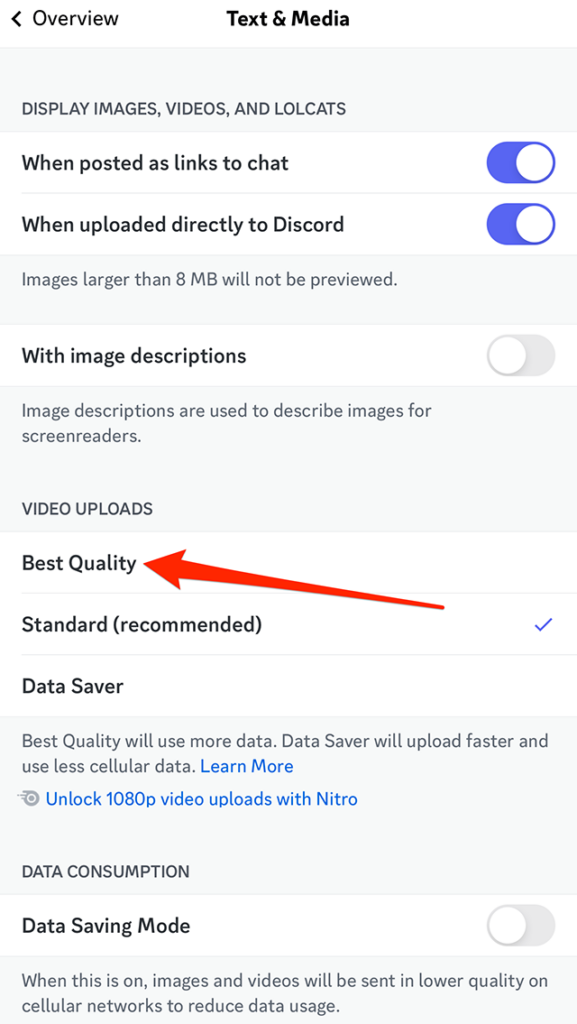
Step 3: Under the “Video Uploads” section, tap “Best Quality,” “Standard (recommended)” or “Data Saver,” depending on your preference.
Hear from the Big Ten Conference CIO on how they create a unified data strategy to amp up fan engagement and drive sales. Register for this webinar, sponsored by Snowflake, on March 14.
LinkedIn allows users to schedule posts to go live at a desired date and time.
Our guide will show you how to schedule a post in the LinkedIn mobile application.
Note: These screenshots were captured in the LinkedIn app on iOS.
Step 1: On LinkedIn’s post creation screen, tap the clock icon near the top-right corner of the screen.
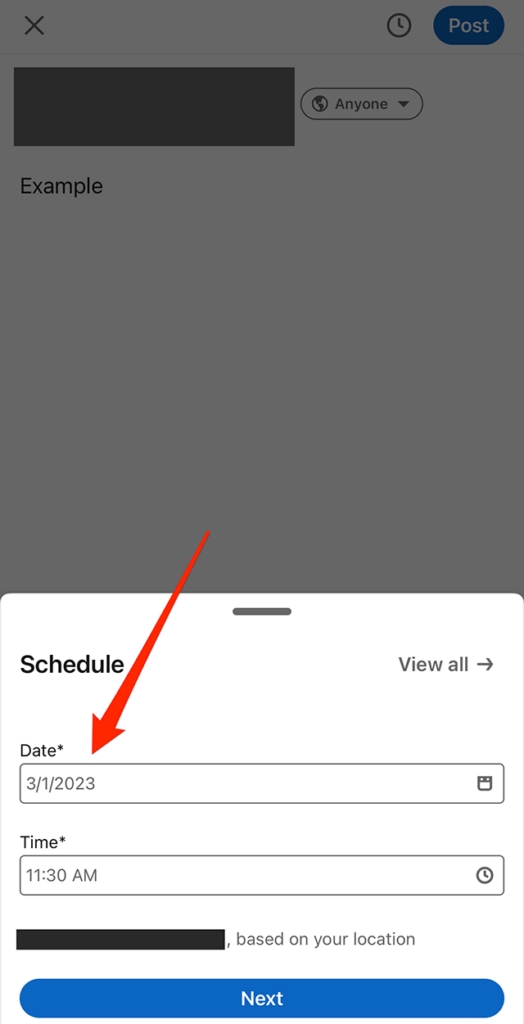
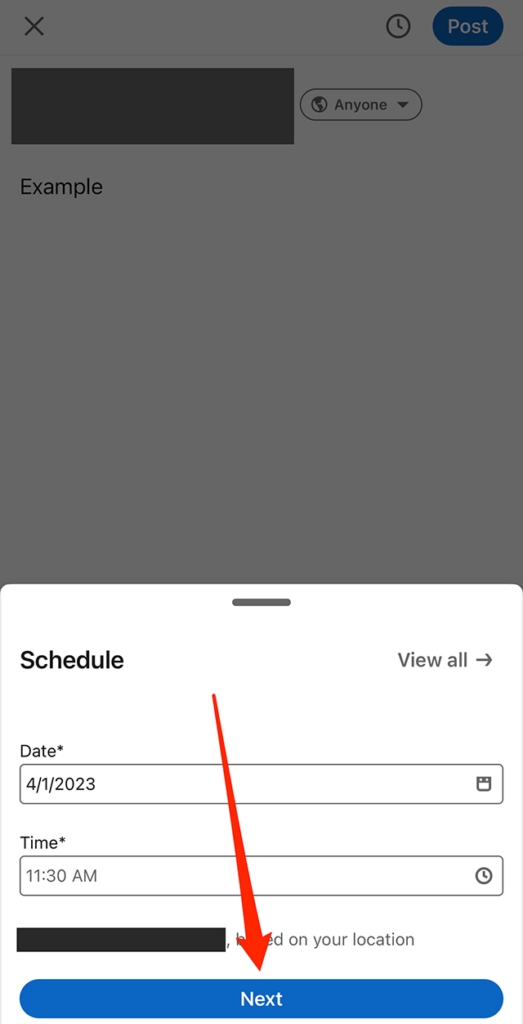
Step 2: Tap the date and time fields near the bottom of the screen to set when the post will go live.
Step 3: When you’re done setting the date and time for the post, tap the “Next” button at the bottom of the screen.
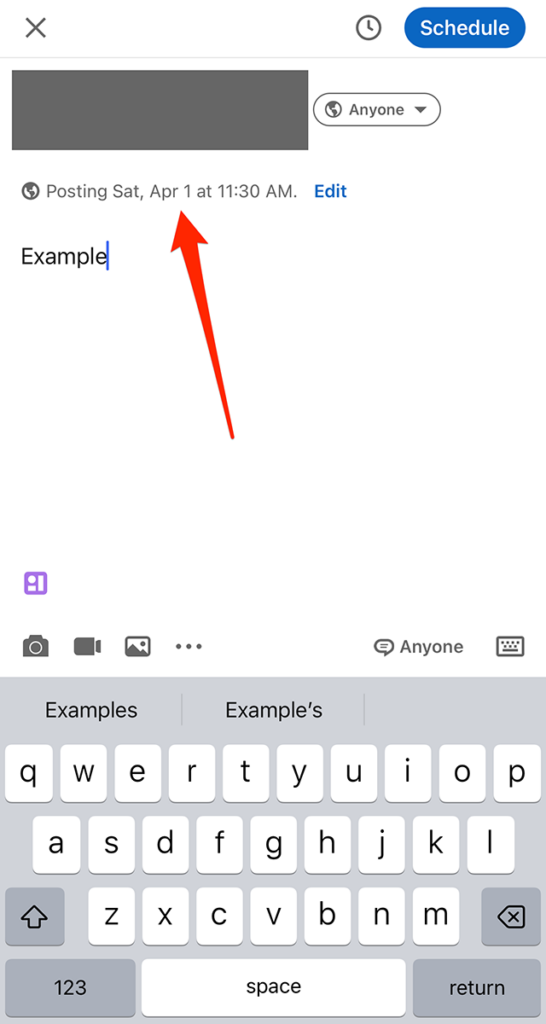
From there, you can continue editing your post as you normally would before scheduling it.
Get the scoop from strategic media pros at Disney, YouTube and more just in time for upfront season at Convergent TV, March 21–22. Learn more.
By default, videos will automatically play as users come across them in the LinkedIn mobile application. However, users have the option to prevent videos from automatically playing.
Our guide will show you how to stop videos from automatically playing in the LinkedIn mobile app.
Note: These screenshots were captured in the LinkedIn app on iOS.
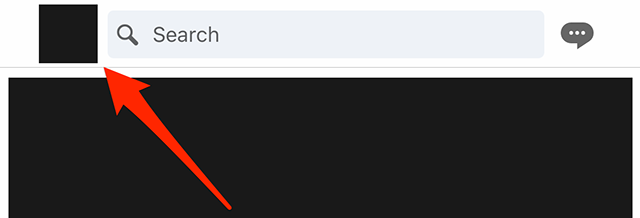
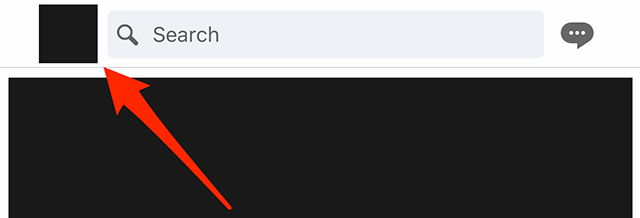
Step 1: Tap your profile picture in the top-left corner of the screen.
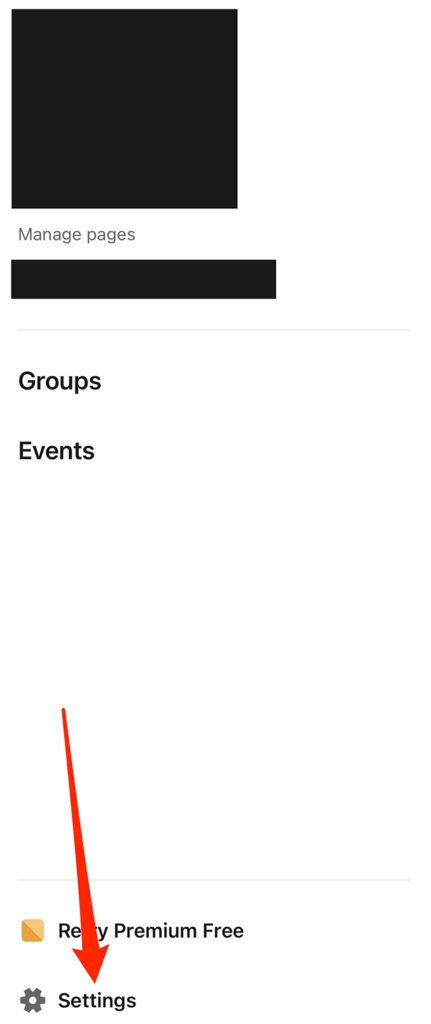
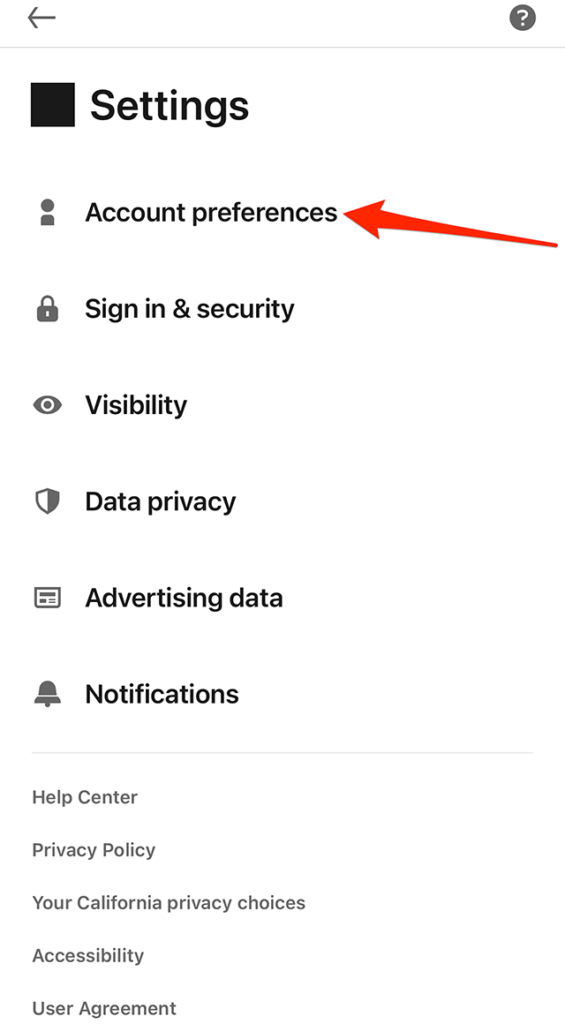
Step 2: Tap “Settings” at the bottom of LinkedIn’s side menu.
Step 3: Tap “Account preferences.”
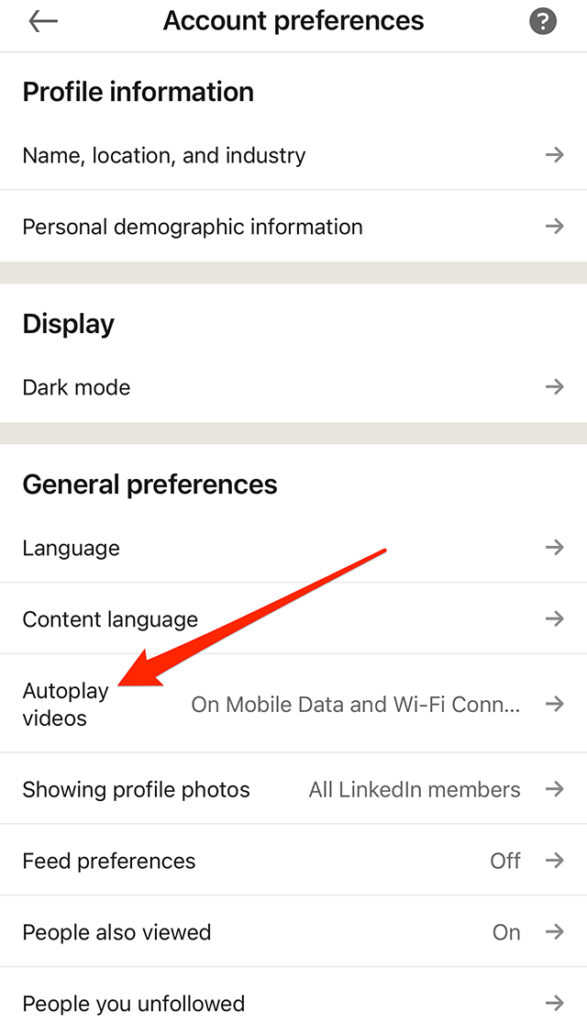
Step 4: Under the “General preferences” section, tap “Autoplay videos.”
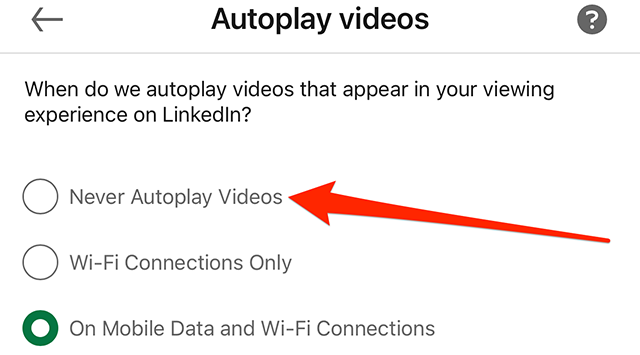
Step 5: Tap “Never Autoplay Videos” to stop videos from automatically playing on LinkedIn. You can also tap “Wi-Fi Connections Only” to prevent videos from automatically playing unless your device is connected to Wi-Fi.
This guide was first published in March 2018 and was updated in February 2023.
Discord now allows users to send “silent” messages to other users. When a silent message is sent, the recipient won’t receive a push or desktop notification from the Discord application. However, they’ll still be able to see the “notification dot” that tells them they have a new message to read.
Our guide will show you how to send silent messages on Discord.
Note: These screenshots were captured in the Discord app on iOS.
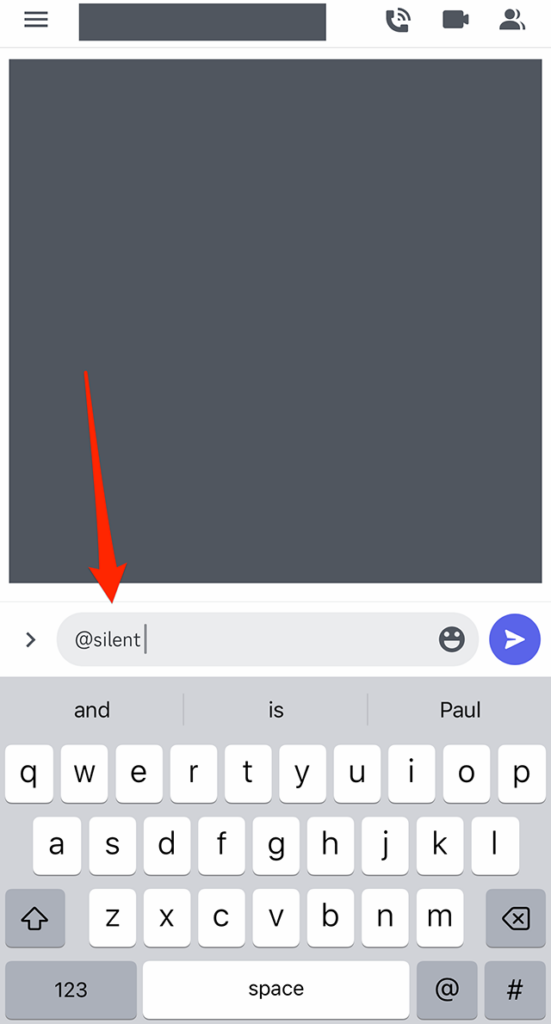
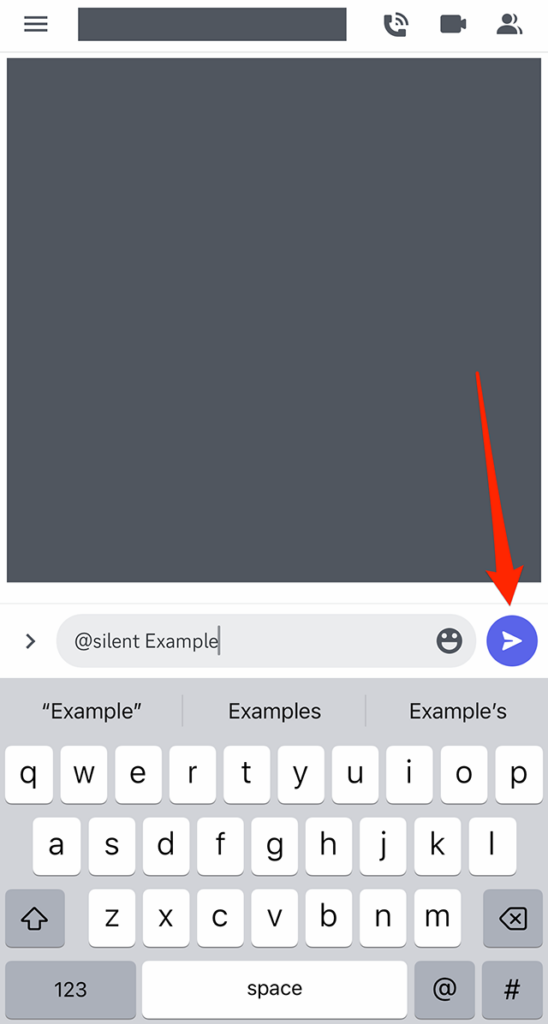
Step 1: Tap the text-entry field and type “@silent ” without the quotation marks.
Step 2: Type your message as you normally would and send it in the conversation.
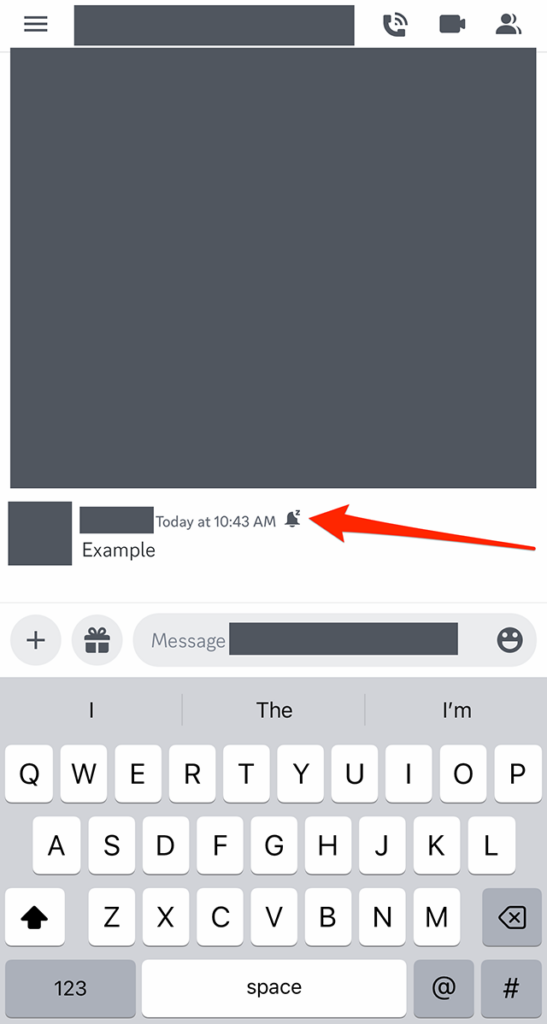
Once you send the silent message, you’ll see a bell icon featuring a small “z” at the far-right end of your message, which indicates the message was sent silently.
Introducing the Adweek Podcast Network. Access infinite inspiration in your pocket on everything from career advice and creativity to metaverse marketing and more. Browse all podcasts.
LinkedIn’s “Creator Mode” offers professionals an exclusive set of features that were designed for users who want to build a following on the social networking platform. Once someone turns on Creator Mode on their LinkedIn profile, they can later turn Creator Mode off if they’d rather revert to the traditional LinkedIn experience.
Our guide will show you how to turn off Creator Mode while using the LinkedIn mobile application.
Note: These screenshots were captured in the LinkedIn app on iOS.
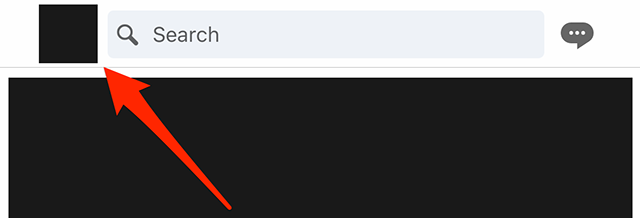
Step 1: Tap your profile picture in the top-left corner of the screen.
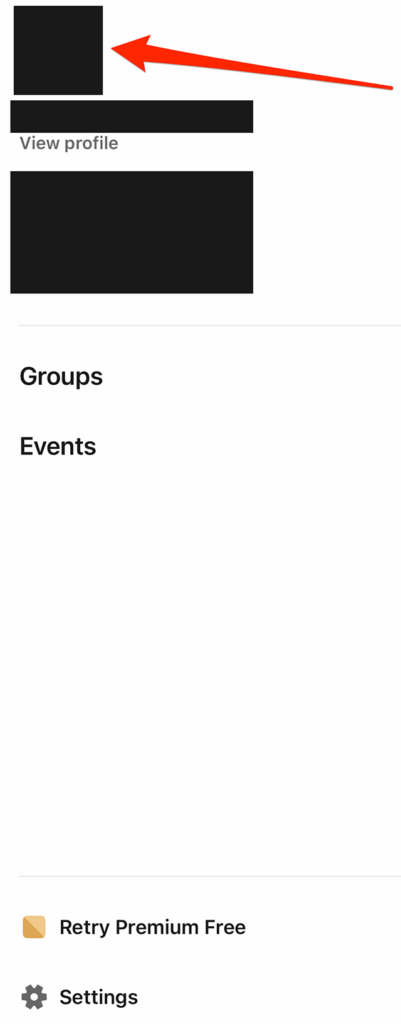
Step 2: Tap your profile picture on LinkedIn’s side menu to go to your profile. Note: You can also tap “View profile” under your name on this menu to go to your profile.
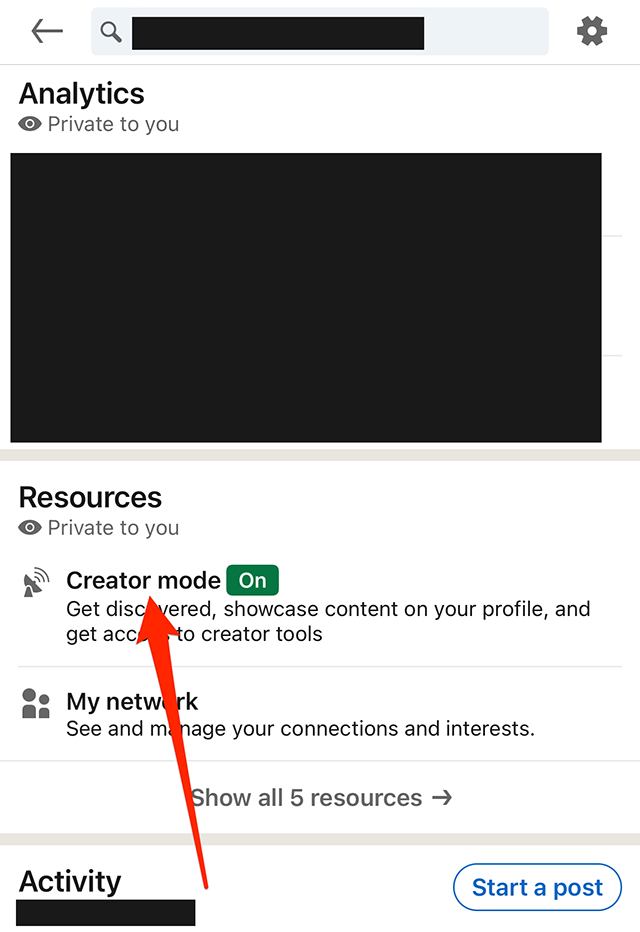
Step 3: Scroll down to the “Resources” section and tap “Creator mode.”
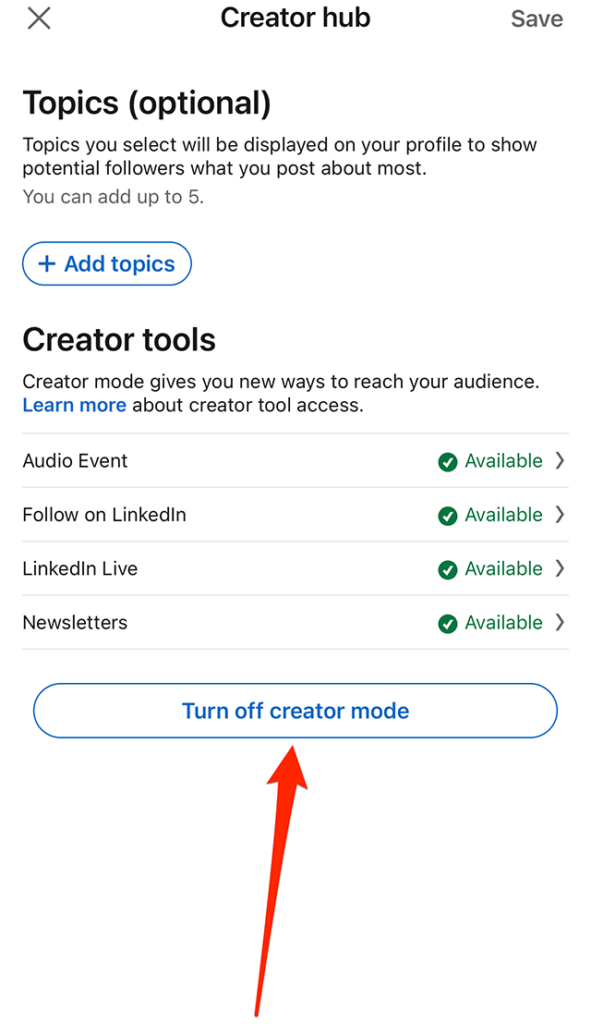
Step 4: Tap the “Turn off creator mode” button.
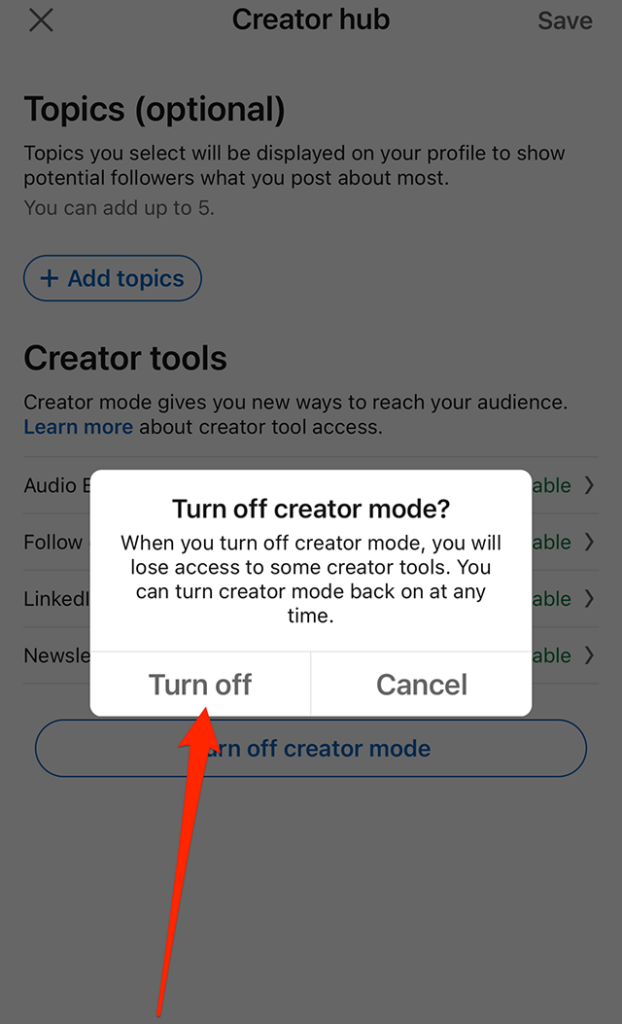
Step 5: Tap the “Turn off” button on the confirmation window that appears to turn off Creator Mode on your profile.
Introducing the Adweek Podcast Network. Access infinite inspiration in your pocket on everything from career advice and creativity to metaverse marketing and more. Browse all podcasts.
LinkedIn features a “Creator Mode” designed for professionals who want to grow a following by sharing content on the professional social network. When a user turns on “Creator Mode” on their LinkedIn profile, they’ll receive access to exclusive features, such as the ability to add hashtags below their headline that will tell other users more about them.
Our guide will show you how to turn on Creator Mode while using the LinkedIn mobile application.
Note: These screenshots were captured in the LinkedIn app on iOS.
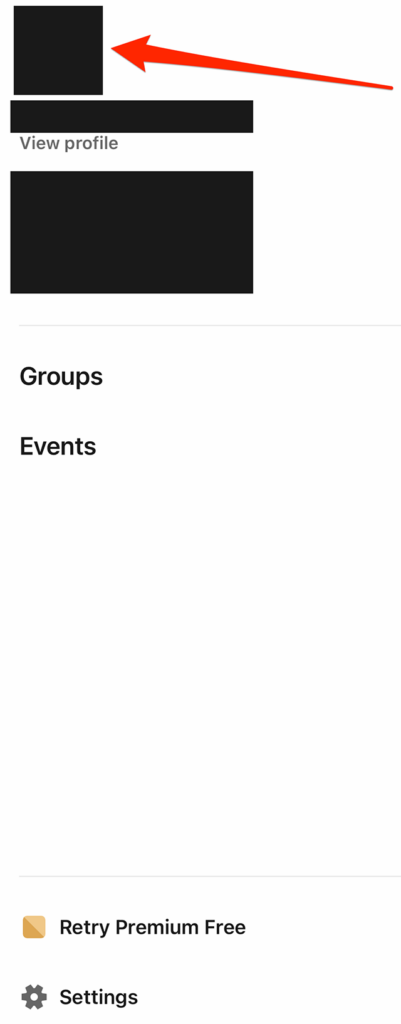
Step 1: Tap your profile picture in the top-left corner of the screen.
Step 2: Tap your profile picture on LinkedIn’s side menu to go to your profile. Note: You can also tap “View profile” under your name on this menu to go to your profile.
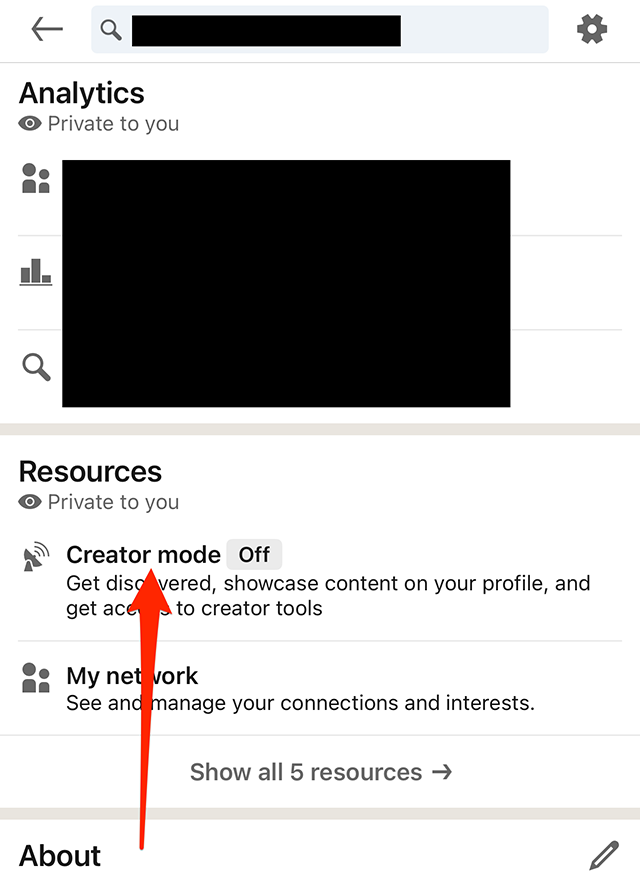
Step 3: Scroll down to the “Resources” section and tap “Creator mode.”
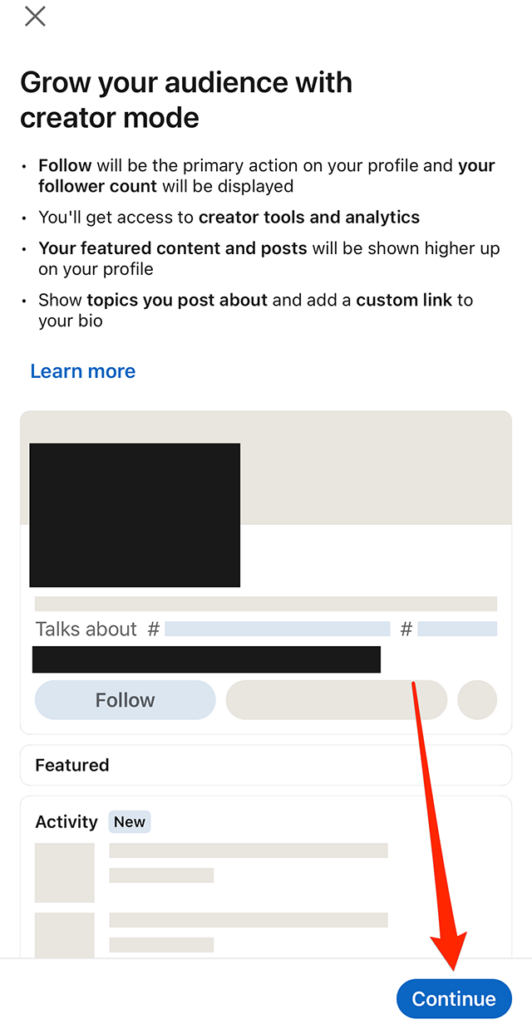
Step 4: LinkedIn will give you information about Creator Mode. Tap “Continue” in the bottom-right corner of the screen to continue.
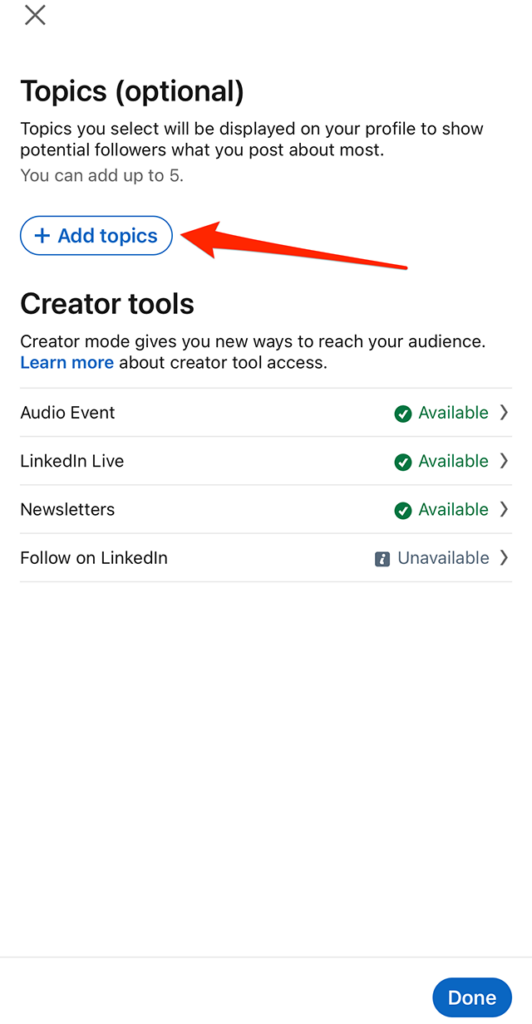
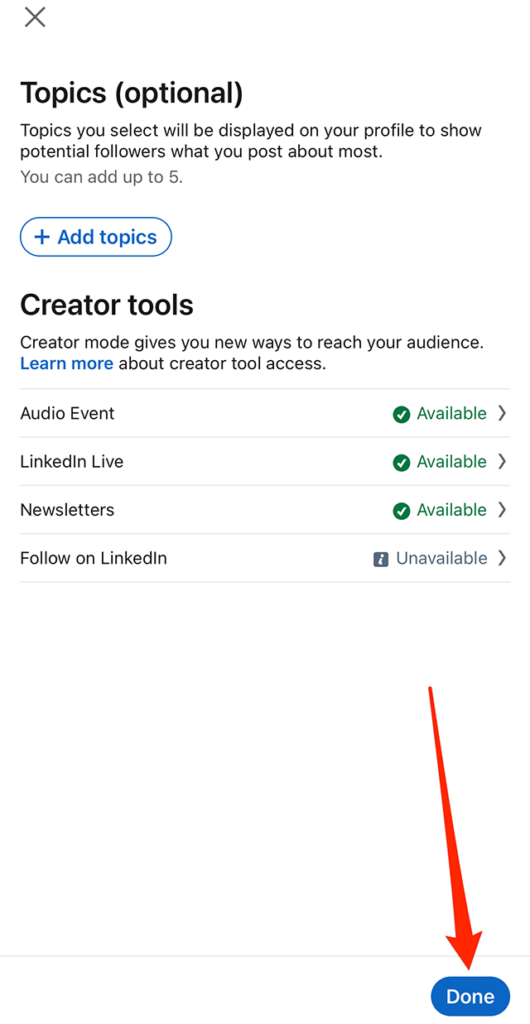
Step 5: Tap the “Add topics” button if you want to add hashtags to your profile related to the topics you focus on. You can also skip this step for now and add topics to your profile later, if you’d prefer.
Step 6: When you’re done selecting topics (or if you want to skip that step for now), tap the “Done” button in the bottom-right corner of the screen.
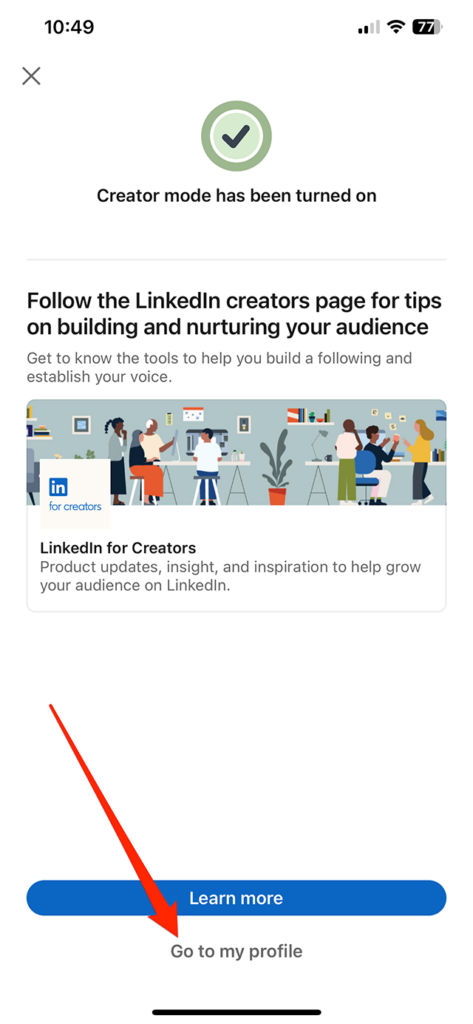
Step 7: Once you turn on Creator Mode, you’ll be encouraged to follow the “LinkedIn for Creators” page. Tap the “Learn more” button at the bottom of the screen if you’d like to instantly jump to this page, or tap “Go to my profile” to finish this process.
Social Media Week returns May 16–18. Join as leading brands and agencies share strategies for marketing within the creator economy. Register now to get an early bird discount.
By default, when users access TikTok through a web browser, the website with be in “Light” mode with a white background and black text. However, users have the option to turn on “Dark mode,” which will turn the website’s background black and the text white.
Our guide will show you how to switch to Dark mode while using TikTok on the web.
Step 1: If you’re logged into the TikTok website, click your profile picture in the top-right corner of the site.
If you’re not logged in to the TikTok website, click the three dots in the top-right corner of the website.
Step 2: Click the gray toggle to the right of “Dark mode” to turn on Dark mode on the TikTok website. Note: You can repeat these steps in the future if you ever want to turn off Dark mode. Also note, if you’re not logged into the TikTok website, this drop-down menu will have fewer options above “Dark mode.”
Social Media Week returns May 16–18. Join as leading brands and agencies share strategies for marketing within the creator economy. Register now to get an early bird discount.
TikTok users can control whether or not others can use their videos to create stickers.
Our guide will show you how to change who can use your TikTok videos to create stickers.
Note: These screenshots were captured in the TikTok app on iOS.
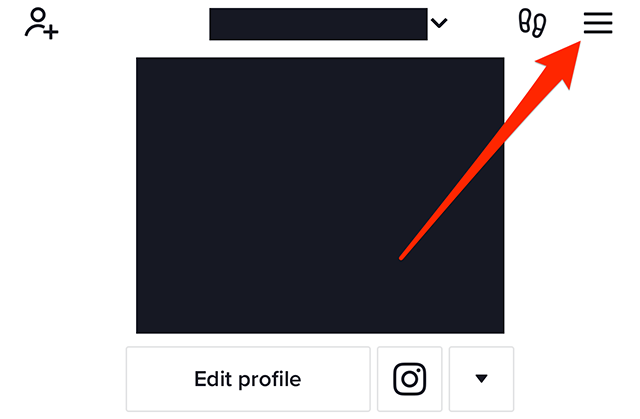
Step 1: On your TikTok profile, tap the three horizontal lines in the top-right corner of the screen.
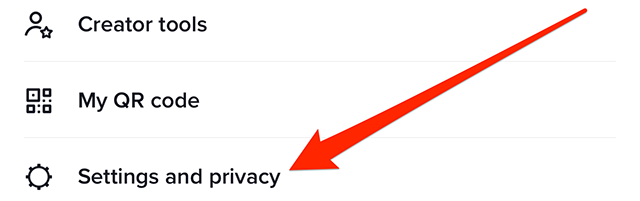
Step 2: Tap “Settings and privacy.”
Step 3: Tap “Privacy.”
Step 4: Under the “Interactions” section, tap “Stickers.”
Step 5: Tap “Everyone,” “Followers that you follow back” or “Only me,” depending on your preference.
Social Media Week returns May 16–18. Join as leading brands and agencies share strategies for marketing within the creator economy. Register now to get an early bird discount.
The TikTok mobile application allows users to clear space on their devices by removing the content they’ve downloaded in the app. This includes content such as effects and filters users have previously downloaded.
Our guide will show you how to clear your downloads in the TikTok mobile app.
Note: These screenshots were captured in the TikTok app on iOS.
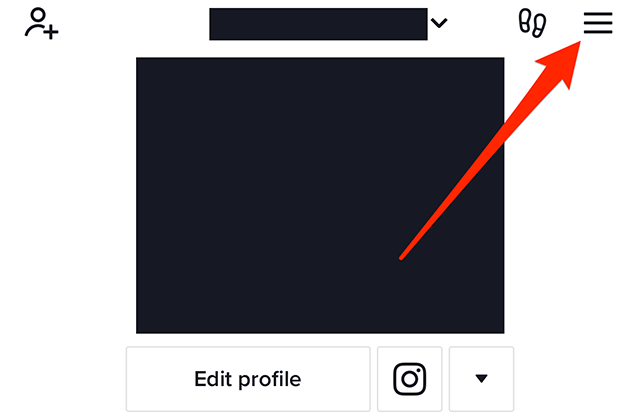
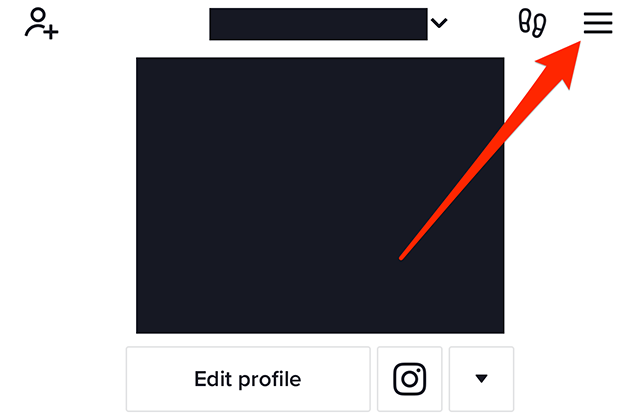
Step 1: On your TikTok profile, tap the three horizontal lines in the top-right corner of the screen.
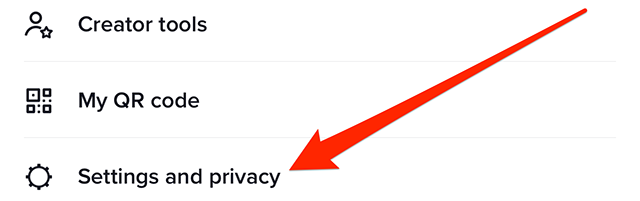
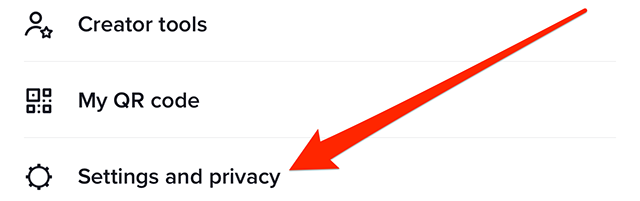
Step 2: Tap “Settings and privacy.”
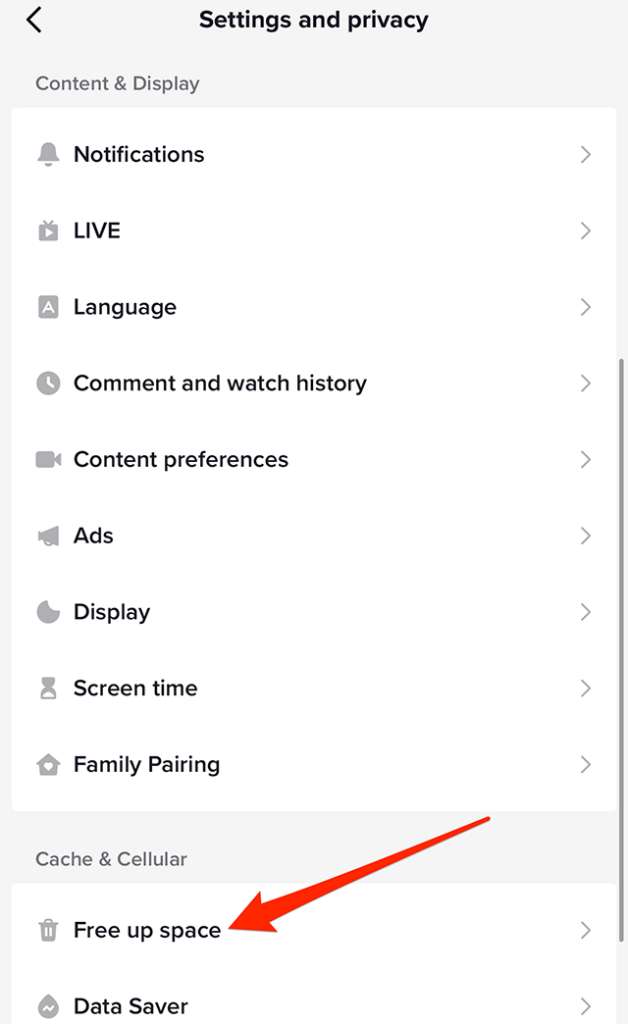
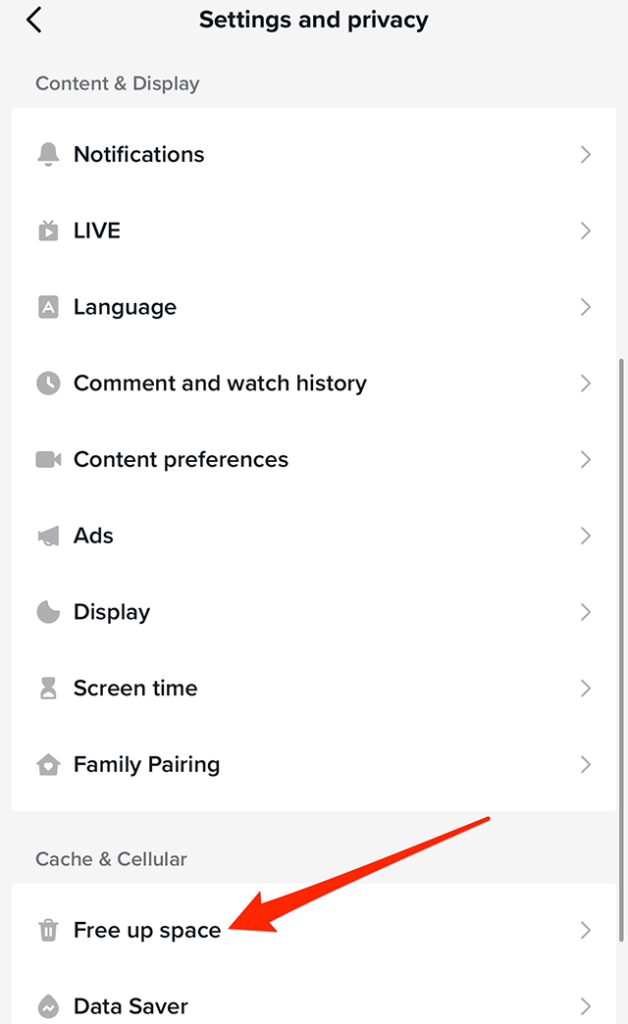
Step 3: Scroll down to the “Cache & Cellular” section and tap “Free up space.”
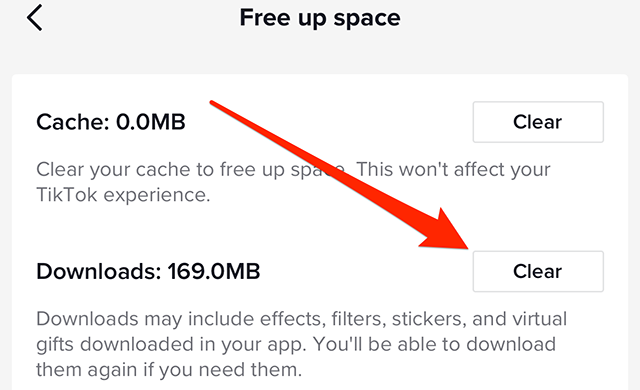
Step 4: Tap the “Clear” button to the right of “Downloads.”
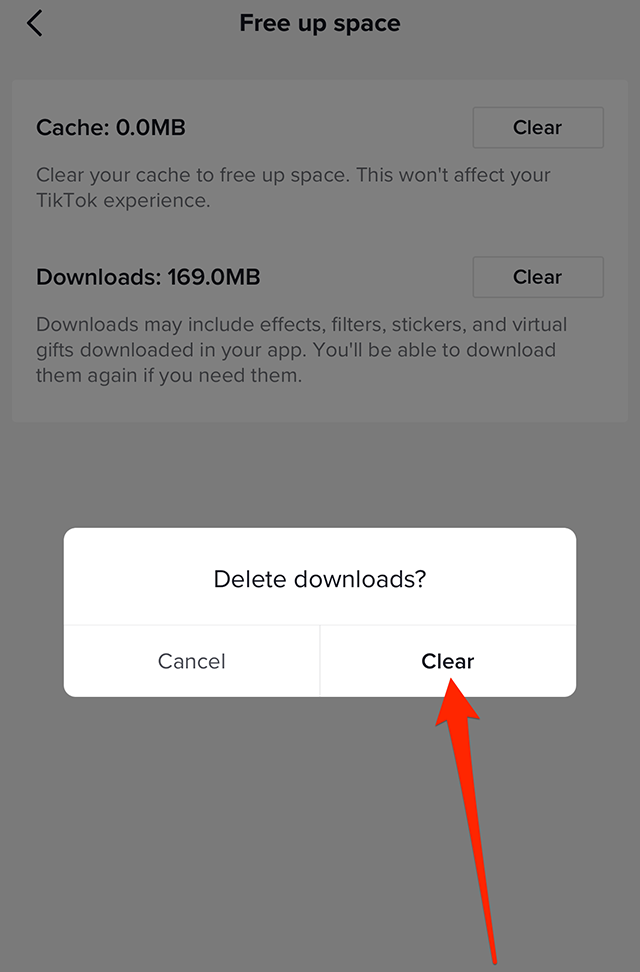
Step 5: Tap the “Clear” button on the confirmation window that appears to remove your downloads.
Social Media Week returns May 16–18. Join as leading brands and agencies share strategies for marketing within the creator economy. Register now to get an early bird discount.
The TikTok mobile application allows users to clear their cache on the video-sharing platform in order to free up space on their device.
Our guide will show you how to clear your cache in the TikTok mobile app.
Note: These screenshots were captured in the TikTok app on iOS.
Step 1: On your TikTok profile, tap the three horizontal lines in the top-right corner of the screen.
Step 2: Tap “Settings and privacy.”
Step 3: Scroll down to the “Cache & Cellular” section and tap “Free up space.”
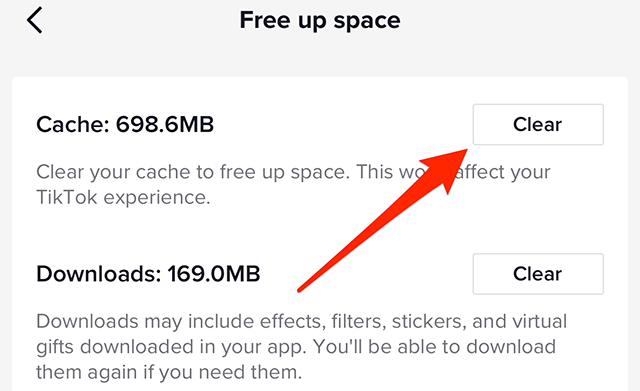
Step 4: Tap the “Clear” button to the right of “Cache.”
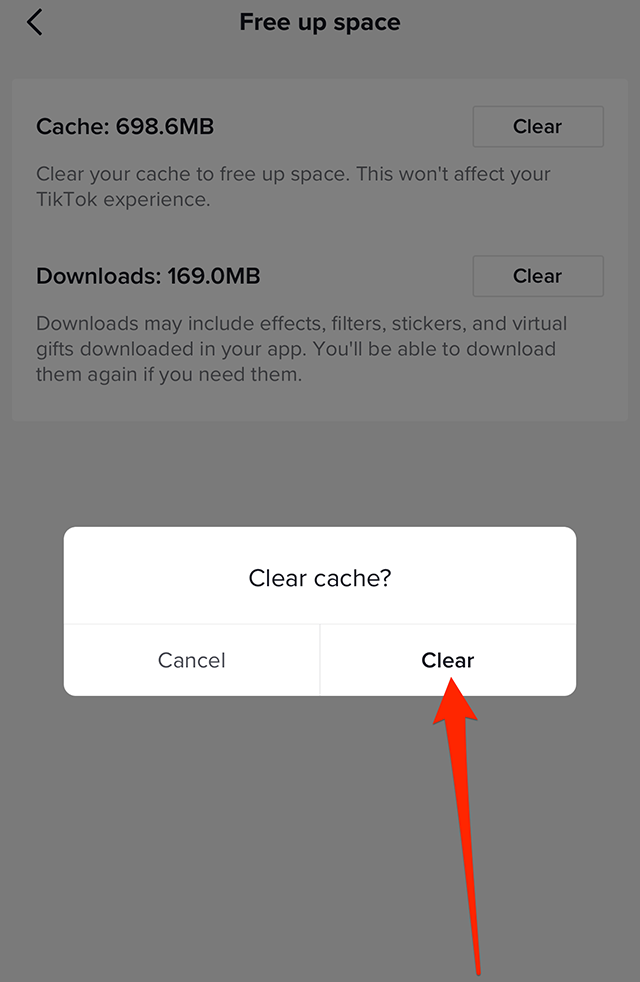
Step 5: Tap the “Clear” button on the confirmation window that appears to clear your cache.
This guide was first published in April 2019 and was updated in February 2023.