TikTok: How to Play TikTok Trivia


.article-native-ad { border-bottom: 1px solid #ddd; margin: 0 45px; padding-bottom: 20px; margin-bottom: 20px; } .article-native-ad svg { color: #ddd; font-size: 34px; margin-top: 10px; } .article-native-ad p { line-height:1.5; padding:0!important; padding-left: 10px!important; } .article-native-ad strong { font-weight:500; color:rgb(46,179,178); }

Social Media Week returns May 16–18. Join as leading brands and agencies share strategies for marketing within the creator economy. Register now to get an early bird discount.

From Feb. 22 – 26, TikTok will host TikTok Trivia, a live game show experience on the video-sharing platform that will allow users to answer trivia questions for the chance to win real cash prizes.

TikTok Trivia is only available to users aged 18+ in the United States.

Our guide will show you how to play TikTok Trivia in the TikTok mobile application.

Note: These screenshots were captured in the TikTok app on iOS.

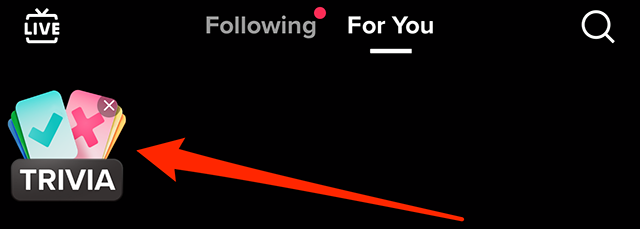
Step 1: Open the TikTok application and tap the “Trivia” icon in the top-left corner of your “For You” feed.

image

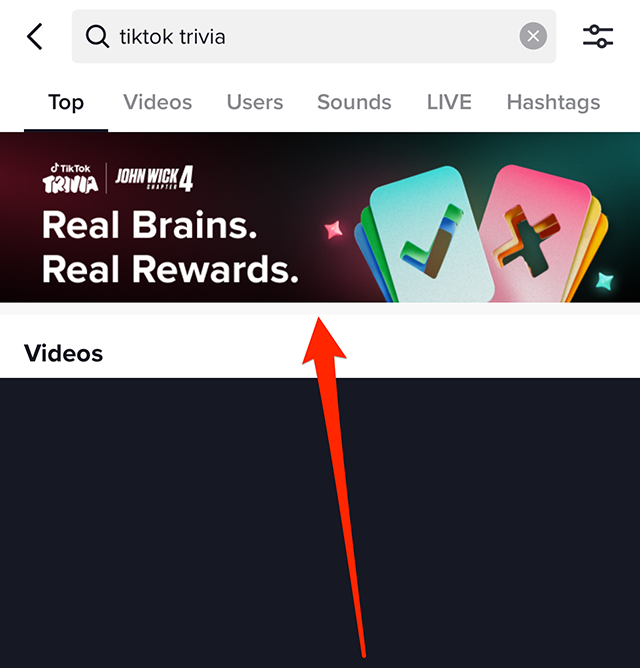
If you’ve already tapped the “x” icon to remove this icon from your feed, you can access TikTok Trivia by searching for “TikTok Trivia” on the app’s search menu and tapping the banner that appears near the top of the screen.

image

Step 2: You’ll see a window that will tell you you need to be at least 18 years old to participate in TikTok Trivia. Tap “Continue” on this window to move on.

image

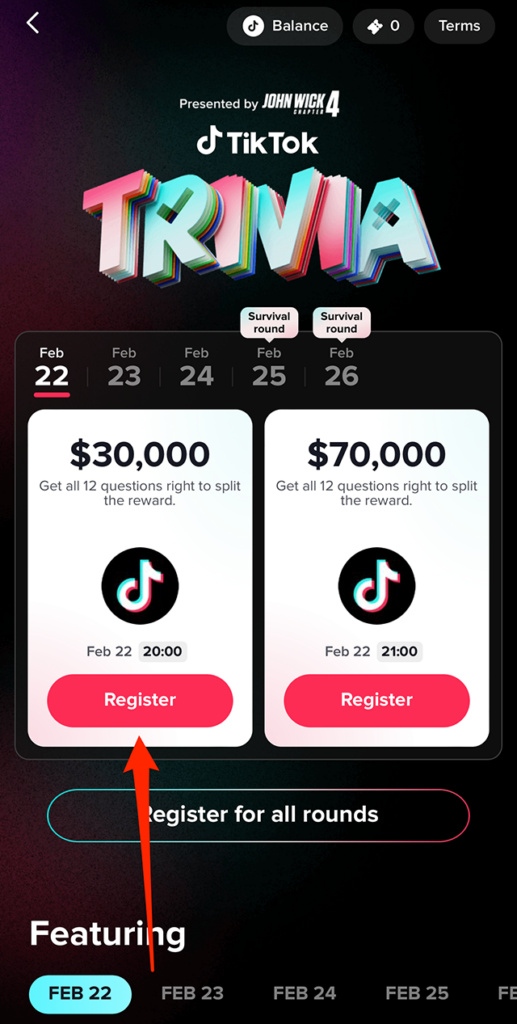
Step 3: You’ll see the schedule of trivia rounds that will take place between Feb. 22 – 26. Tap “Register” under each round to sign up to participate. Or, tap “Register for all rounds” to register for every round that’s currently available. Note: Once you register to play TikTok Trivia, you’ll need to return to the TikTok app during each live trivia round to participate in the game.

image
.font-primary { } .font-secondary { } #meter-count { position: fixed; z-index: 9999999; bottom: 0; width:96%; margin: 2%; -webkit-border-radius: 4px; -moz-border-radius: 4px; border-radius: 4px; -webkit-box-shadow: 0 0px 15px 4px rgba(0,0,0,.2); box-shadow:0 0px 15px 4px rgba(0,0,0,.2); padding: 15px 0; color:#fff; background-color:#343a40; } #meter-count .icon { width: auto; opacity:.8; } #meter-count .icon svg { height: 36px; width: auto; } #meter-count .btn-subscribe { font-size:14px; font-weight:bold; padding:7px 18px; color: #fff; background-color: #2eb3b2; border:none; text-transform: capitalize; margin-right:10px; } #meter-count .btn-subscribe:hover { color: #fff; opacity:.8; } #meter-count .btn-signin { font-size:14px; font-weight:bold; padding:7px 14px; color: #fff; background-color: #121212; border:none; text-transform: capitalize; } #meter-count .btn-signin:hover { color: #fff; opacity:.8; } #meter-count h3 { color:#fff!important; letter-spacing:0px!important; margin:0; padding:0; font-size:16px; line-height:1.5; font-weight:700; margin: 0!important; padding: 0!important; } #meter-count h3 span { color:#E50000!important; font-weight:900; } #meter-count p { font-size:14px; font-weight:500; line-height:1.4; color:#eee!important; margin: 0!important; padding: 0!important; } #meter-count .close { color:#fff; display:block; position:absolute; top: 4px; right:4px; z-index: 999999; } #meter-count .close svg { display:block; color:#fff; height:16px; width:auto; cursor:pointer; } #meter-count .close:hover svg { color:#E50000; } #meter-count .fw-600 { font-weight:600; } @media (max-width: 1079px) { #meter-count .icon { margin:0; padding:0; display:none; } } @media (max-width: 768px) { #meter-count { margin: 0; -webkit-border-radius: 0px; -moz-border-radius: 0px; border-radius: 0px; width:100%; -webkit-box-shadow: 0 -8px 10px -4px rgba(0,0,0,0.3); box-shadow: 0 -8px 10px -4px rgba(0,0,0,0.3); } #meter-count .icon { margin:0; padding:0; display:none; } #meter-count h3 { color:#fff!important; font-size:14px; } #meter-count p { color:#fff!important; font-size: 12px; font-weight: 500; } #meter-count .btn-subscribe, #meter-count .btn-signin { font-size:12px; padding:7px 12px; } #meter-count .btn-signin { display:none; } #meter-count .close svg { height:14px; } }

Enjoying Adweek’s Content? Register for More Access!

https://www.adweek.com/social-marketing/tiktok-how-to-play-tiktok-trivia/


TikTok: How to Change Who Can Comment on Your Videos


.article-native-ad { border-bottom: 1px solid #ddd; margin: 0 45px; padding-bottom: 20px; margin-bottom: 20px; } .article-native-ad svg { color: #ddd; font-size: 34px; margin-top: 10px; } .article-native-ad p { line-height:1.5; padding:0!important; padding-left: 10px!important; } .article-native-ad strong { font-weight:500; color:rgb(46,179,178); }

Did someone say Andy Cohen? Join industry veterans and emerging voices at Convergent TV March 21-22 and upgrade your media strategy. Register now to save 35%.

By default, TikTok allows all users to leave comments on the videos someone shares. However, creators have the ability to change who can comment on their videos if they’d like to prevent certain users from being able to comment.

Our guide will show you how to change who can comment on your videos on TikTok.

Note: These screenshots were captured in the TikTok application on iOS.

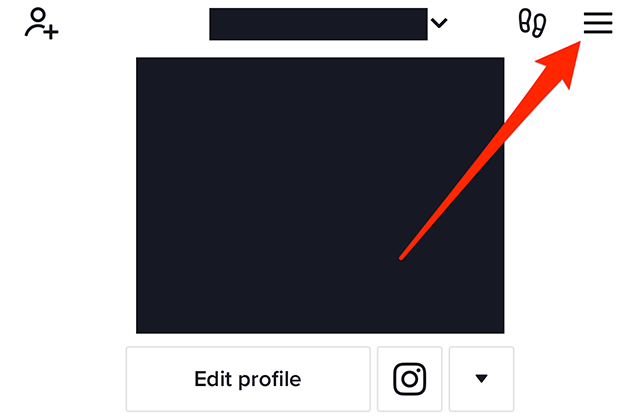
Step 1: On your TikTok profile, tap the three horizontal lines in the top-right corner of the screen.

image

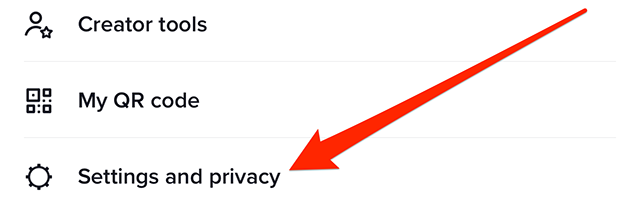
Step 2: Tap “Settings and privacy.”

image

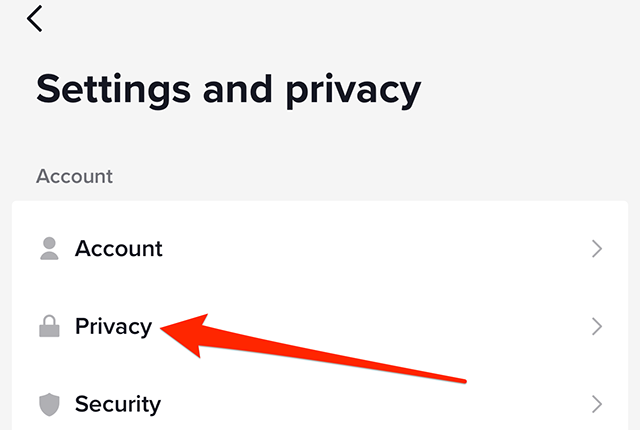
Step 3: Tap “Privacy.”

image

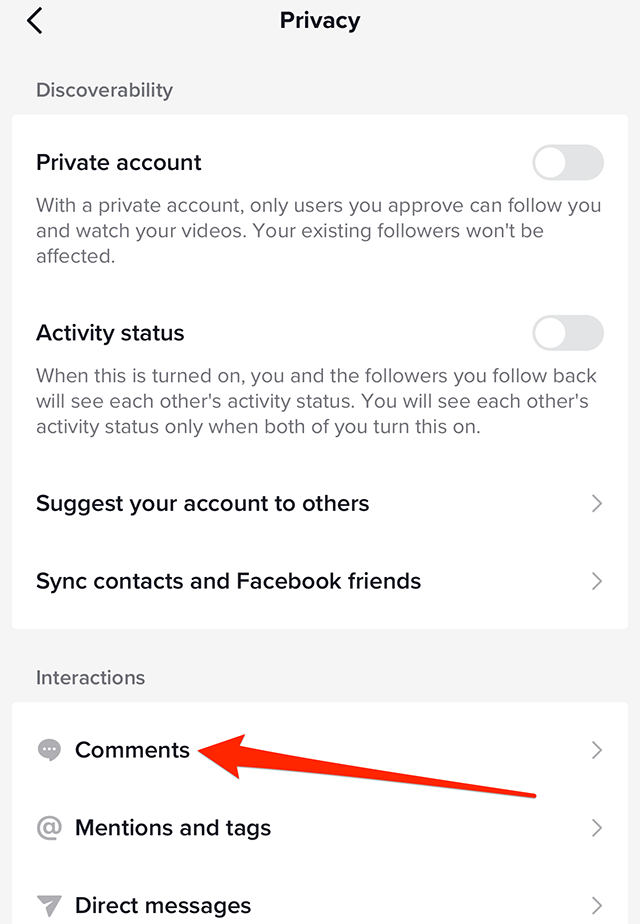
Step 4: Under the “Interactions” section, tap “Comments.”

image

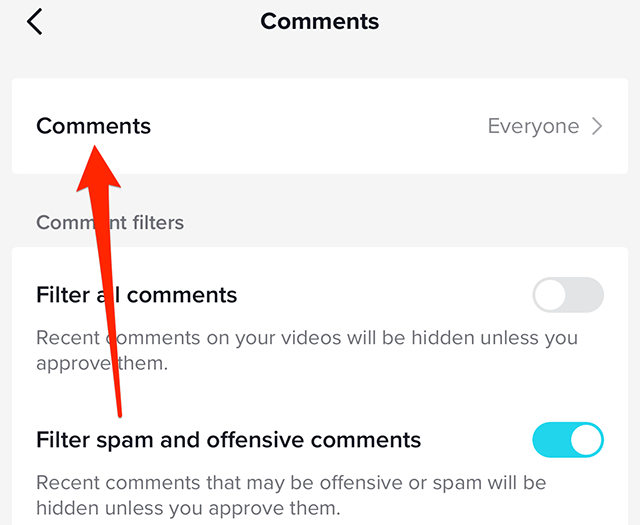
Step 5: Tap “Comments” near the top of the screen.

image

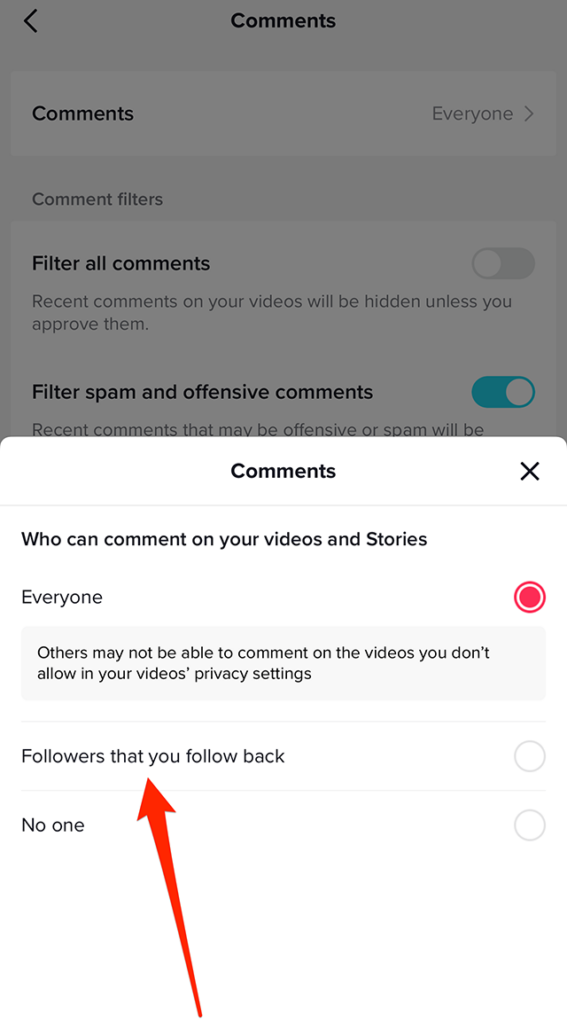
Step 6: Tap “Everyone,” “Followers that you follow back” or “No one,” depending on your preference.

image

This guide was first published in March 2019 and was updated in February 2023.

.font-primary { } .font-secondary { } #meter-count { position: fixed; z-index: 9999999; bottom: 0; width:96%; margin: 2%; -webkit-border-radius: 4px; -moz-border-radius: 4px; border-radius: 4px; -webkit-box-shadow: 0 0px 15px 4px rgba(0,0,0,.2); box-shadow:0 0px 15px 4px rgba(0,0,0,.2); padding: 15px 0; color:#fff; background-color:#343a40; } #meter-count .icon { width: auto; opacity:.8; } #meter-count .icon svg { height: 36px; width: auto; } #meter-count .btn-subscribe { font-size:14px; font-weight:bold; padding:7px 18px; color: #fff; background-color: #2eb3b2; border:none; text-transform: capitalize; margin-right:10px; } #meter-count .btn-subscribe:hover { color: #fff; opacity:.8; } #meter-count .btn-signin { font-size:14px; font-weight:bold; padding:7px 14px; color: #fff; background-color: #121212; border:none; text-transform: capitalize; } #meter-count .btn-signin:hover { color: #fff; opacity:.8; } #meter-count h3 { color:#fff!important; letter-spacing:0px!important; margin:0; padding:0; font-size:16px; line-height:1.5; font-weight:700; margin: 0!important; padding: 0!important; } #meter-count h3 span { color:#E50000!important; font-weight:900; } #meter-count p { font-size:14px; font-weight:500; line-height:1.4; color:#eee!important; margin: 0!important; padding: 0!important; } #meter-count .close { color:#fff; display:block; position:absolute; top: 4px; right:4px; z-index: 999999; } #meter-count .close svg { display:block; color:#fff; height:16px; width:auto; cursor:pointer; } #meter-count .close:hover svg { color:#E50000; } #meter-count .fw-600 { font-weight:600; } @media (max-width: 1079px) { #meter-count .icon { margin:0; padding:0; display:none; } } @media (max-width: 768px) { #meter-count { margin: 0; -webkit-border-radius: 0px; -moz-border-radius: 0px; border-radius: 0px; width:100%; -webkit-box-shadow: 0 -8px 10px -4px rgba(0,0,0,0.3); box-shadow: 0 -8px 10px -4px rgba(0,0,0,0.3); } #meter-count .icon { margin:0; padding:0; display:none; } #meter-count h3 { color:#fff!important; font-size:14px; } #meter-count p { color:#fff!important; font-size: 12px; font-weight: 500; } #meter-count .btn-subscribe, #meter-count .btn-signin { font-size:12px; padding:7px 12px; } #meter-count .btn-signin { display:none; } #meter-count .close svg { height:14px; } }

Enjoying Adweek’s Content? Register for More Access!

https://www.adweek.com/media/tiktok-heres-how-to-change-who-can-comment-on-your-videos/


Instagram: How to Use End-to-End Encryption in Chats


.article-native-ad { border-bottom: 1px solid #ddd; margin: 0 45px; padding-bottom: 20px; margin-bottom: 20px; } .article-native-ad svg { color: #ddd; font-size: 34px; margin-top: 10px; } .article-native-ad p { line-height:1.5; padding:0!important; padding-left: 10px!important; } .article-native-ad strong { font-weight:500; color:rgb(46,179,178); }

Social Media Week returns May 16–18. Join as leading brands and agencies share strategies for marketing within the creator economy. Register now to get an early bird discount.

Instagram is currently rolling out end-to-end encryption for direct message conversations on the photo- and video-sharing platform. This feature adds additional security to a user’s conversations. Users have the option to activate end-to-end encryption for each of their conversations individually.

Our guide will show you how to use end-to-end encryption in conversations in the Instagram mobile app.

Note: These screenshots were captured in the Instagram app on iOS.

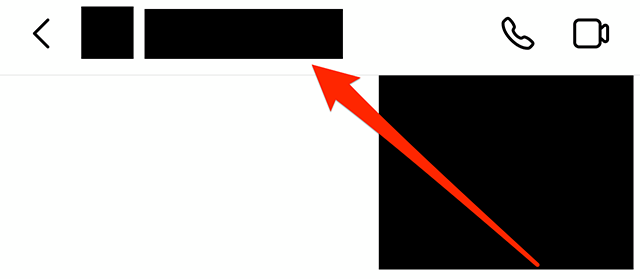
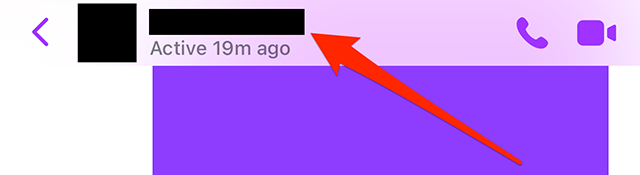
Step 1: Open the existing Instagram conversation you want to manage and tap the conversation name at the top of the screen.

image

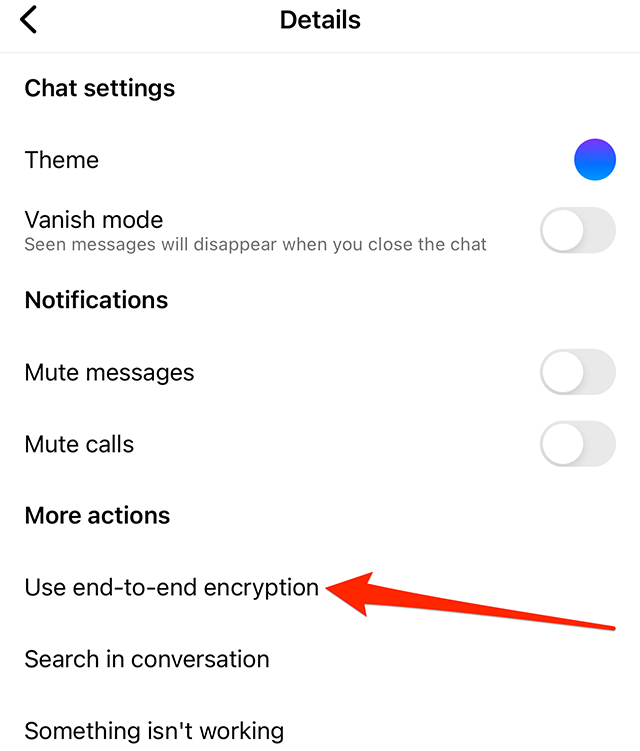
Step 2: Under the “More actions” section, tap “Use end-to-end encryption.”

image

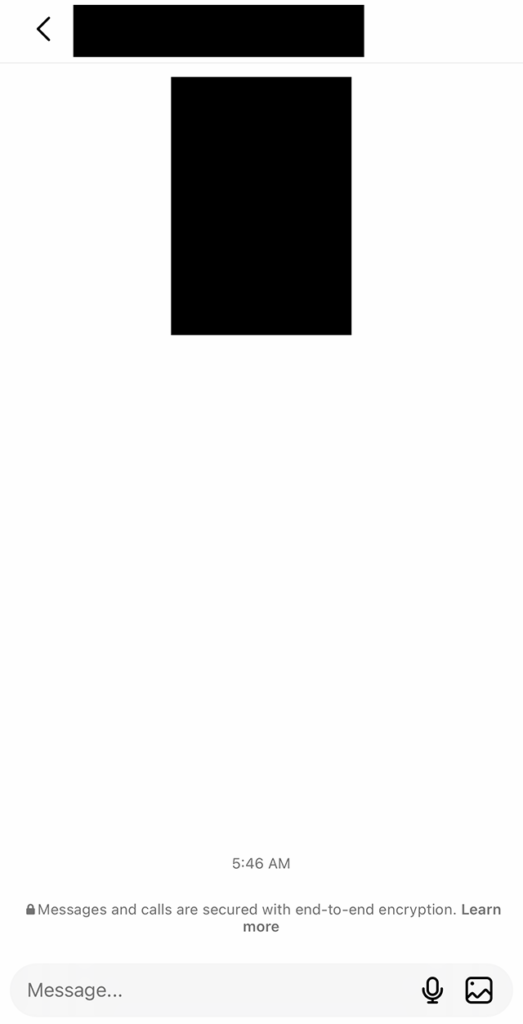
This will take you to a new conversation with the same user, which is protected by the end-to-end encryption feature. On this screen, you can send messages and other content to the user as you previously would.

image

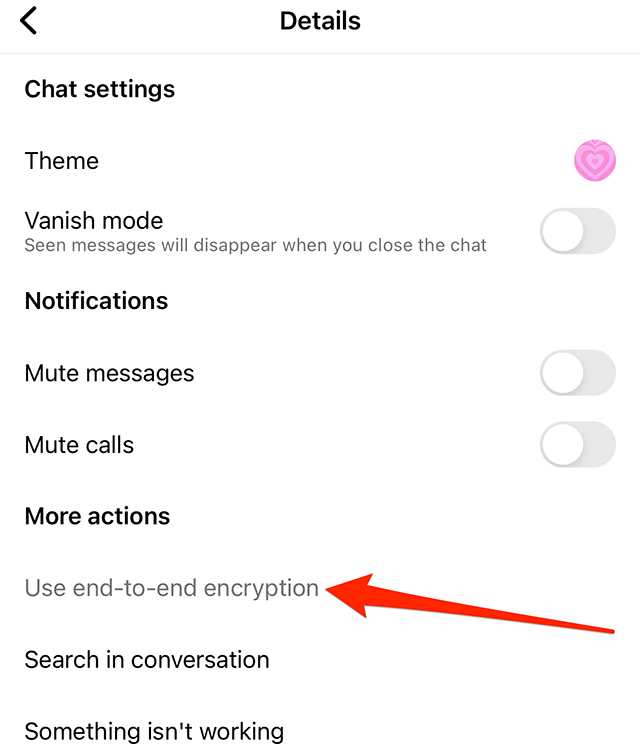
Note: If you have access to end-to-end encryption but the “Use end-to-end encryption” text in Step 2 is gray, rather than black, it means the other person has yet to receive access to this feature. In this case, you won’t be able to use end-to-end encryption in this conversation until the user receives access.

image
.font-primary { } .font-secondary { } #meter-count { position: fixed; z-index: 9999999; bottom: 0; width:96%; margin: 2%; -webkit-border-radius: 4px; -moz-border-radius: 4px; border-radius: 4px; -webkit-box-shadow: 0 0px 15px 4px rgba(0,0,0,.2); box-shadow:0 0px 15px 4px rgba(0,0,0,.2); padding: 15px 0; color:#fff; background-color:#343a40; } #meter-count .icon { width: auto; opacity:.8; } #meter-count .icon svg { height: 36px; width: auto; } #meter-count .btn-subscribe { font-size:14px; font-weight:bold; padding:7px 18px; color: #fff; background-color: #2eb3b2; border:none; text-transform: capitalize; margin-right:10px; } #meter-count .btn-subscribe:hover { color: #fff; opacity:.8; } #meter-count .btn-signin { font-size:14px; font-weight:bold; padding:7px 14px; color: #fff; background-color: #121212; border:none; text-transform: capitalize; } #meter-count .btn-signin:hover { color: #fff; opacity:.8; } #meter-count h3 { color:#fff!important; letter-spacing:0px!important; margin:0; padding:0; font-size:16px; line-height:1.5; font-weight:700; margin: 0!important; padding: 0!important; } #meter-count h3 span { color:#E50000!important; font-weight:900; } #meter-count p { font-size:14px; font-weight:500; line-height:1.4; color:#eee!important; margin: 0!important; padding: 0!important; } #meter-count .close { color:#fff; display:block; position:absolute; top: 4px; right:4px; z-index: 999999; } #meter-count .close svg { display:block; color:#fff; height:16px; width:auto; cursor:pointer; } #meter-count .close:hover svg { color:#E50000; } #meter-count .fw-600 { font-weight:600; } @media (max-width: 1079px) { #meter-count .icon { margin:0; padding:0; display:none; } } @media (max-width: 768px) { #meter-count { margin: 0; -webkit-border-radius: 0px; -moz-border-radius: 0px; border-radius: 0px; width:100%; -webkit-box-shadow: 0 -8px 10px -4px rgba(0,0,0,0.3); box-shadow: 0 -8px 10px -4px rgba(0,0,0,0.3); } #meter-count .icon { margin:0; padding:0; display:none; } #meter-count h3 { color:#fff!important; font-size:14px; } #meter-count p { color:#fff!important; font-size: 12px; font-weight: 500; } #meter-count .btn-subscribe, #meter-count .btn-signin { font-size:12px; padding:7px 12px; } #meter-count .btn-signin { display:none; } #meter-count .close svg { height:14px; } }

Enjoying Adweek’s Content? Register for More Access!

https://www.adweek.com/social-marketing/instagram-how-to-use-end-to-end-encryption-in-chats/


Messenger: How to Change the Text Tone for a Chat


.article-native-ad { border-bottom: 1px solid #ddd; margin: 0 45px; padding-bottom: 20px; margin-bottom: 20px; } .article-native-ad svg { color: #ddd; font-size: 34px; margin-top: 10px; } .article-native-ad p { line-height:1.5; padding:0!important; padding-left: 10px!important; } .article-native-ad strong { font-weight:500; color:rgb(46,179,178); }

Social Media Week returns May 16–18. Join as leading brands and agencies share strategies for marketing within the creator economy. Register now to get an early bird discount.

Messenger allows users to choose from a variety of “text tone” notification sounds in each of their conversations. The “text tone” is the notification sound that plays when a user receives a new message in a conversation.

Our guide will show you how to change the text tone in a chat in the Messenger mobile application.

Note: These screenshots were captured in the Messenger app on iOS.

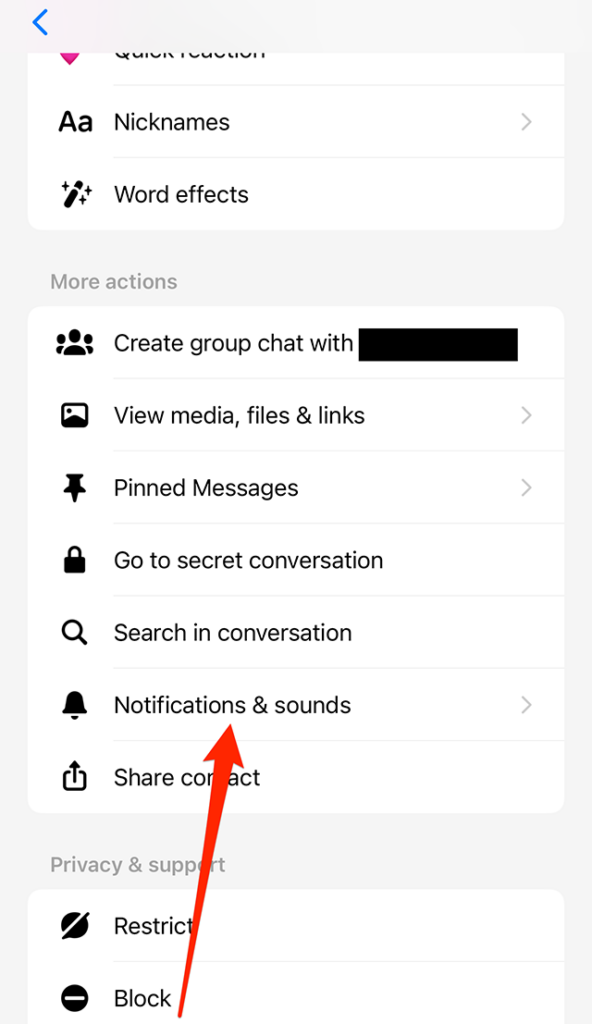
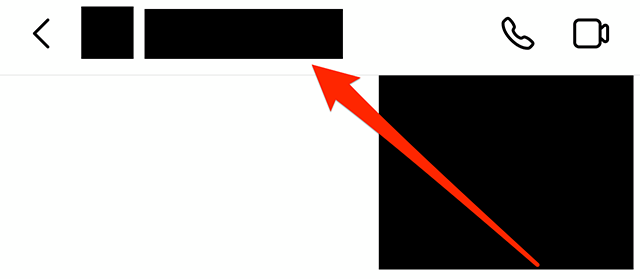
Step 1: Open the Messenger conversation you want to customize and tap the conversation name at the top of the screen.

image

Step 2: Under the “More actions” section, tap “Notifications & sounds.”

image

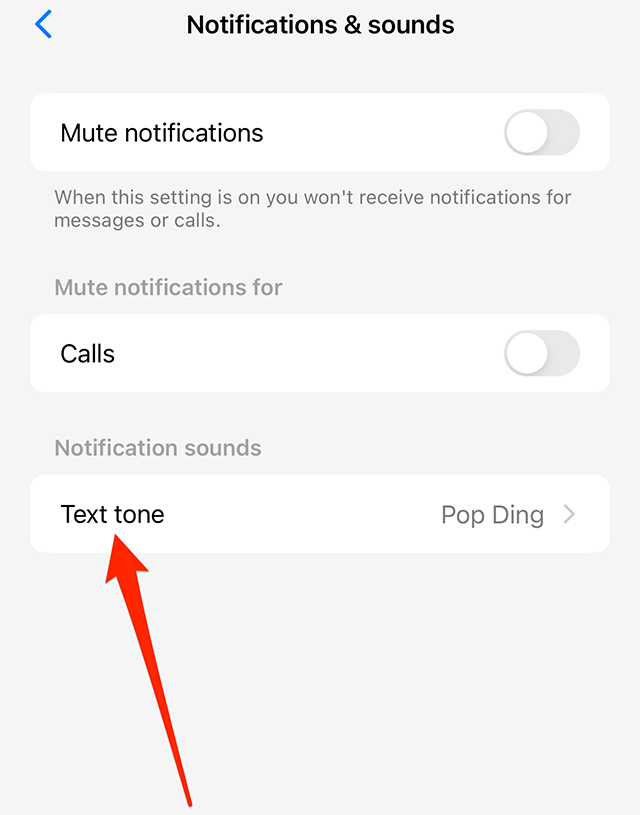
Step 3: Tap “Text tone.”

image

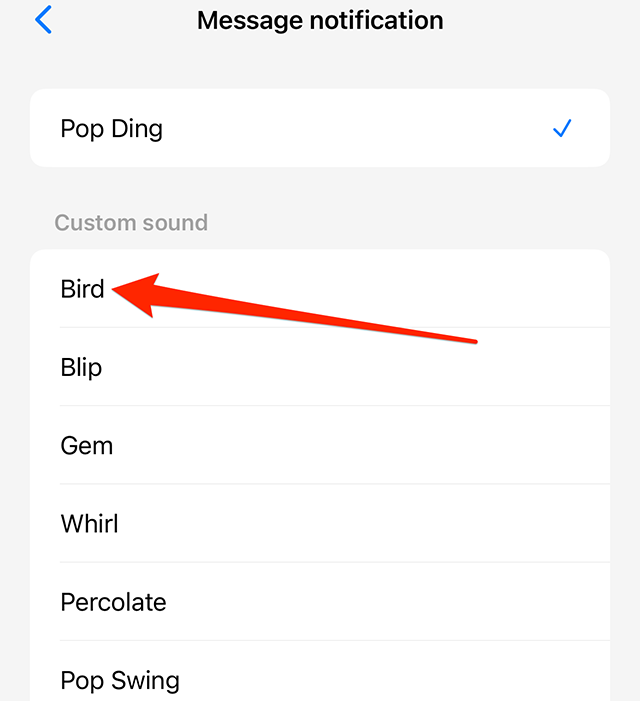
Step 4: Tap one of the sound options to select it. Note: You can tap each tone option to preview it before making your final selection.

image
.font-primary { } .font-secondary { } #meter-count { position: fixed; z-index: 9999999; bottom: 0; width:96%; margin: 2%; -webkit-border-radius: 4px; -moz-border-radius: 4px; border-radius: 4px; -webkit-box-shadow: 0 0px 15px 4px rgba(0,0,0,.2); box-shadow:0 0px 15px 4px rgba(0,0,0,.2); padding: 15px 0; color:#fff; background-color:#343a40; } #meter-count .icon { width: auto; opacity:.8; } #meter-count .icon svg { height: 36px; width: auto; } #meter-count .btn-subscribe { font-size:14px; font-weight:bold; padding:7px 18px; color: #fff; background-color: #2eb3b2; border:none; text-transform: capitalize; margin-right:10px; } #meter-count .btn-subscribe:hover { color: #fff; opacity:.8; } #meter-count .btn-signin { font-size:14px; font-weight:bold; padding:7px 14px; color: #fff; background-color: #121212; border:none; text-transform: capitalize; } #meter-count .btn-signin:hover { color: #fff; opacity:.8; } #meter-count h3 { color:#fff!important; letter-spacing:0px!important; margin:0; padding:0; font-size:16px; line-height:1.5; font-weight:700; margin: 0!important; padding: 0!important; } #meter-count h3 span { color:#E50000!important; font-weight:900; } #meter-count p { font-size:14px; font-weight:500; line-height:1.4; color:#eee!important; margin: 0!important; padding: 0!important; } #meter-count .close { color:#fff; display:block; position:absolute; top: 4px; right:4px; z-index: 999999; } #meter-count .close svg { display:block; color:#fff; height:16px; width:auto; cursor:pointer; } #meter-count .close:hover svg { color:#E50000; } #meter-count .fw-600 { font-weight:600; } @media (max-width: 1079px) { #meter-count .icon { margin:0; padding:0; display:none; } } @media (max-width: 768px) { #meter-count { margin: 0; -webkit-border-radius: 0px; -moz-border-radius: 0px; border-radius: 0px; width:100%; -webkit-box-shadow: 0 -8px 10px -4px rgba(0,0,0,0.3); box-shadow: 0 -8px 10px -4px rgba(0,0,0,0.3); } #meter-count .icon { margin:0; padding:0; display:none; } #meter-count h3 { color:#fff!important; font-size:14px; } #meter-count p { color:#fff!important; font-size: 12px; font-weight: 500; } #meter-count .btn-subscribe, #meter-count .btn-signin { font-size:12px; padding:7px 12px; } #meter-count .btn-signin { display:none; } #meter-count .close svg { height:14px; } }

Enjoying Adweek’s Content? Register for More Access!

https://www.adweek.com/social-marketing/messenger-how-to-change-the-text-tone-for-a-chat/


Instagram: How to Search for Messages in Chats on Mobile


.article-native-ad { border-bottom: 1px solid #ddd; margin: 0 45px; padding-bottom: 20px; margin-bottom: 20px; } .article-native-ad svg { color: #ddd; font-size: 34px; margin-top: 10px; } .article-native-ad p { line-height:1.5; padding:0!important; padding-left: 10px!important; } .article-native-ad strong { font-weight:500; color:rgb(46,179,178); }

Learn how the creator economy is transforming the marketing landscape, and how to cultivate partnerships to grow engaged communities at Social Media Week: The Creatorverse, May 16–18 in NY. Register now to secure your early bird pass.

Instagram allows users to search for specific messages in conversations, rather than requiring them to scroll through their message history to find something that was previously said.

Our guide will show you how to search for messages in chats in the Instagram mobile application.

Note: These screenshots were captured in the Instagram app on iOS.

Step 1: Open the conversation containing the message(s) you want to find and tap the conversation name at the top of the screen.

image

Step 2: Under the “More actions” section, tap “Search in conversation.”

image

Step 3: Type your search query in the search bar that appears on the screen. Note: On iOS, you can tap the “Search” button in the bottom-right corner of your device’s keyboard to perform your search after you’ve typed your query.

image

From there, you’ll see a list of search results that match your query. If you tap a message in the search results, the app will take you back to the conversation where you can view the message in its original context.

image
.font-primary { } .font-secondary { } #meter-count { position: fixed; z-index: 9999999; bottom: 0; width:96%; margin: 2%; -webkit-border-radius: 4px; -moz-border-radius: 4px; border-radius: 4px; -webkit-box-shadow: 0 0px 15px 4px rgba(0,0,0,.2); box-shadow:0 0px 15px 4px rgba(0,0,0,.2); padding: 15px 0; color:#fff; background-color:#343a40; } #meter-count .icon { width: auto; opacity:.8; } #meter-count .icon svg { height: 36px; width: auto; } #meter-count .btn-subscribe { font-size:14px; font-weight:bold; padding:7px 18px; color: #fff; background-color: #2eb3b2; border:none; text-transform: capitalize; margin-right:10px; } #meter-count .btn-subscribe:hover { color: #fff; opacity:.8; } #meter-count .btn-signin { font-size:14px; font-weight:bold; padding:7px 14px; color: #fff; background-color: #121212; border:none; text-transform: capitalize; } #meter-count .btn-signin:hover { color: #fff; opacity:.8; } #meter-count h3 { color:#fff!important; letter-spacing:0px!important; margin:0; padding:0; font-size:16px; line-height:1.5; font-weight:700; margin: 0!important; padding: 0!important; } #meter-count h3 span { color:#E50000!important; font-weight:900; } #meter-count p { font-size:14px; font-weight:500; line-height:1.4; color:#eee!important; margin: 0!important; padding: 0!important; } #meter-count .close { color:#fff; display:block; position:absolute; top: 4px; right:4px; z-index: 999999; } #meter-count .close svg { display:block; color:#fff; height:16px; width:auto; cursor:pointer; } #meter-count .close:hover svg { color:#E50000; } #meter-count .fw-600 { font-weight:600; } @media (max-width: 1079px) { #meter-count .icon { margin:0; padding:0; display:none; } } @media (max-width: 768px) { #meter-count { margin: 0; -webkit-border-radius: 0px; -moz-border-radius: 0px; border-radius: 0px; width:100%; -webkit-box-shadow: 0 -8px 10px -4px rgba(0,0,0,0.3); box-shadow: 0 -8px 10px -4px rgba(0,0,0,0.3); } #meter-count .icon { margin:0; padding:0; display:none; } #meter-count h3 { color:#fff!important; font-size:14px; } #meter-count p { color:#fff!important; font-size: 12px; font-weight: 500; } #meter-count .btn-subscribe, #meter-count .btn-signin { font-size:12px; padding:7px 12px; } #meter-count .btn-signin { display:none; } #meter-count .close svg { height:14px; } }

Enjoying Adweek’s Content? Register for More Access!

https://www.adweek.com/social-marketing/instagram-how-to-search-for-messages-in-chats-on-mobile/


Instagram: How to Use the Super Bowl LVII Chat Themes


.article-native-ad { border-bottom: 1px solid #ddd; margin: 0 45px; padding-bottom: 20px; margin-bottom: 20px; } .article-native-ad svg { color: #ddd; font-size: 34px; margin-top: 10px; } .article-native-ad p { line-height:1.5; padding:0!important; padding-left: 10px!important; } .article-native-ad strong { font-weight:500; color:rgb(46,179,178); }

Learn how the creator economy is transforming the marketing landscape, and how to cultivate partnerships to grow engaged communities at Social Media Week: The Creatorverse, May 16–18 in NY. Register now to secure your early bird pass.

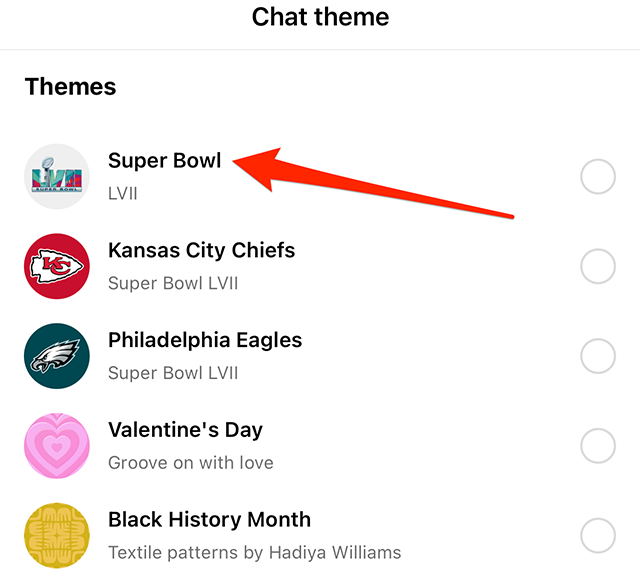
Ahead of Super Bowl LVII, Meta released new chat themes in the Instagram mobile application that add NFL-themed backgrounds and colors to conversations. There are three chat themes to choose from: “Super Bowl,” “Kansas City Chiefs” and “Philadelphia Eagles.”

Our guide will show you how to use the Super Bowl LVII chat themes in the Instagram mobile app.

Note: These screenshots were captured in the Instagram app on iOS. Also note, these themes are also available in the Messenger app.

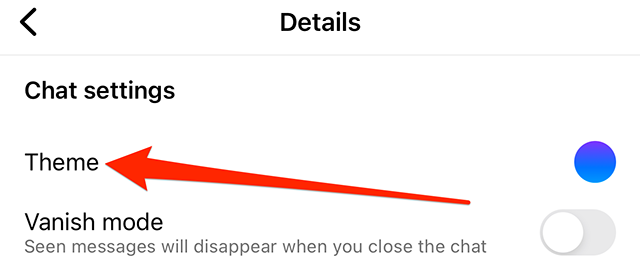
Step 1: Open the Messenger conversation you want to customize and tap the conversation name at the top of the screen.

image

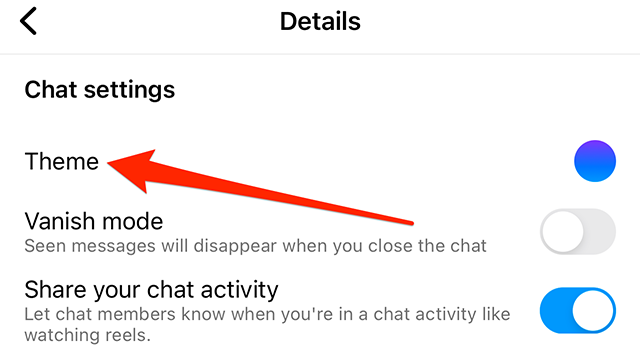
Step 2: Tap “Theme.”

image

Step 3: Tap one of the Super Bowl LVII chat themes. Note: Instagram doesn’t have preview screens or confirmation windows for themes. Once you tap a Super Bowl LVII chat theme, the conversation will be updated.

image
.font-primary { } .font-secondary { } #meter-count { position: fixed; z-index: 9999999; bottom: 0; width:96%; margin: 2%; -webkit-border-radius: 4px; -moz-border-radius: 4px; border-radius: 4px; -webkit-box-shadow: 0 0px 15px 4px rgba(0,0,0,.2); box-shadow:0 0px 15px 4px rgba(0,0,0,.2); padding: 15px 0; color:#fff; background-color:#343a40; } #meter-count .icon { width: auto; opacity:.8; } #meter-count .icon svg { height: 36px; width: auto; } #meter-count .btn-subscribe { font-size:14px; font-weight:bold; padding:7px 18px; color: #fff; background-color: #2eb3b2; border:none; text-transform: capitalize; margin-right:10px; } #meter-count .btn-subscribe:hover { color: #fff; opacity:.8; } #meter-count .btn-signin { font-size:14px; font-weight:bold; padding:7px 14px; color: #fff; background-color: #121212; border:none; text-transform: capitalize; } #meter-count .btn-signin:hover { color: #fff; opacity:.8; } #meter-count h3 { color:#fff!important; letter-spacing:0px!important; margin:0; padding:0; font-size:16px; line-height:1.5; font-weight:700; margin: 0!important; padding: 0!important; } #meter-count h3 span { color:#E50000!important; font-weight:900; } #meter-count p { font-size:14px; font-weight:500; line-height:1.4; color:#eee!important; margin: 0!important; padding: 0!important; } #meter-count .close { color:#fff; display:block; position:absolute; top: 4px; right:4px; z-index: 999999; } #meter-count .close svg { display:block; color:#fff; height:16px; width:auto; cursor:pointer; } #meter-count .close:hover svg { color:#E50000; } #meter-count .fw-600 { font-weight:600; } @media (max-width: 1079px) { #meter-count .icon { margin:0; padding:0; display:none; } } @media (max-width: 768px) { #meter-count { margin: 0; -webkit-border-radius: 0px; -moz-border-radius: 0px; border-radius: 0px; width:100%; -webkit-box-shadow: 0 -8px 10px -4px rgba(0,0,0,0.3); box-shadow: 0 -8px 10px -4px rgba(0,0,0,0.3); } #meter-count .icon { margin:0; padding:0; display:none; } #meter-count h3 { color:#fff!important; font-size:14px; } #meter-count p { color:#fff!important; font-size: 12px; font-weight: 500; } #meter-count .btn-subscribe, #meter-count .btn-signin { font-size:12px; padding:7px 12px; } #meter-count .btn-signin { display:none; } #meter-count .close svg { height:14px; } }

Enjoying Adweek’s Content? Register for More Access!

https://www.adweek.com/social-marketing/instagram-how-to-use-the-super-bowl-lvii-chat-themes/


Reddit: How to Get a Free NFL Avatar


.article-native-ad { border-bottom: 1px solid #ddd; margin: 0 45px; padding-bottom: 20px; margin-bottom: 20px; } .article-native-ad svg { color: #ddd; font-size: 34px; margin-top: 10px; } .article-native-ad p { line-height:1.5; padding:0!important; padding-left: 10px!important; } .article-native-ad strong { font-weight:500; color:rgb(46,179,178); }

Learn how the creator economy is transforming the marketing landscape, and how to cultivate partnerships to grow engaged communities at Social Media Week: The Creatorverse, May 16–18 in NY. Register now to secure your early bird pass.

Ahead of Super Bowl LVII Feb. 12, Reddit released a series of free, limited-edition Super Bowl LVII Collectible Avatars for users to collect. Four avatars are available to choose from, but each user can only claim one.

Our guide will show you how to get a collectible NFL avatar in the Reddit mobile application.

Note: These screenshots were captured in the Reddit app on iOS.

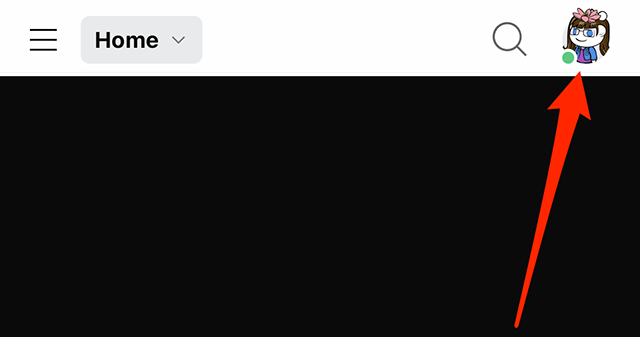
Step 1: Tap your current avatar or profile picture in the top-right corner of the screen.

image

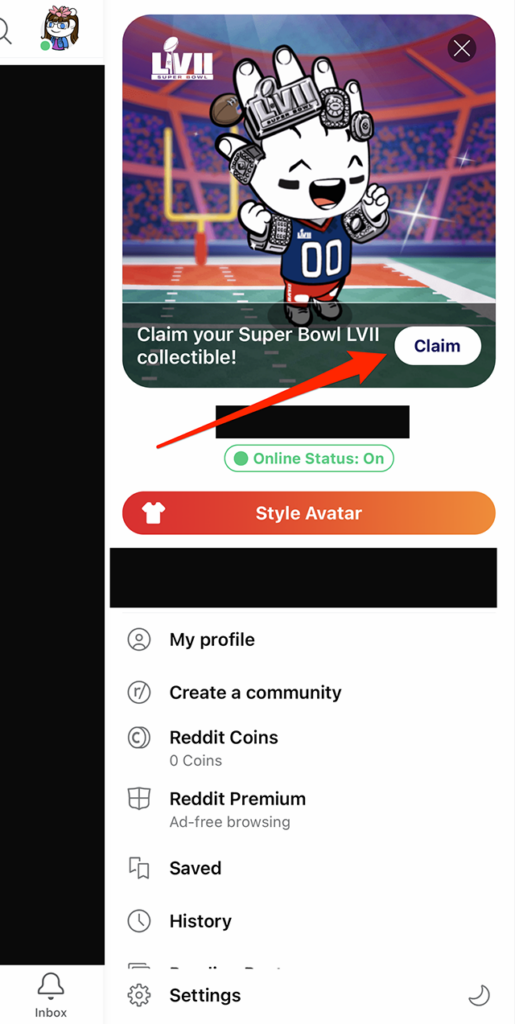
Step 2: You should see an animated NFL avatar at the top of the screen. Tap the “Claim” button to the right of the text that reads “Claim your Super Bowl LVII collectible!”

image

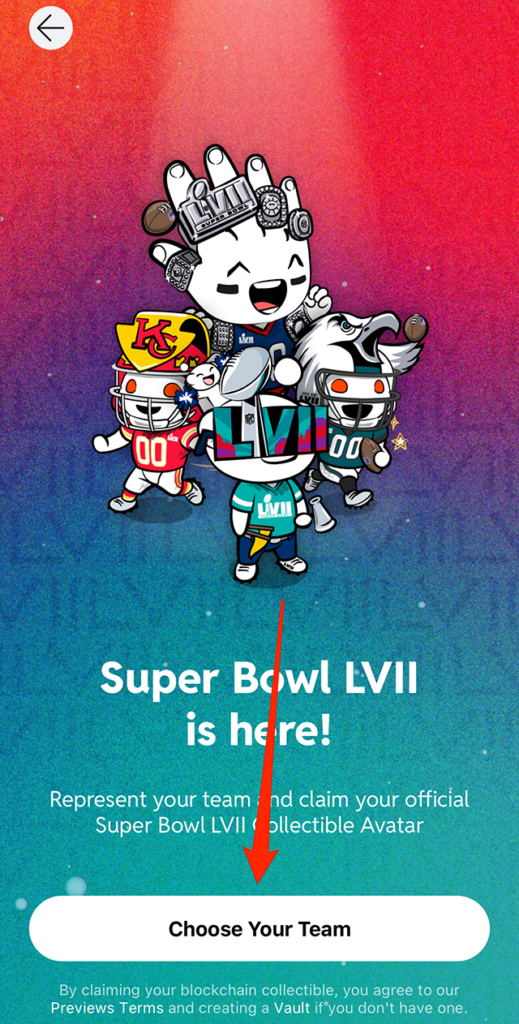
Step 3: Tap the “Choose Your Team” button at the bottom of the screen.

image

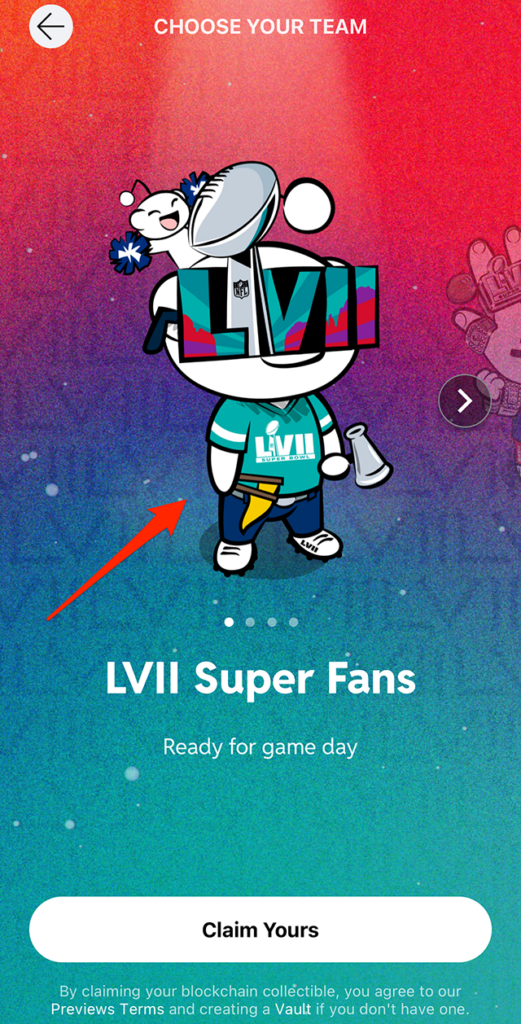
Step 4: Swipe from right to left to view the four available avatars.

image

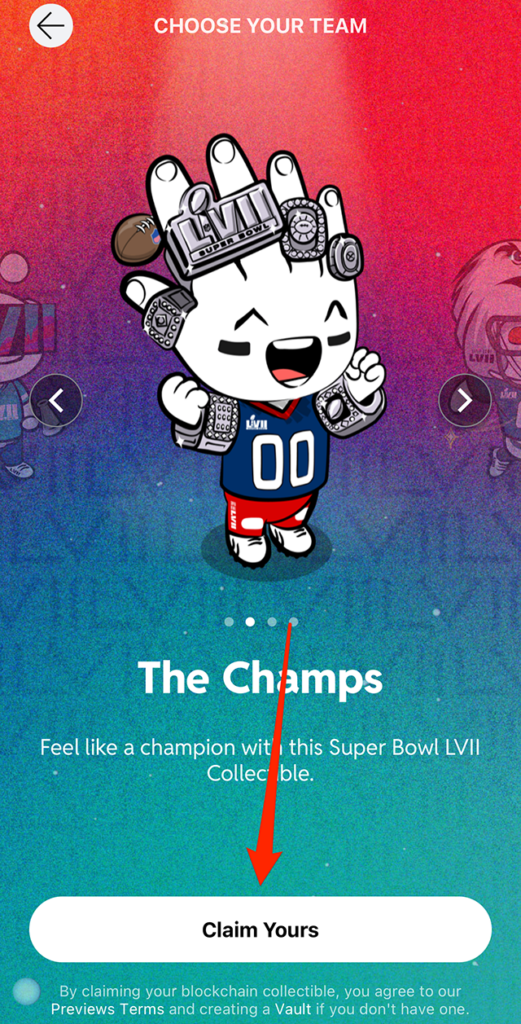
Step 5: Once you’ve selected the avatar you want to claim (make sure it’s the one displayed on the screen), tap the “Claim Yours” button at the bottom of the screen.

image

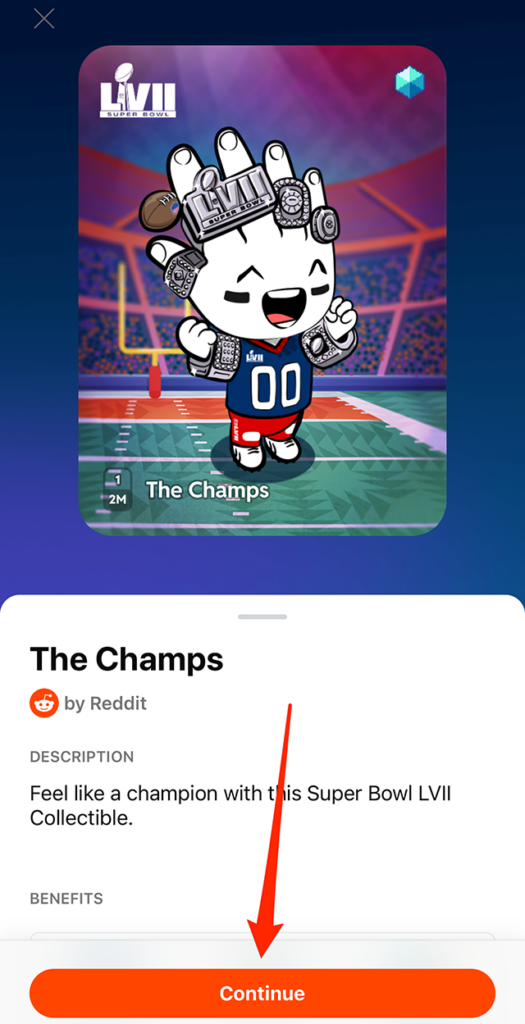
Step 6: You’ll see a screen that will give you more information about the avatar you’ve selected. Tap the “Continue” button to continue claiming your avatar.

image

If you’ve never created a Vault on Reddit, you’ll need to do so (your “Vault” is your digital wallet on the platform). Tap the “Secure Your Vault” button at the bottom of the screen to create your Vault. This process will require you to create a password for your Vault.

image

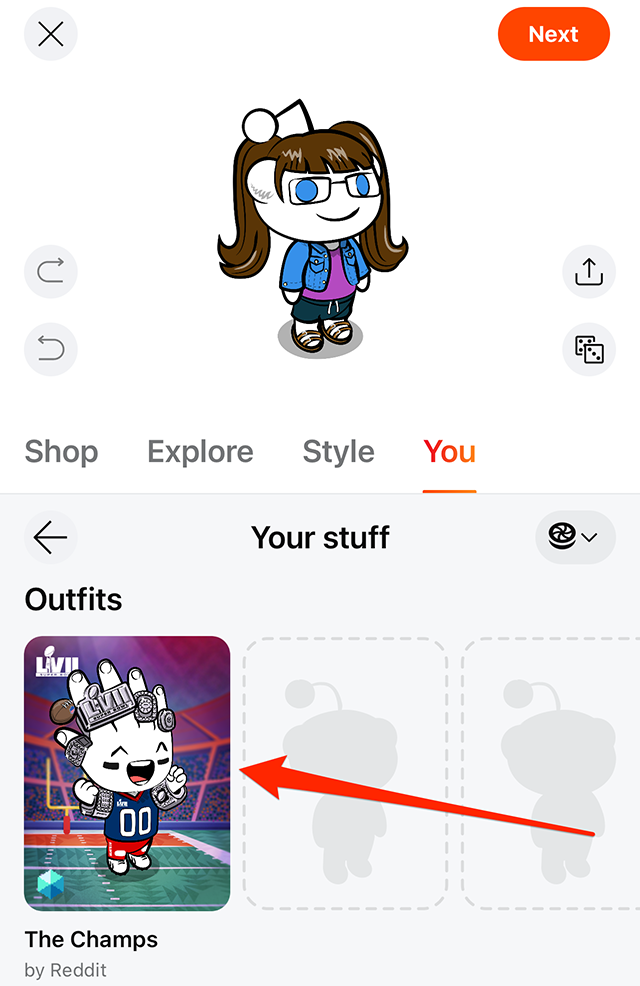
Once you’ve claimed your NFL avatar, you can select it in Reddit’s avatar editor to change your avatar’s appearance. You can dress your avatar in the entire NFL-themed outfit, and you can also mix and match pieces from the NFL-themed outfit with other clothing and accessory items that are available.

image
.font-primary { } .font-secondary { } #meter-count { position: fixed; z-index: 9999999; bottom: 0; width:96%; margin: 2%; -webkit-border-radius: 4px; -moz-border-radius: 4px; border-radius: 4px; -webkit-box-shadow: 0 0px 15px 4px rgba(0,0,0,.2); box-shadow:0 0px 15px 4px rgba(0,0,0,.2); padding: 15px 0; color:#fff; background-color:#343a40; } #meter-count .icon { width: auto; opacity:.8; } #meter-count .icon svg { height: 36px; width: auto; } #meter-count .btn-subscribe { font-size:14px; font-weight:bold; padding:7px 18px; color: #fff; background-color: #2eb3b2; border:none; text-transform: capitalize; margin-right:10px; } #meter-count .btn-subscribe:hover { color: #fff; opacity:.8; } #meter-count .btn-signin { font-size:14px; font-weight:bold; padding:7px 14px; color: #fff; background-color: #121212; border:none; text-transform: capitalize; } #meter-count .btn-signin:hover { color: #fff; opacity:.8; } #meter-count h3 { color:#fff!important; letter-spacing:0px!important; margin:0; padding:0; font-size:16px; line-height:1.5; font-weight:700; margin: 0!important; padding: 0!important; } #meter-count h3 span { color:#E50000!important; font-weight:900; } #meter-count p { font-size:14px; font-weight:500; line-height:1.4; color:#eee!important; margin: 0!important; padding: 0!important; } #meter-count .close { color:#fff; display:block; position:absolute; top: 4px; right:4px; z-index: 999999; } #meter-count .close svg { display:block; color:#fff; height:16px; width:auto; cursor:pointer; } #meter-count .close:hover svg { color:#E50000; } #meter-count .fw-600 { font-weight:600; } @media (max-width: 1079px) { #meter-count .icon { margin:0; padding:0; display:none; } } @media (max-width: 768px) { #meter-count { margin: 0; -webkit-border-radius: 0px; -moz-border-radius: 0px; border-radius: 0px; width:100%; -webkit-box-shadow: 0 -8px 10px -4px rgba(0,0,0,0.3); box-shadow: 0 -8px 10px -4px rgba(0,0,0,0.3); } #meter-count .icon { margin:0; padding:0; display:none; } #meter-count h3 { color:#fff!important; font-size:14px; } #meter-count p { color:#fff!important; font-size: 12px; font-weight: 500; } #meter-count .btn-subscribe, #meter-count .btn-signin { font-size:12px; padding:7px 12px; } #meter-count .btn-signin { display:none; } #meter-count .close svg { height:14px; } }

Enjoying Adweek’s Content? Register for More Access!

https://www.adweek.com/social-marketing/reddit-how-to-get-a-free-nfl-avatar/


TikTok: How to View Your Comment History on Mobile


.article-native-ad { border-bottom: 1px solid #ddd; margin: 0 45px; padding-bottom: 20px; margin-bottom: 20px; } .article-native-ad svg { color: #ddd; font-size: 34px; margin-top: 10px; } .article-native-ad p { line-height:1.5; padding:0!important; padding-left: 10px!important; } .article-native-ad strong { font-weight:500; color:rgb(46,179,178); }

Join TV, media, marketing and tech leaders for Adweek Convergent TV, Mar. 21–22. Virtual and in-person passes available. 50% off through Feb. 6.

TikTok allows users to view all of the videos they’ve commented on in their “Comment History.”

Our guide will show you how to view your Comment History within the TikTok mobile application.

Note: These screenshots were captured in the TikTok app on iOS.

Step 1: On your TikTok profile, tap the three horizontal lines in the top-right corner of the screen.

image

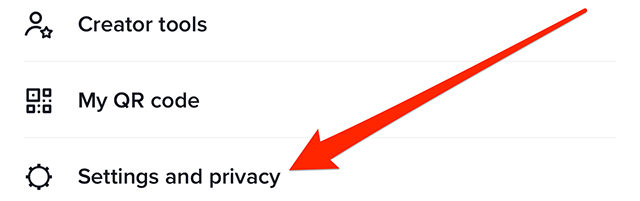
Step 2: Tap “Settings and privacy.”

image

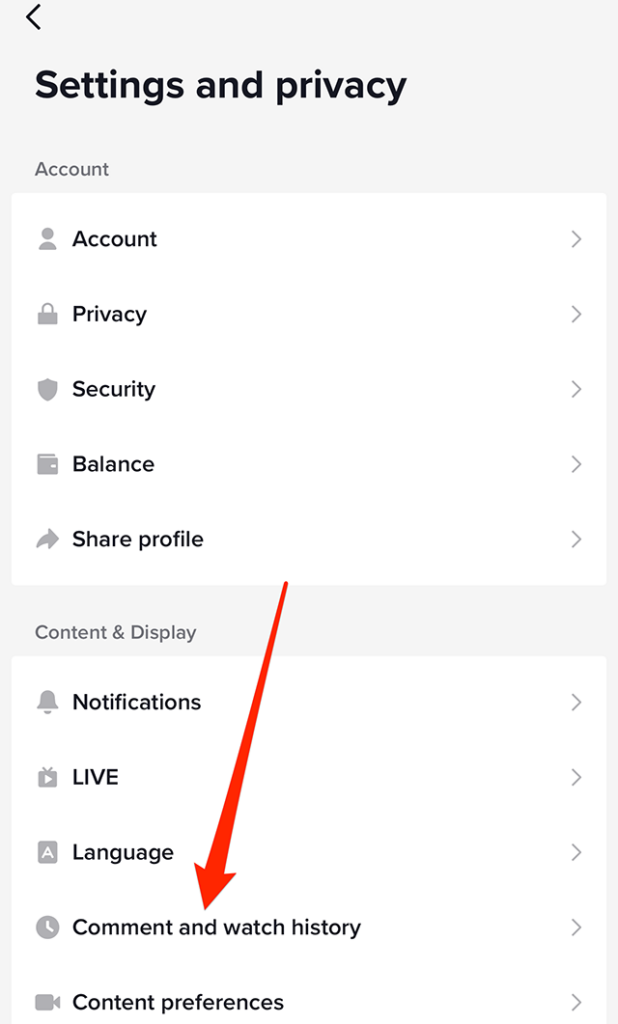
Step 3: Under the “Content & Display” section, tap “Comment and watch history.”

image

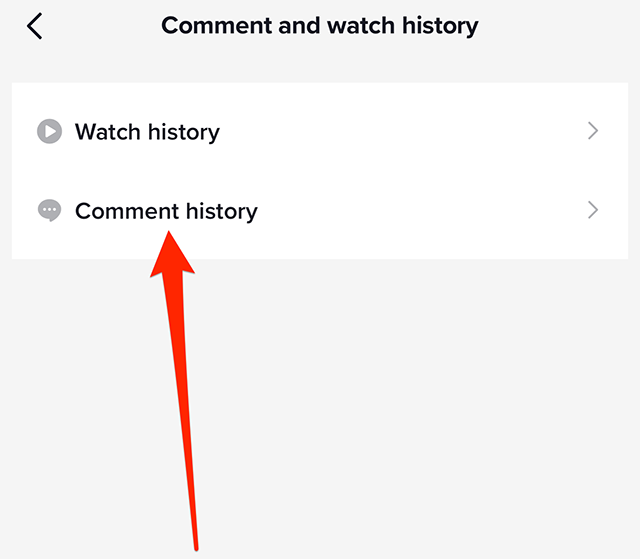
Step 4: Tap “Comment history.”

image

From there, you’ll see a list of the videos you’ve commented on. If you tap a comment, the app will take you to the video and show you your comment in the video’s comments section.

image
.font-primary { } .font-secondary { } #meter-count { position: fixed; z-index: 9999999; bottom: 0; width:96%; margin: 2%; -webkit-border-radius: 4px; -moz-border-radius: 4px; border-radius: 4px; -webkit-box-shadow: 0 0px 15px 4px rgba(0,0,0,.2); box-shadow:0 0px 15px 4px rgba(0,0,0,.2); padding: 15px 0; color:#fff; background-color:#343a40; } #meter-count .icon { width: auto; opacity:.8; } #meter-count .icon svg { height: 36px; width: auto; } #meter-count .btn-subscribe { font-size:14px; font-weight:bold; padding:7px 18px; color: #fff; background-color: #2eb3b2; border:none; text-transform: capitalize; margin-right:10px; } #meter-count .btn-subscribe:hover { color: #fff; opacity:.8; } #meter-count .btn-signin { font-size:14px; font-weight:bold; padding:7px 14px; color: #fff; background-color: #121212; border:none; text-transform: capitalize; } #meter-count .btn-signin:hover { color: #fff; opacity:.8; } #meter-count h3 { color:#fff!important; letter-spacing:0px!important; margin:0; padding:0; font-size:16px; line-height:1.5; font-weight:700; margin: 0!important; padding: 0!important; } #meter-count h3 span { color:#E50000!important; font-weight:900; } #meter-count p { font-size:14px; font-weight:500; line-height:1.4; color:#eee!important; margin: 0!important; padding: 0!important; } #meter-count .close { color:#fff; display:block; position:absolute; top: 4px; right:4px; z-index: 999999; } #meter-count .close svg { display:block; color:#fff; height:16px; width:auto; cursor:pointer; } #meter-count .close:hover svg { color:#E50000; } #meter-count .fw-600 { font-weight:600; } @media (max-width: 1079px) { #meter-count .icon { margin:0; padding:0; display:none; } } @media (max-width: 768px) { #meter-count { margin: 0; -webkit-border-radius: 0px; -moz-border-radius: 0px; border-radius: 0px; width:100%; -webkit-box-shadow: 0 -8px 10px -4px rgba(0,0,0,0.3); box-shadow: 0 -8px 10px -4px rgba(0,0,0,0.3); } #meter-count .icon { margin:0; padding:0; display:none; } #meter-count h3 { color:#fff!important; font-size:14px; } #meter-count p { color:#fff!important; font-size: 12px; font-weight: 500; } #meter-count .btn-subscribe, #meter-count .btn-signin { font-size:12px; padding:7px 12px; } #meter-count .btn-signin { display:none; } #meter-count .close svg { height:14px; } }

Enjoying Adweek’s Content? Register for More Access!

https://www.adweek.com/media/tiktok-how-to-view-your-comment-history-on-mobile/


Messenger: How to Unpin Messages in a Chat


.article-native-ad { border-bottom: 1px solid #ddd; margin: 0 45px; padding-bottom: 20px; margin-bottom: 20px; } .article-native-ad svg { color: #ddd; font-size: 34px; margin-top: 10px; } .article-native-ad p { line-height:1.5; padding:0!important; padding-left: 10px!important; } .article-native-ad strong { font-weight:500; color:rgb(46,179,178); }

Join TV, media, marketing and tech leaders for Adweek Convergent TV, Mar. 21–22. Virtual and in-person passes available. 50% off through Feb. 6.

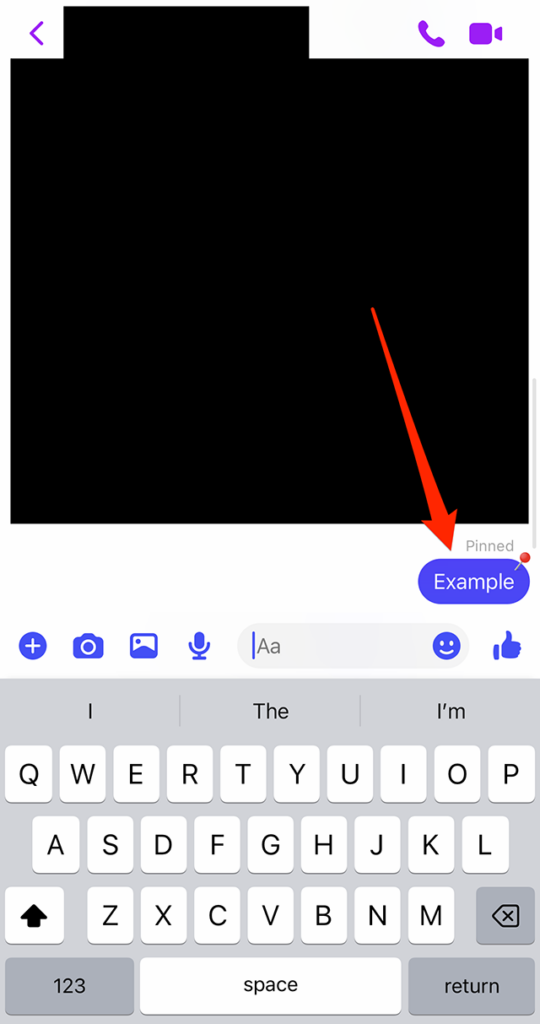
Messenger users can pin messages in conversations so they can quickly reference them again in the future. Users can also unpin messages in conversations if they no longer need quick access to this content.

Our guide will show you how to unpin messages in a conversation in the Messenger mobile application.

Note: These screenshots were captured in the Messenger app on iOS.

Step 1: Tap and hold on the pinned message you want to unpin.

image

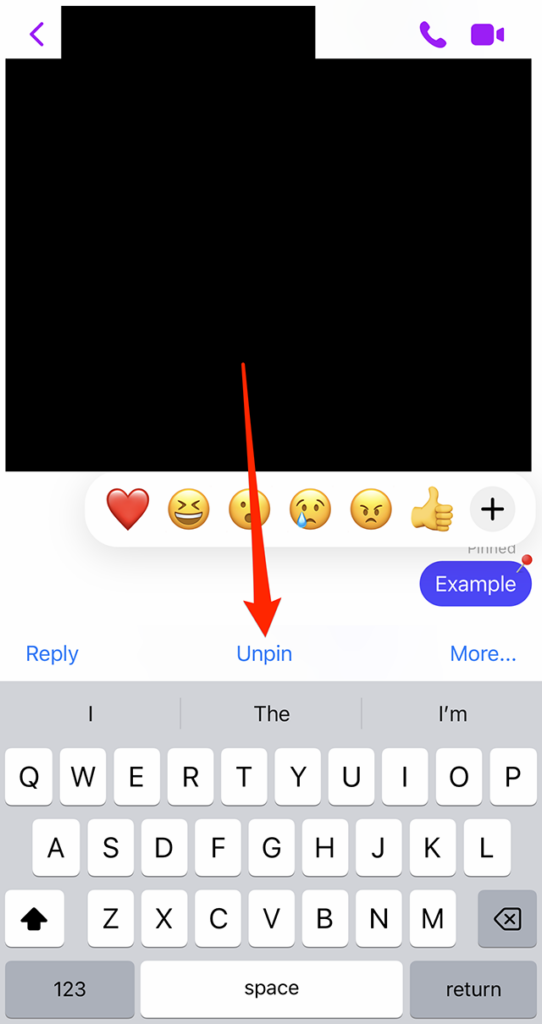
Step 2: Tap “Unpin.”

image

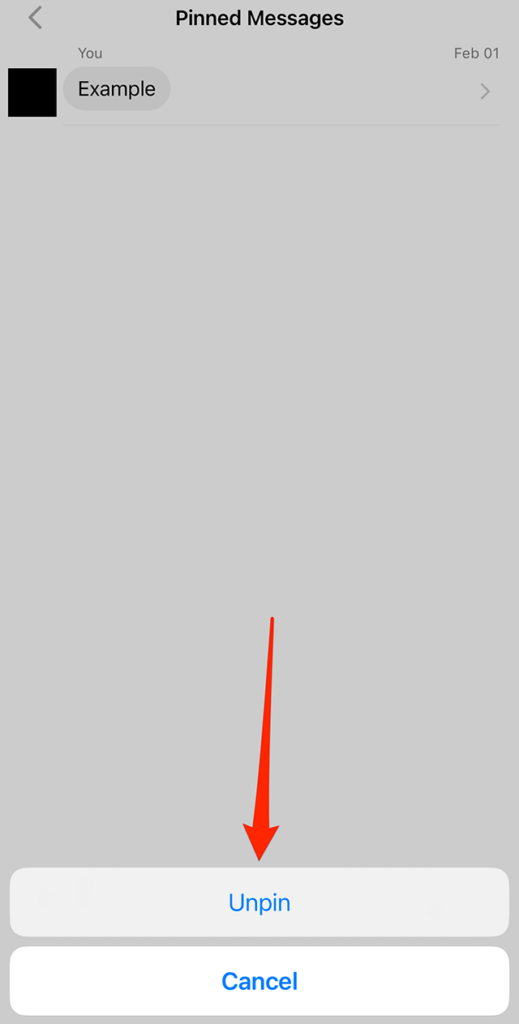
You can also unpin messages by viewing all of the pinned messages in a conversation, tapping and holding on the desired message and tapping “Unpin.”

image
.font-primary { } .font-secondary { } #meter-count { position: fixed; z-index: 9999999; bottom: 0; width:96%; margin: 2%; -webkit-border-radius: 4px; -moz-border-radius: 4px; border-radius: 4px; -webkit-box-shadow: 0 0px 15px 4px rgba(0,0,0,.2); box-shadow:0 0px 15px 4px rgba(0,0,0,.2); padding: 15px 0; color:#fff; background-color:#343a40; } #meter-count .icon { width: auto; opacity:.8; } #meter-count .icon svg { height: 36px; width: auto; } #meter-count .btn-subscribe { font-size:14px; font-weight:bold; padding:7px 18px; color: #fff; background-color: #2eb3b2; border:none; text-transform: capitalize; margin-right:10px; } #meter-count .btn-subscribe:hover { color: #fff; opacity:.8; } #meter-count .btn-signin { font-size:14px; font-weight:bold; padding:7px 14px; color: #fff; background-color: #121212; border:none; text-transform: capitalize; } #meter-count .btn-signin:hover { color: #fff; opacity:.8; } #meter-count h3 { color:#fff!important; letter-spacing:0px!important; margin:0; padding:0; font-size:16px; line-height:1.5; font-weight:700; margin: 0!important; padding: 0!important; } #meter-count h3 span { color:#E50000!important; font-weight:900; } #meter-count p { font-size:14px; font-weight:500; line-height:1.4; color:#eee!important; margin: 0!important; padding: 0!important; } #meter-count .close { color:#fff; display:block; position:absolute; top: 4px; right:4px; z-index: 999999; } #meter-count .close svg { display:block; color:#fff; height:16px; width:auto; cursor:pointer; } #meter-count .close:hover svg { color:#E50000; } #meter-count .fw-600 { font-weight:600; } @media (max-width: 1079px) { #meter-count .icon { margin:0; padding:0; display:none; } } @media (max-width: 768px) { #meter-count { margin: 0; -webkit-border-radius: 0px; -moz-border-radius: 0px; border-radius: 0px; width:100%; -webkit-box-shadow: 0 -8px 10px -4px rgba(0,0,0,0.3); box-shadow: 0 -8px 10px -4px rgba(0,0,0,0.3); } #meter-count .icon { margin:0; padding:0; display:none; } #meter-count h3 { color:#fff!important; font-size:14px; } #meter-count p { color:#fff!important; font-size: 12px; font-weight: 500; } #meter-count .btn-subscribe, #meter-count .btn-signin { font-size:12px; padding:7px 12px; } #meter-count .btn-signin { display:none; } #meter-count .close svg { height:14px; } }

Enjoying Adweek’s Content? Register for More Access!

https://www.adweek.com/media/messenger-how-to-unpin-messages-in-a-chat/


Instagram: How to Use the Black History Month Chat Theme


.article-native-ad { border-bottom: 1px solid #ddd; margin: 0 45px; padding-bottom: 20px; margin-bottom: 20px; } .article-native-ad svg { color: #ddd; font-size: 34px; margin-top: 10px; } .article-native-ad p { line-height:1.5; padding:0!important; padding-left: 10px!important; } .article-native-ad strong { font-weight:500; color:rgb(46,179,178); }

Join TV, media, marketing and tech leaders for Adweek Convergent TV, Mar. 21–22. Virtual and in-person passes available. 50% off through Feb. 6.

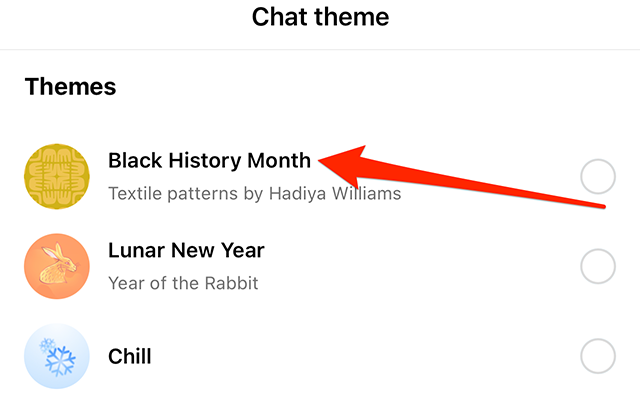
To celebrate Black History Month, Instagram released a Black History Month chat theme that adds textile patterns created by Hadiya Williams to conversations.

Our guide will show you how to use the Black History Month chat theme in the Instagram mobile application.

Note: These screenshots were captured in the Instagram app on iOS. Also note, this theme is also available in the Messenger app.

Step 1: Open the Instagram conversation you want to customize and tap the conversation name at the top of the screen.

image

Step 2: Tap “Theme.”

image

Step 3: Tap the “Black History Month” chat theme. Note: There is no preview screen or confirmation window. When you tap the “Black History Month” chat theme, the conversation will be updated.
image
.font-primary { } .font-secondary { } #meter-count { position: fixed; z-index: 9999999; bottom: 0; width:96%; margin: 2%; -webkit-border-radius: 4px; -moz-border-radius: 4px; border-radius: 4px; -webkit-box-shadow: 0 0px 15px 4px rgba(0,0,0,.2); box-shadow:0 0px 15px 4px rgba(0,0,0,.2); padding: 15px 0; color:#fff; background-color:#343a40; } #meter-count .icon { width: auto; opacity:.8; } #meter-count .icon svg { height: 36px; width: auto; } #meter-count .btn-subscribe { font-size:14px; font-weight:bold; padding:7px 18px; color: #fff; background-color: #2eb3b2; border:none; text-transform: capitalize; margin-right:10px; } #meter-count .btn-subscribe:hover { color: #fff; opacity:.8; } #meter-count .btn-signin { font-size:14px; font-weight:bold; padding:7px 14px; color: #fff; background-color: #121212; border:none; text-transform: capitalize; } #meter-count .btn-signin:hover { color: #fff; opacity:.8; } #meter-count h3 { color:#fff!important; letter-spacing:0px!important; margin:0; padding:0; font-size:16px; line-height:1.5; font-weight:700; margin: 0!important; padding: 0!important; } #meter-count h3 span { color:#E50000!important; font-weight:900; } #meter-count p { font-size:14px; font-weight:500; line-height:1.4; color:#eee!important; margin: 0!important; padding: 0!important; } #meter-count .close { color:#fff; display:block; position:absolute; top: 4px; right:4px; z-index: 999999; } #meter-count .close svg { display:block; color:#fff; height:16px; width:auto; cursor:pointer; } #meter-count .close:hover svg { color:#E50000; } #meter-count .fw-600 { font-weight:600; } @media (max-width: 1079px) { #meter-count .icon { margin:0; padding:0; display:none; } } @media (max-width: 768px) { #meter-count { margin: 0; -webkit-border-radius: 0px; -moz-border-radius: 0px; border-radius: 0px; width:100%; -webkit-box-shadow: 0 -8px 10px -4px rgba(0,0,0,0.3); box-shadow: 0 -8px 10px -4px rgba(0,0,0,0.3); } #meter-count .icon { margin:0; padding:0; display:none; } #meter-count h3 { color:#fff!important; font-size:14px; } #meter-count p { color:#fff!important; font-size: 12px; font-weight: 500; } #meter-count .btn-subscribe, #meter-count .btn-signin { font-size:12px; padding:7px 12px; } #meter-count .btn-signin { display:none; } #meter-count .close svg { height:14px; } }

Enjoying Adweek’s Content? Register for More Access!

https://www.adweek.com/media/instagram-how-to-use-the-black-history-month-chat-theme/