Facebook: How to Stop Users From Seeing the Things You Follow
By default, users may be able to see the people, Pages and lists another user follows on Facebook. However, users have the option to hide these items from others so they can’t see them.
Our guide will show you how to change who can see the people, Pages and lists you follow on Facebook.
Note: These screenshots were captured in the Facebook app on iOS.
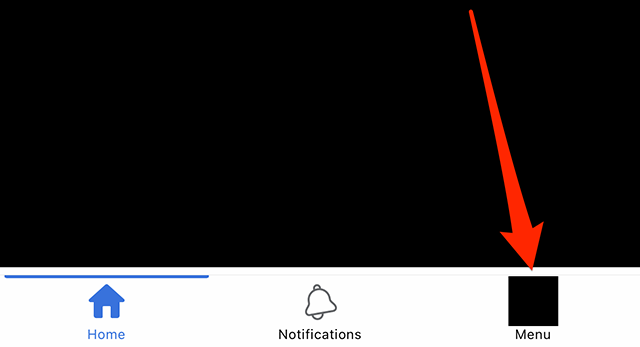
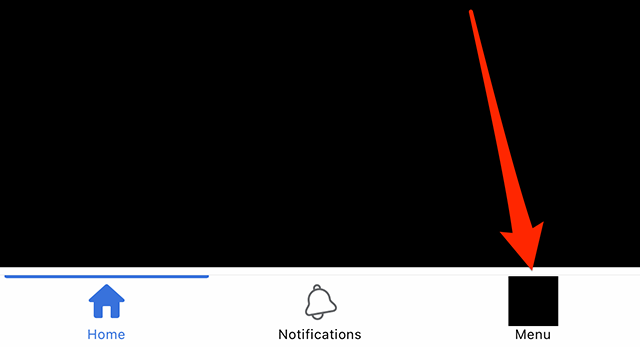
Step 1: Tap the menu icon in Facebook’s bottom navigation bar.
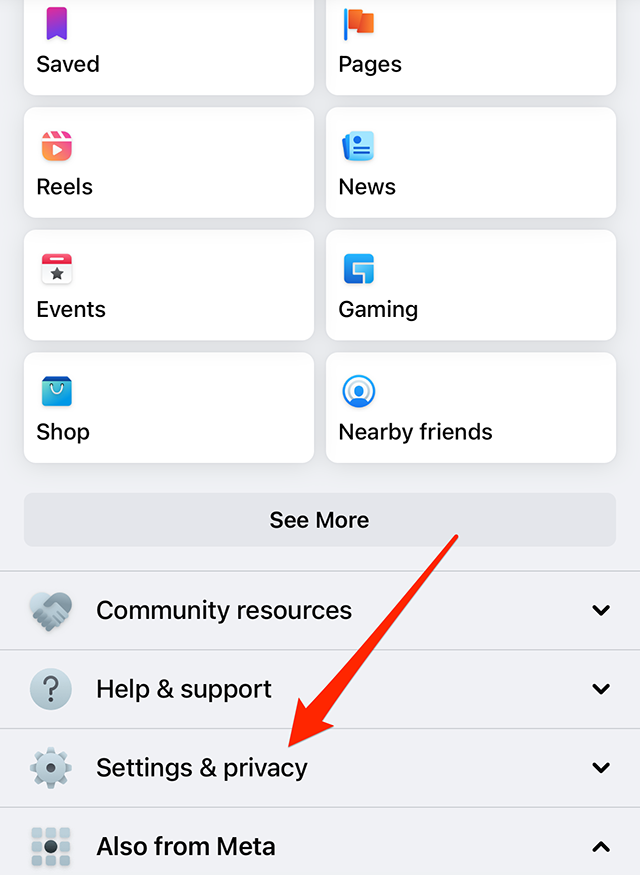
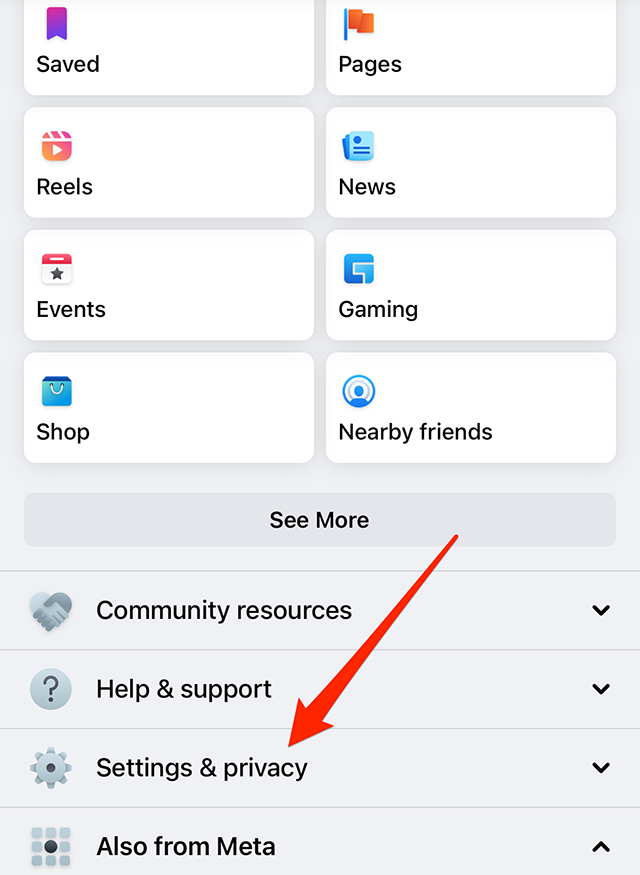
Step 2: Scroll down and tap “Settings & privacy.”
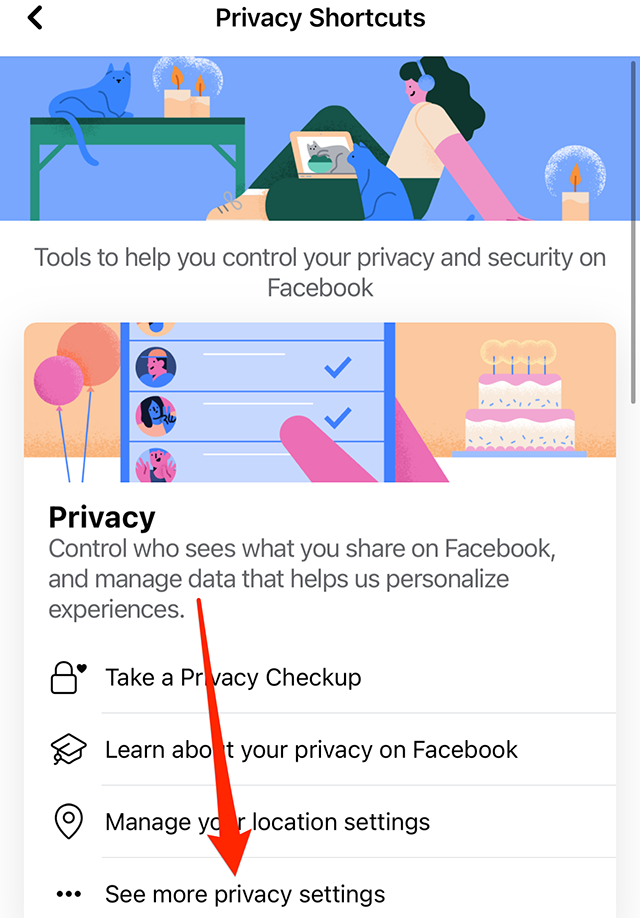
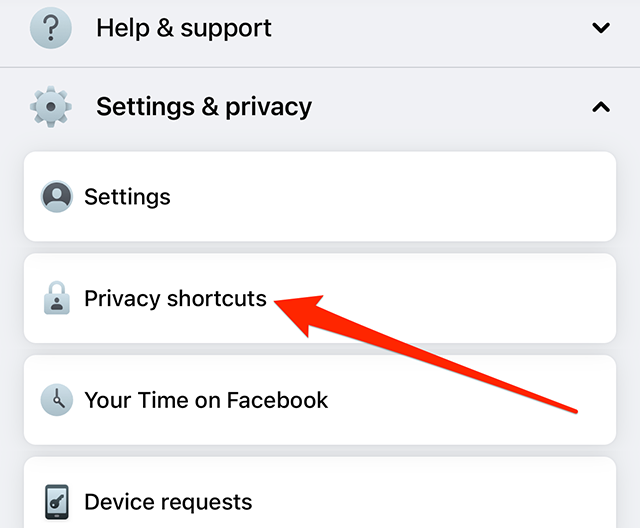
Step 3: Tap “Privacy shortcuts.”
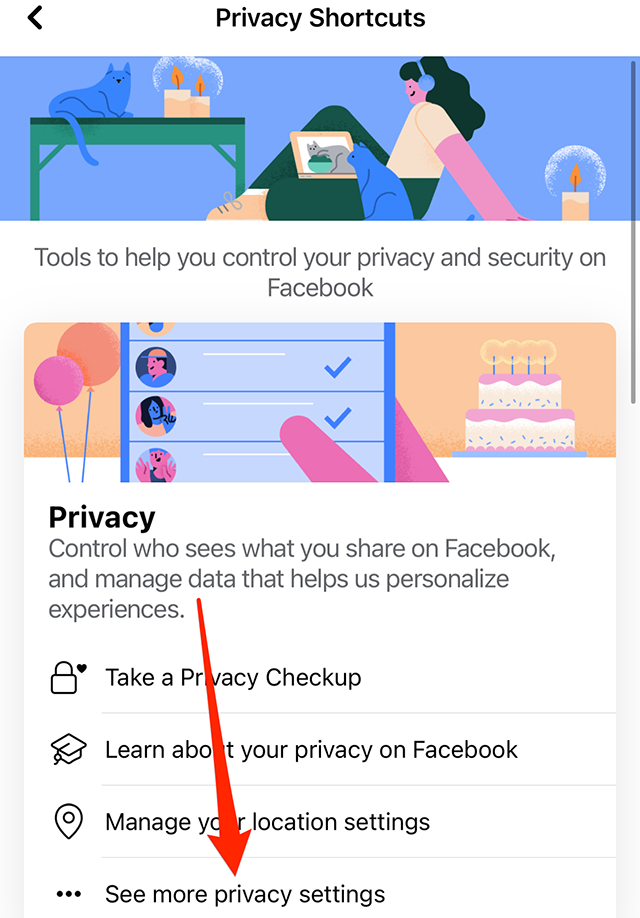
Step 4: Under the “Privacy” section, tap “See more privacy settings.”
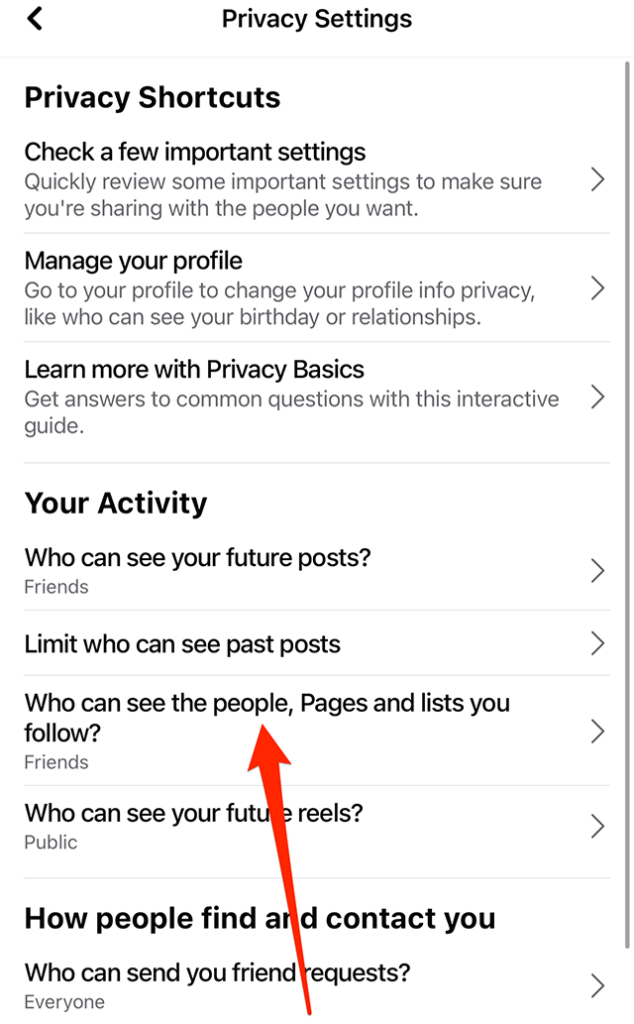
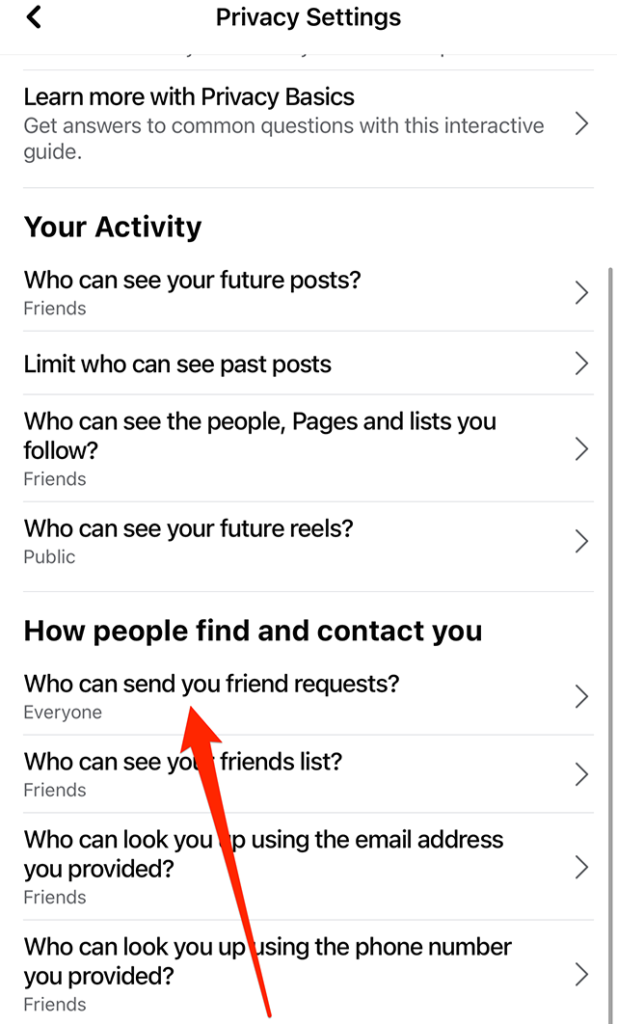
Step 5: Under the “Your Activity” section, tap “Who can see the people, Pages and lists you follow?”
Step 6: Tap “Public,” “Friends” or “Friends except…” depending on your preference.
Starting a business in the thick of the pandemic is not the easiest road to success, but Reels and other short-form video options have helped propel direct-to-consumer beauty brand Youthforia to four times the revenue in 2022 than it took in the previous year.
“Not going out and seeing people, I realized makeup was part of your routine,” Youthforia founder Fiona Chan told Adweek. “I wanted something that would be a part of routine post-pandemic.”
Facebook: How to Change Who Can Send You Friend Requests
By default, all users can send other users friend requests on Facebook. However, Facebook allows users to change a setting so that only friends of their existing friends can send them friend requests.
Our guide will show you how to change who can send you friend requests on Facebook.
Note: These screenshots were captured in the Facebook application on iOS.
Step 1: Tap the “Menu” icon in the bottom-right corner of the app.
Step 2: Scroll down and tap “Settings & privacy.”
Step 3: Tap “Privacy shortcuts.”
Step 4: Under the “Privacy” section, tap “See more privacy settings.”
Step 5: Under the “How people find and contact you” section, tap “Who can send you friend requests?”
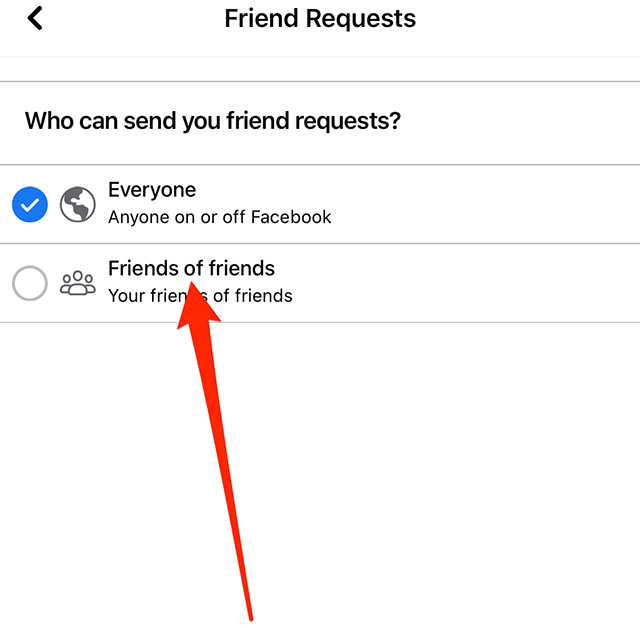
Step 6: Tap: “Friends of friends” to change this setting.
This guide was first published in May 2017 and was updated in December 2022.
Snapchat’s Snapchat+ subscription service allows subscribers to customize the look of each conversation on the social networking platform with a different background wallpaper.
Our guide will show you how to change a chat’s wallpaper in the Snapchat mobile application.
Note: These screenshots were captured in the Snapchat app on iOS.
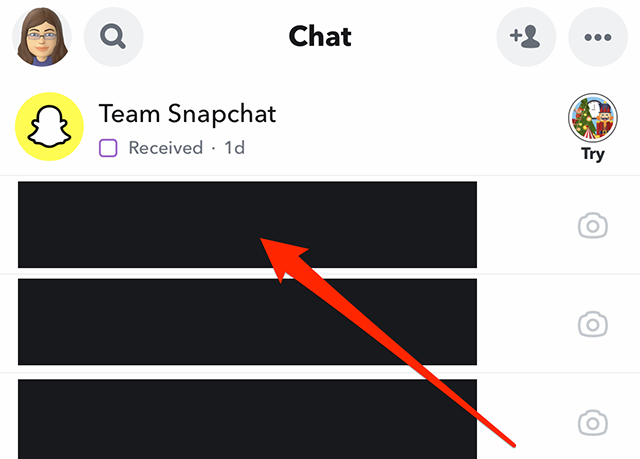
Step 1: On Snapchat’s “Chats” tab, tap the conversation you want to customize.
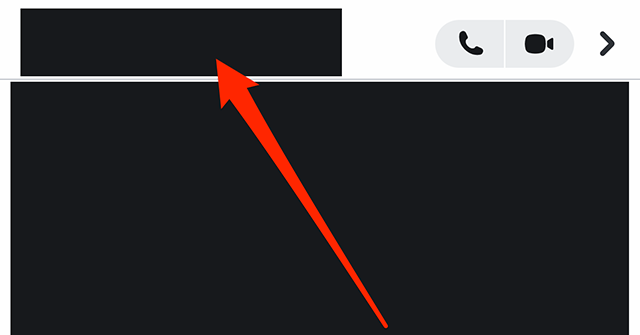
Step 2: Tap the chat’s name at the top of the screen.
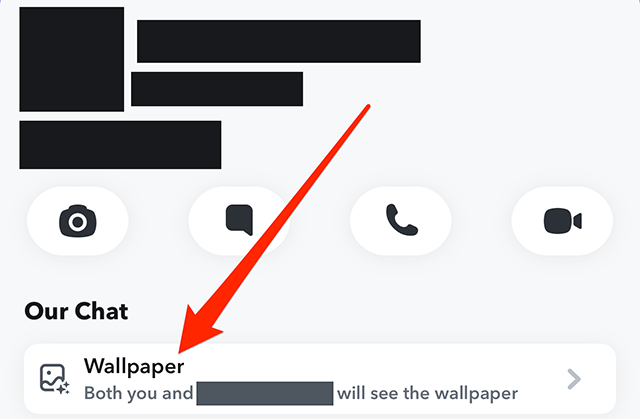
Step 3: Under the “Our Chat” section, tap “Wallpaper.”
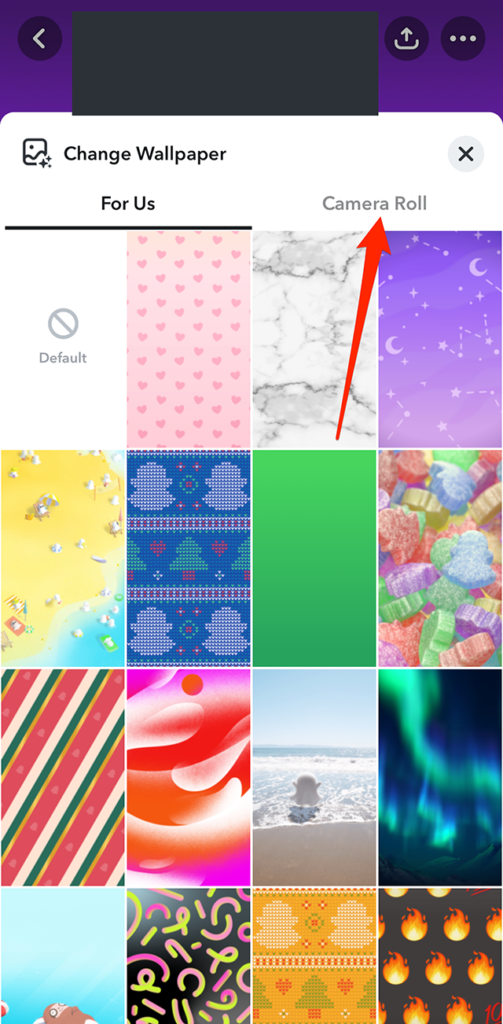
Step 4: Tap one of Snapchat’s available wallpaper options to preview it, or tap “Camera Roll” near the top-right corner of the “Change Wallpaper” window to select a picture from your device’s camera roll.
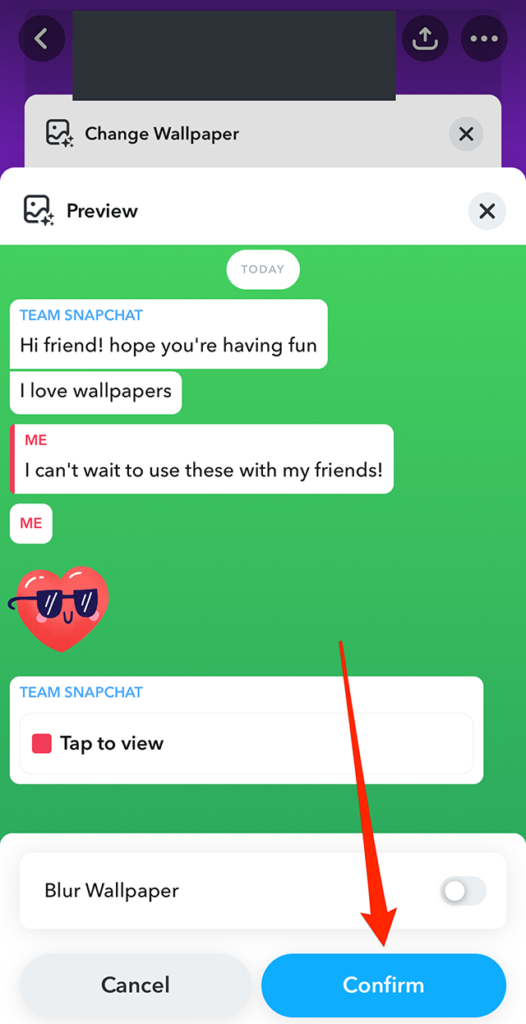
Step 5: Tap the “Confirm” button in the bottom-right corner of the preview window to use the wallpaper you’ve selected, or tap the “Cancel” button to select a different wallpaper. Note: You can tap the toggle to the right of “Blur Wallpaper” near the bottom of the screen if you want Snapchat to blur the wallpaper’s design.
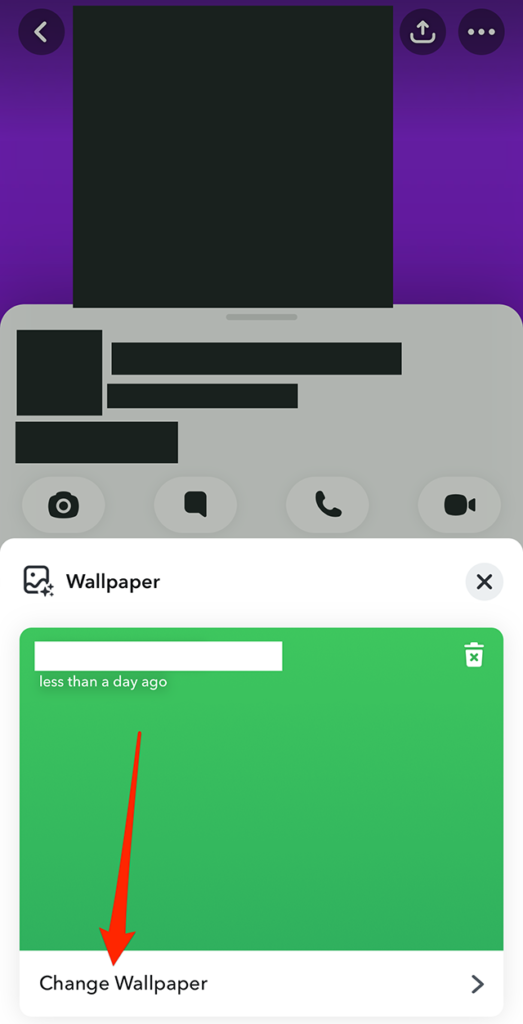
Once you choose a custom wallpaper for a conversation, you can repeat Steps 1-3 to change the wallpaper to a different option in the future. Specifically, after you tap “Wallpaper” on the user’s profile screen, you can tap “Change Wallpaper” on the window that appears to choose a different wallpaper option.
Twitter Blue Enables Video Uploads of Up to 1 Hour
Short-form video? Reels? Shorts? Those are so last week.
Subscription service Twitter Blue is now enabling users to upload videos up to one hour long from the web, at 1080p resolution and a file size of 2 gigabytes, up from 10 minutes at 1080p resolution with a file size limit of 512 megabytes.
The 512 MB limit still applies on Android and iOS.
Twitter said on a support page for sharing videos on its platform, “We strive to maintain the highest possible video quality for all videos uploaded to our platform.
Meta Files Settlement on 2018 Class-Action Suit Over Cambridge Analytica Data Scandal
“We acknowledge no wrongdoing, but here’s $725 million.”
Meta proposed a settlement late Thursday to a 2018 lawsuit over elevations that now-defunct British political consulting outfit Cambridge Analytica improperly obtained access to user data from roughly 87 million people on the platform.
The lawsuit settlement is subject to the approval of a federal judge in San Francisco, and a hearing is set for March 2.
Meta said in a statement that while it did not admit wrongdoing, the settlement was “in the best interest of our community and shareholders. Over the past three years, we revamped our approach to privacy and implemented a comprehensive privacy program.”
Lawyers for the plaintiffs said in the settlement filing that this marked the largest data privacy class-action lawsuit in U.S. history and the most Meta had ever paid to resolve a private class action, adding, “The amount of the recovery is particularly striking given that Facebook argued that its users consented to the practices at issue, and that the class suffered no actual damages.”
Clubhouse: How to Edit Your House’s Recurring Hangout
When a user creates a House on the Clubhouse platform, they can create a recurring hangout (or regularly scheduled meeting) for the House that will occur with their desired frequency, beginning on their desired date and time. For instance, a user could have their recurring hangout take place once per month.
If you ever need to make changes to your House’s recurring hangout, our guide will show you how to change your recurring hangout in the Clubhouse mobile application.
Snapchat now allows users to gift a Snapchat+ subscription to their contacts in the social networking application. Users can purchase a one-year Snapchat+ gift subscription for another Snapchat user for $29.99.
Our guide will show you how to give a Snapchat+ subscription to a friend from within the Snapchat mobile app.
Note: These screenshots were captured in the Snapchat app on iOS.
Step 1: While viewing the Snapchat camera screen, tap your profile picture in the top-left corner of the screen.
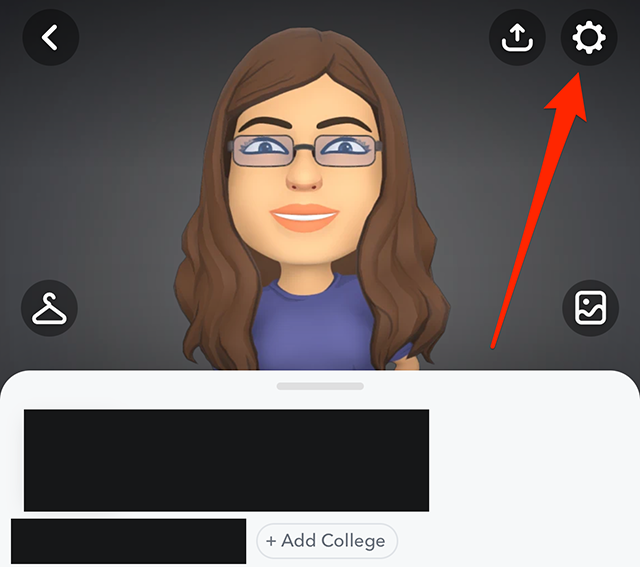
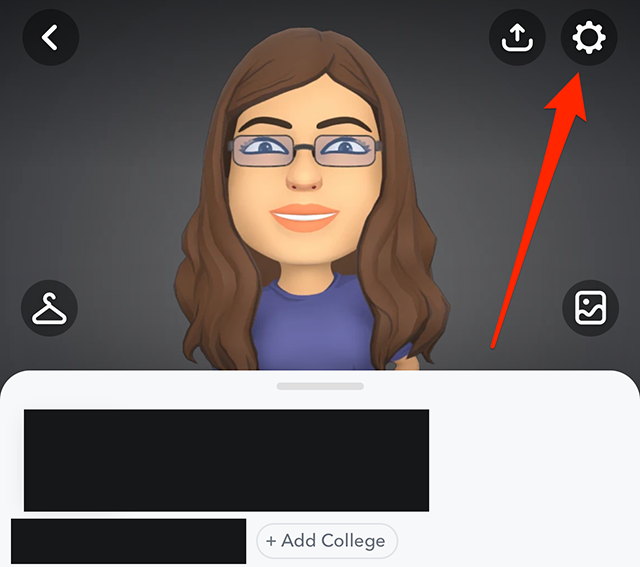
Step 2: Tap the gear icon in the top-right corner of the screen.
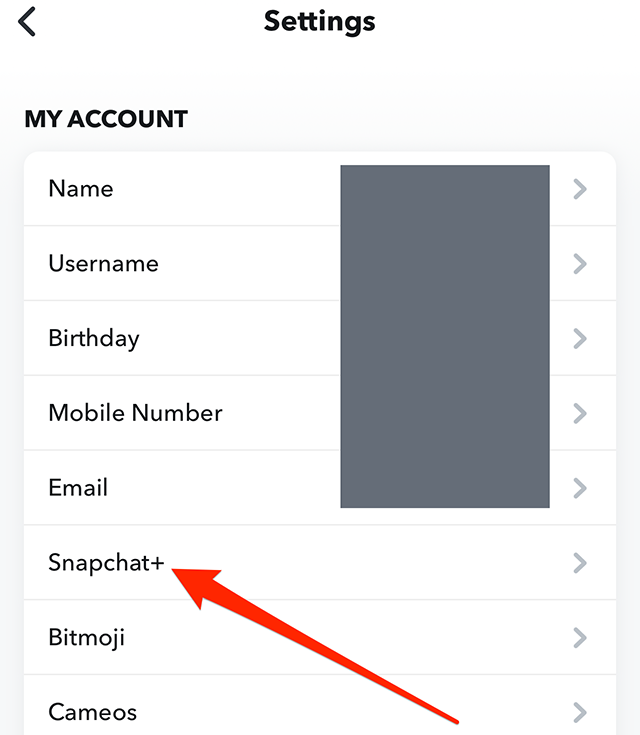
Step 3: Tap “Snapchat+.”
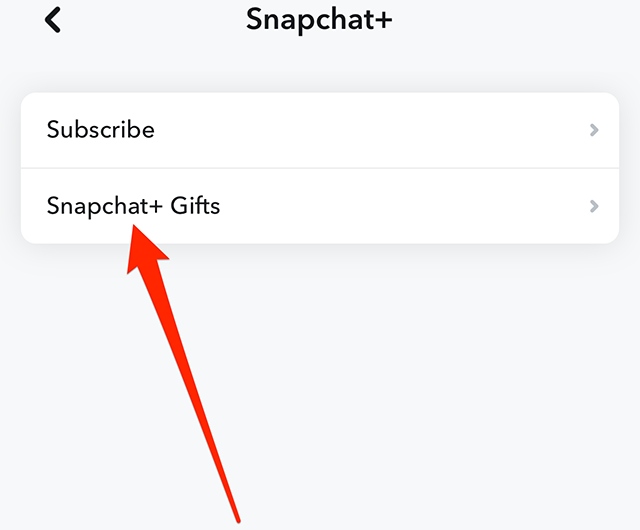
Step 4: Tap “Snapchat+ Gifts.”
Step 5: Tap the friend you want to give the Snapchat+ subscription to. Note: You can tap the search bar near the top of the screen that reads “Find Friends” to search for a friend manually.
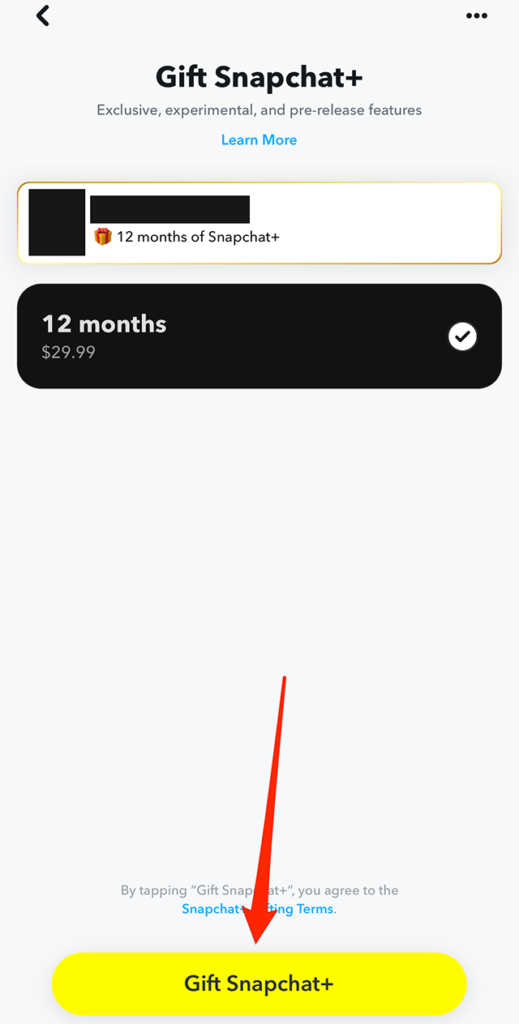
Step 6: Tap the yellow “Gift Snapchat+” button at the bottom of the screen.
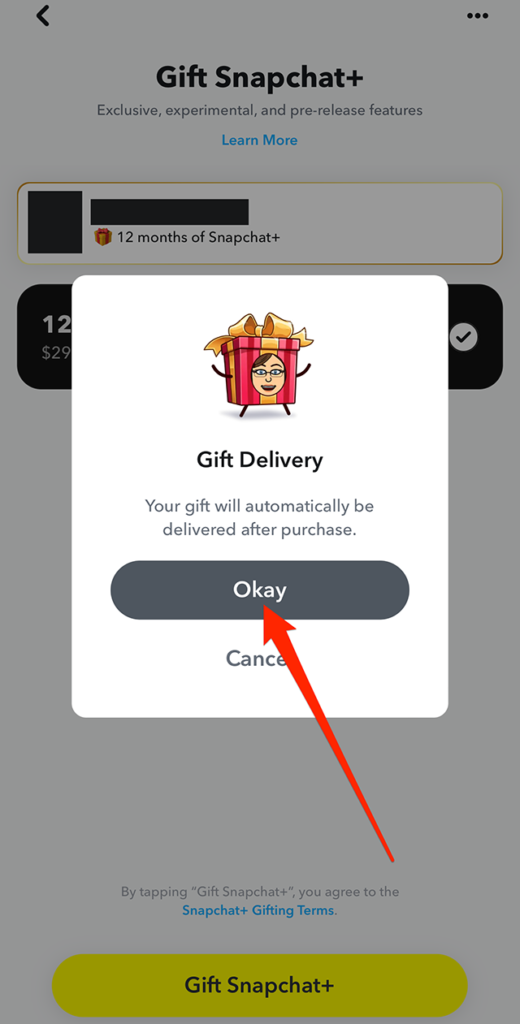
Step 7: Tap the “Okay” button on the window that appears in the center of the screen.
From there, you’ll be able to finalize the purchase on your device.
Report: TikTok Tracked Journalists From FT, BuzzFeed, While Investigating Leaks
It seems that every time TikTok takes one step forward on the path toward earning the trust of users and regulators, the ByteDance-owned video creation application then takes two steps back.
Hannah Murphy of Financial Times reported that four employees on the ByteDance internal audit team—two in China and two in the U.S.—improperly obtained the user data for FT journalist Cristina Criddle, an unnamed BuzzFeed journalist and an unspecified number of users connected to those journalists as part of an investigation into internal leaks.