WhatsApp: How to Create an Avatar Profile Photo


WhatsApp allows each user to create an avatar to represent them throughout the messaging application. Once a user creates an avatar, they can create a profile photo featuring their avatar to use in the app.

Our guide will show you how to create an avatar profile photo in the WhatsApp mobile app.

Note: These screenshots were captured in the WhatsApp app on iOS.

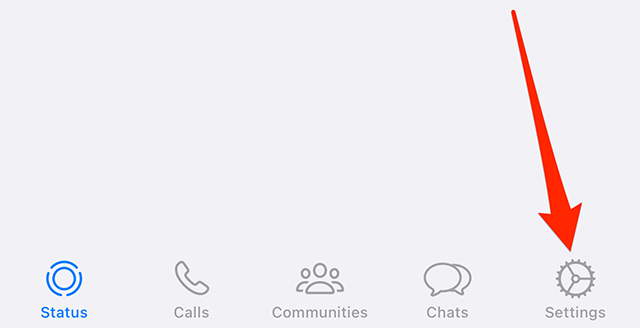
Step 1: Tap “Settings” in the bottom-right corner of the WhatsApp app.

image

Step 2: Tap “Avatar.”

image

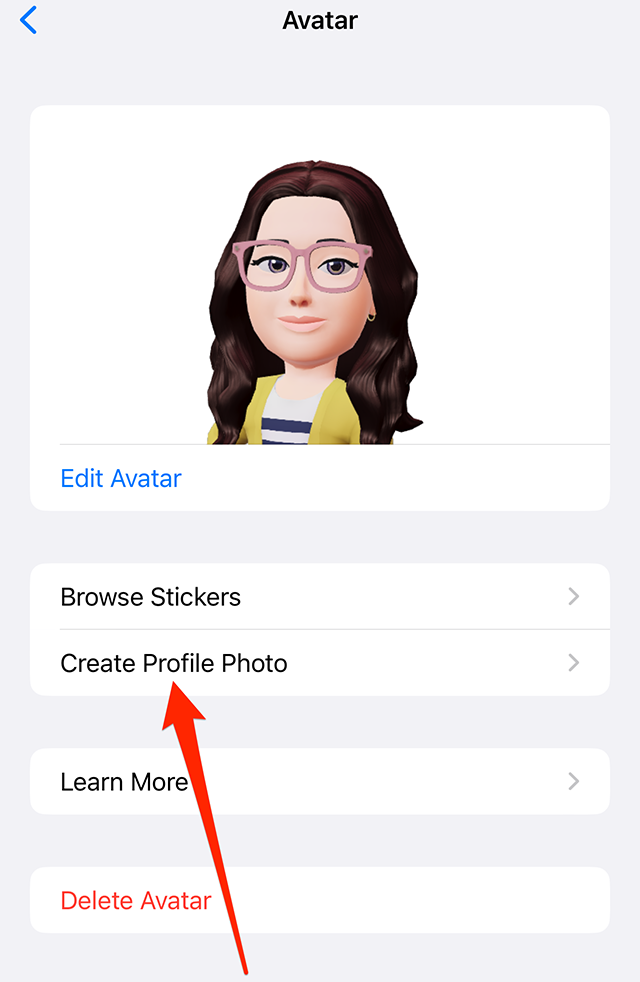
Step 3: Tap “Create Profile Photo.”

image

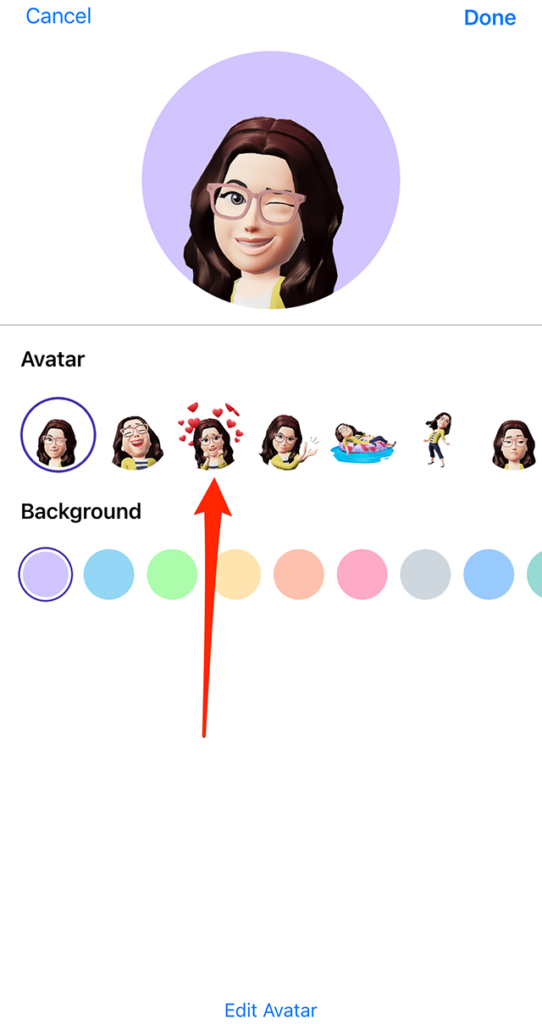
Step 4: Tap your desired avatar pose.

image

Step 5: Tap your desired background color for the profile photo.

image

Step 6: When you’re done customizing your profile photo, tap “Done” in the top-right corner of the screen. Note: Once you tap “Done,” your profile photo will be updated in the WhatsApp app.
image
.font-primary { } .font-secondary { } #meter-count { position: fixed; z-index: 9999999; bottom: 0; width:96%; margin: 2%; -webkit-border-radius: 4px; -moz-border-radius: 4px; border-radius: 4px; -webkit-box-shadow: 0 0px 15px 4px rgba(0,0,0,.2); box-shadow:0 0px 15px 4px rgba(0,0,0,.2); padding: 15px 0; color:#fff; background-color:#343a40; } #meter-count .icon { width: auto; opacity:.8; } #meter-count .icon svg { height: 36px; width: auto; } #meter-count .btn-subscribe { font-size:14px; font-weight:bold; padding:7px 18px; color: #fff; background-color: #2eb3b2; border:none; text-transform: capitalize; margin-right:10px; } #meter-count .btn-subscribe:hover { color: #fff; opacity:.8; } #meter-count .btn-signin { font-size:14px; font-weight:bold; padding:7px 14px; color: #fff; background-color: #121212; border:none; text-transform: capitalize; } #meter-count .btn-signin:hover { color: #fff; opacity:.8; } #meter-count h3 { color:#fff!important; letter-spacing:0px!important; margin:0; padding:0; font-size:16px; line-height:1.5; font-weight:700; margin: 0!important; padding: 0!important; } #meter-count h3 span { color:#E50000!important; font-weight:900; } #meter-count p { font-size:14px; font-weight:500; line-height:1.4; color:#eee!important; margin: 0!important; padding: 0!important; } #meter-count .close { color:#fff; display:block; position:absolute; top: 4px; right:4px; z-index: 999999; } #meter-count .close svg { display:block; color:#fff; height:16px; width:auto; cursor:pointer; } #meter-count .close:hover svg { color:#E50000; } #meter-count .fw-600 { font-weight:600; } @media (max-width: 1079px) { #meter-count .icon { margin:0; padding:0; display:none; } } @media (max-width: 768px) { #meter-count { margin: 0; -webkit-border-radius: 0px; -moz-border-radius: 0px; border-radius: 0px; width:100%; -webkit-box-shadow: 0 -8px 10px -4px rgba(0,0,0,0.3); box-shadow: 0 -8px 10px -4px rgba(0,0,0,0.3); } #meter-count .icon { margin:0; padding:0; display:none; } #meter-count h3 { color:#fff!important; font-size:14px; } #meter-count p { color:#fff!important; font-size: 12px; font-weight: 500; } #meter-count .btn-subscribe, #meter-count .btn-signin { font-size:12px; padding:7px 12px; } #meter-count .btn-signin { display:none; } #meter-count .close svg { height:14px; } }

Enjoying Adweek’s Content? Register for More Access!

https://www.adweek.com/media/whatsapp-how-to-create-an-avatar-profile-photo/